
PxBee AI Clothes Changer: What It Does and When to Try an Alternative
Searching for a PxBee AI clothes changer? See what we could verify on PxBee today, how to assess the ambiguous query, and when a focused alternative fits.
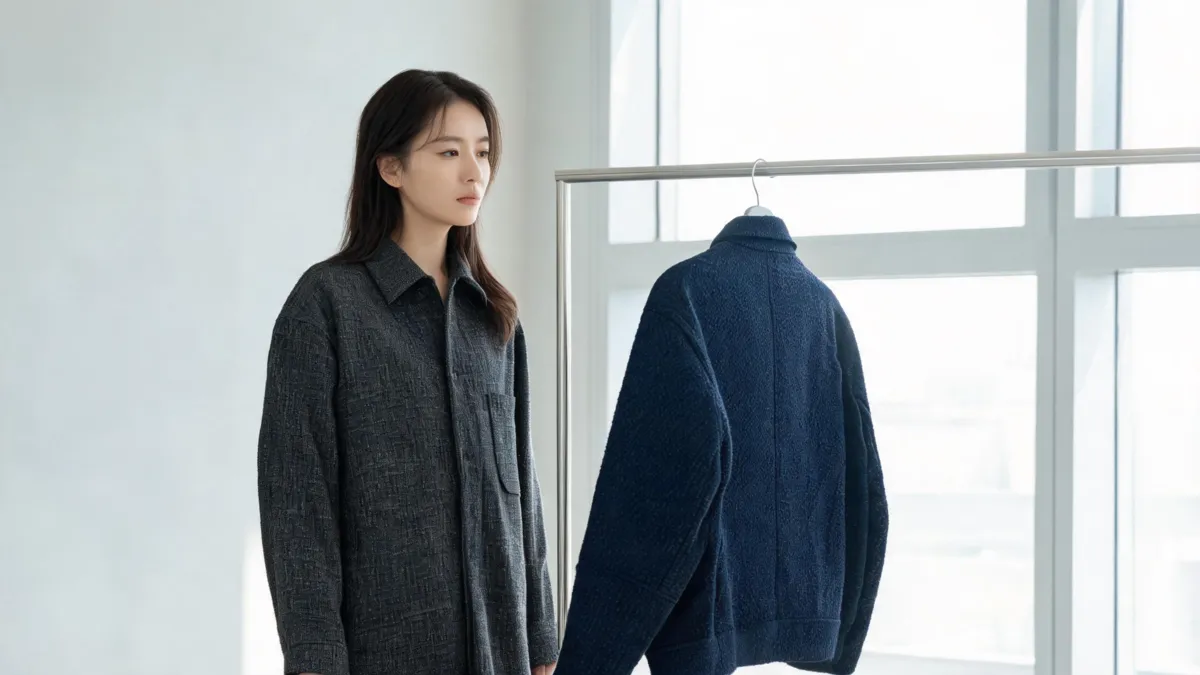
We could not verify a live, standalone PxBee AI clothes changer when we checked PxBee’s public site on September 9, 2026. PxBee currently presents itself as a broader AI photo editor, so treat the search phrase as ambiguous rather than assuming it describes a dedicated outfit tool. If your real task is to compare a garment on one adult photo, a focused AI clothes changer gives you a clearer workflow and a result you can inspect against the original.
Last updated: September 9, 2026 · ~7 min read
This is an independent editorial check, not a sponsored comparison. The useful response is the honest one: the public PxBee homepage describes AI photo-editing tools, while the expected standalone clothes-changer path was not available in our check. Features, routes, prices, and account rules can change, so use the live product page—not an old search snippet—as the deciding source before you upload an image.
What can you verify about PxBee today?
The current PxBee homepage describes a free AI-powered photo editor and links to broader photo-editing categories. That can be useful if your job includes background work, enhancement, or another general image task. It is not enough evidence to claim that PxBee currently offers a dedicated clothes-changing workflow with a particular input, control, or export rule.
That distinction matters because “AI clothes changer” can mean several different jobs:
| What you want to do | The question to ask first | A sensible workflow |
|---|---|---|
| Replace an outfit on one person photo | Can the tool keep identity and the scene stable? | Focused clothes changer with a full-size review |
| Preview a specific garment | Can you supply a clear garment reference? | Virtual try-on with the person and item images |
| Change only a garment’s shade | Do you need the original garment construction preserved? | Clothes color changer |
| Retouch a complete image | Are the outfit edit and other photo edits part of one job? | A broader editor, after confirming its live controls |
An ambiguous branded query is not a reason to make up missing product detail. If you land on a broad editor, first locate its current documentation or the actual clothes-editing control. If neither is present, choose a tool that states the workflow you need instead of trying to infer it from examples.
A polished thumbnail is not proof of a reliable outfit edit. The test is whether the face, hands, garment edges, light, and background still make sense when you compare the result with the source at full size.
When is a focused alternative the better fit?
A focused alternative is usually the clearer choice when the decision is narrow: “Would this jacket work on this person?” or “Should I explore this look before I buy?” AIClothSwap is built around a person photo plus either a garment reference or a concrete outfit direction. That narrower starting point leaves less ambiguity about what should change.
Use it as a visual decision aid, not a virtual fitting room in the literal sense. A convincing render can suggest color balance, silhouette, and styling direction. It cannot establish the real item’s measurements, availability, texture, comfort, or how it will move in person.
A three-step comparison that stays fair
- Pick a readable adult source photo. Use even light, a visible torso, and clear shoulder, sleeve, and waist boundaries. Hair over the collar, crossed arms, bags, and heavy shadows make any clothing edit harder to judge.
- Describe one bounded change. For example: “Replace the overshirt with a fully buttoned navy field jacket. Keep the face, hair, hands, trousers, pose, lighting, and background unchanged.” A separate garment photo is helpful when the silhouette matters.
- Review the original and output side by side. Look for changes outside the clothing area before you decide whether the preview has answered your question.
For help preparing the input, see how to photograph clothes for AI outfit edits. If you only need a color test, do not ask a whole-outfit renderer to recreate the garment; the more specific color-changing workflow is easier to evaluate.
The details worth checking before you keep a result
Start with the person, not the new jacket or dress. Compare facial proportions, expression, hairline, and skin tone. Then move outward to the collar, shoulders, sleeve openings, hands, waistband, hem, and the background immediately around the silhouette. These are the places where a small preview can hide a bad edit.
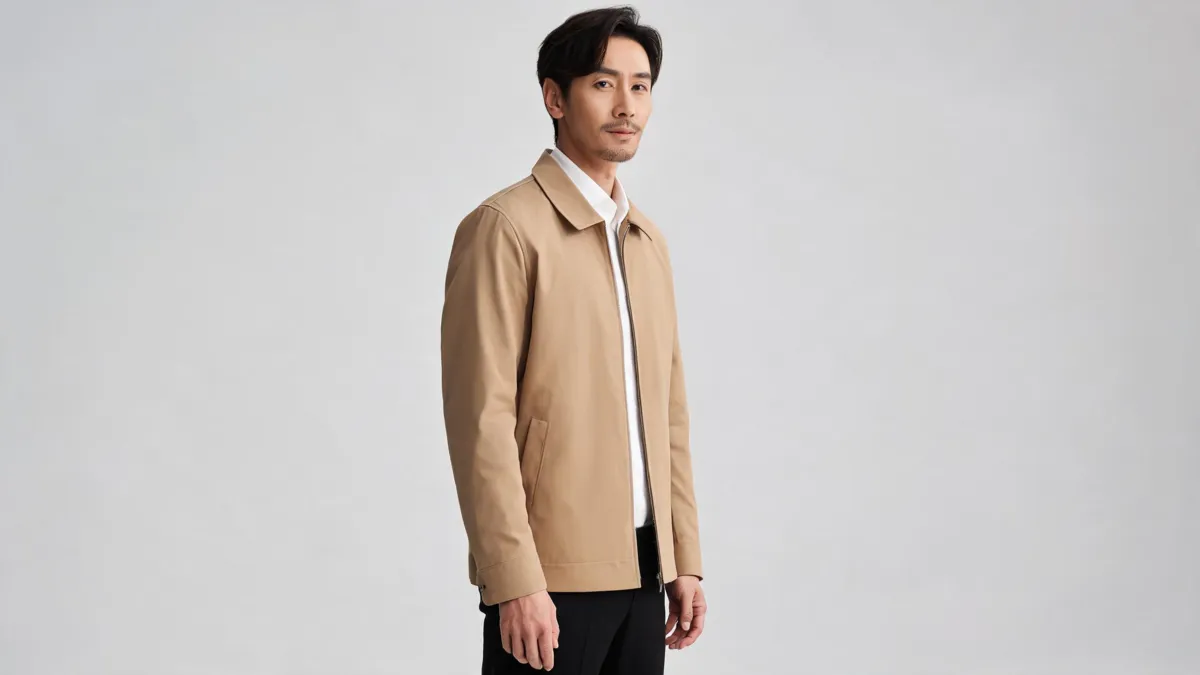
Editorial quality-check image, not a PxBee or AIClothSwap result. Inspect boundaries and lighting separately from the outfit idea.
Use this short acceptance checklist:
- Identity: the face, hair, body proportions, and pose remain recognizably tied to the source.
- Garment structure: collar, cuffs, pockets, closures, seams, and hem follow the body instead of floating over it.
- Overlaps: hands, hair, straps, and jewelry pass in front of or behind the clothing naturally.
- Light: shadows under the chin and arms agree with the original scene.
- Scope: nearby objects and the background have not been unnecessarily repainted.
If the first output fails one of those checks, simplify the source or the change request before generating again. Adding a stack of style adjectives usually makes it harder to know why an edit changed too much. Our guide to why AI clothes swaps look fake breaks down the most common failure points.
What to check before uploading a photo anywhere
Only use an adult’s photo when you have permission to edit it. Do not use an outfit editor for deceptive, intimate, or non-consensual images. For client, retail, or campaign work, confirm that you have rights to the person image, garment reference, and background before you begin.
Then check the provider’s live terms and privacy information for upload retention, deletion, training use, watermarking, and commercial-use rules. These terms are separate from whether a demo page looks free. AIClothSwap’s own Content Policy explains the consent and allowed-use boundaries for this service.
Frequently asked questions
Does PxBee currently have a standalone AI clothes changer?
We could not verify a current standalone PxBee clothes-changer page when this guide was reviewed. PxBee’s public homepage presents a broader AI photo editor, so check the live product navigation before you upload a photo or depend on a feature.
What should I use if I only want to preview a new outfit?
Use a focused clothes-changing or virtual try-on workflow when the task is one person photo plus a garment reference or a written outfit direction. Keep the original nearby and inspect the output at full size.
Can an AI outfit preview tell me whether clothes will fit?
No. An image preview can help with color and silhouette direction, but it cannot confirm measurements, fabric feel, availability, or fit. Check the retailer’s size chart and product details separately.
Related guides
- Try the free AI clothes changer →
- Preview a garment with virtual try-on
- Change an outfit without changing the face
- Choose a stronger source photo
- Check whether an AI clothes changer is safe
Choose the workflow you can actually verify
PxBee may be useful for a broader photo-editing job, but this specific query does not currently establish a dedicated PxBee clothes changer. When the task is a bounded outfit preview, try the AI clothes changer, compare the result with the source, and keep only an edit that survives a full-size review.