
How to Change an Outfit Without Changing the Face or Background
Change an outfit in a photo while protecting the face and background. Use a clear source photo, a narrow request, and a four-point review before saving.
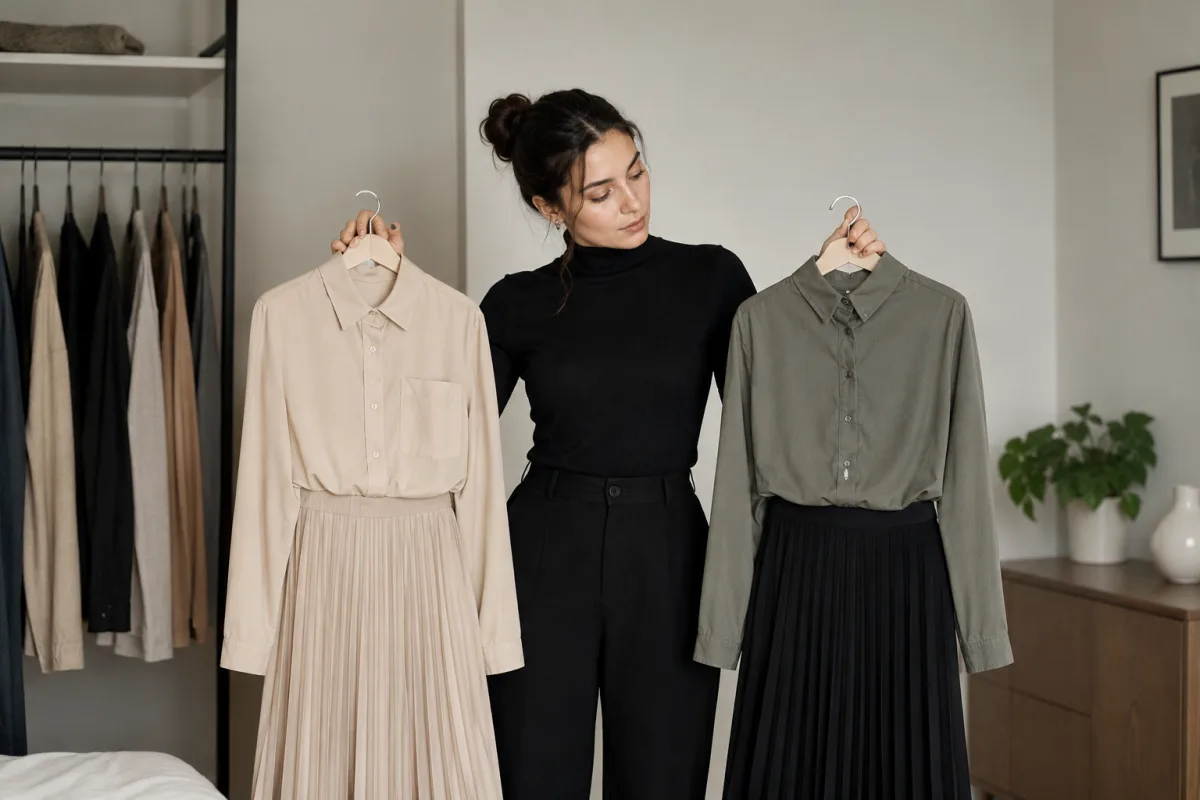
To change an outfit without changing the face or background, use a clear source photo, request one clothing edit at a time, and explicitly protect the person’s face, hair, pose, lighting, and setting. An AI clothes changer can provide a useful visual preview, but every result still needs a close check before you post, print, or use it as a professional image.
Last updated: July 22, 2026 · about 6 min read
The common mistake is treating “change my outfit” as a small request. Clothing wraps around the neck, shoulders, arms, and hands, so a vague prompt can cause the model to rebuild more of the image than you intended. The goal is to give it a stable photo and a tight edit boundary.
Give the edit a small job
Start with the outfit you want and the elements that are not allowed to move. This simple structure is more useful than a dramatic styling prompt:
Keep the same person, face, hair, pose, hands, lighting, and background. Change only the jacket to a charcoal blazer with a white shirt. Keep the neckline, shoulders, and garment edges natural.
That does not guarantee a perfect output. It gives you a way to judge whether the result stayed within the task.
| Request | Why it is safer | Main risk |
|---|---|---|
| Replace a visible shirt with a shirt | Similar silhouette | Collar or sleeve edge drift |
| Add a blazer to a clear portrait | Stable shoulders and torso | Lapels crossing hair or hands |
| Change a dress color | No new body shape needed | Color spilling into skin or wall |
| Turn a cropped selfie into a full formal outfit | Large new image area | Face, body, and background changes |
Use a source photo that supports preservation
For an AI dress-up preview, use a photo with an uncovered face, a visible neckline, a relaxed pose, and enough space around the body. The model cannot reliably protect a face it barely sees or reconstruct a garment hidden under crossed arms, a bag, or long hair.
- Pick a sharp image with even lighting and a simple background.
- Ask for one garment change; do not combine outfit, body, makeup, background, and “make it cinematic” in one instruction.
- Generate a few controlled variations, then choose the one that preserves the person rather than the one with the flashiest clothes.
A controlled outfit preview starts with a source image that makes the person and setting easy to preserve.
Check face, hands, hairline, and background separately
At first glance, an edit may look fine. Zoom in before you use it. The fastest quality review is a fixed four-part pass:
| Check | Look for | What to do if it fails |
|---|---|---|
| Face and hairline | Changed features, smudged skin, altered ears | Use a clearer source and a narrower request |
| Hands and arms | Extra fingers, sleeves covering fingers | Choose a pose with visible hands or change only the top |
| Garment boundary | Collar cutting into hair, impossible shoulder seams | Simplify the target garment |
| Background | Bent lines, missing objects, changed lighting | Remove background instructions and regenerate |
Do not keep an image just because the clothing looks good. If the person no longer looks like the person in the source photo, the edit failed its most important test.
Avoid the “whole new image” prompt
These phrases often enlarge the task: “make me look better,” “give me a complete makeover,” “change the scene,” or “make this editorial.” Use them only after you have a stable clothing edit, and only if you are comfortable with a new image rather than a controlled preview.
For a big silhouette change, start with a full-body photo. For a professional portrait, stay close to the source: a shirt, blazer, sweater, or simple dress is generally easier to review than an outfit that requires a completely new body pose. The best photo for an AI clothes changer guide has a more detailed input checklist.
A good review looks at small failure points separately instead of trusting one attractive thumbnail.
Frequently asked questions
Can AI change clothes without changing my face?
It can produce a controlled preview when the face is clear and the request is narrow, but it is not guaranteed. Ask the edit to preserve the face, hair, pose, lighting, and background, then inspect the result closely.
Why does an outfit change alter the background?
The requested garment may overlap with the body and surroundings, especially in a cropped or cluttered photo. Use a simple source image and avoid combining a clothing change with new scene or lighting directions.
What photo works best for an outfit change?
Choose a sharp, evenly lit image with the clothing area visible, the face uncovered, and hands not blocking the torso. A simple background also makes it easier to see whether the edit stayed contained.
Related guides
- Try the free AI clothes changer →
- AI dress-up preview
- Best photo for an AI clothes changer
- Why AI clothes swaps look fake
Keep the edit small enough to inspect
Use the preview to compare an outfit, not to manufacture an identity photo. Change an outfit with AI → and review face, hands, hairline, and background before you keep it.