
Canva Virtual Try-On Clothes: What You Can Actually Preview
Canva virtual try-on clothes can create an outfit concept. Learn what to check, the limits, and when a dedicated virtual try-on fits better.
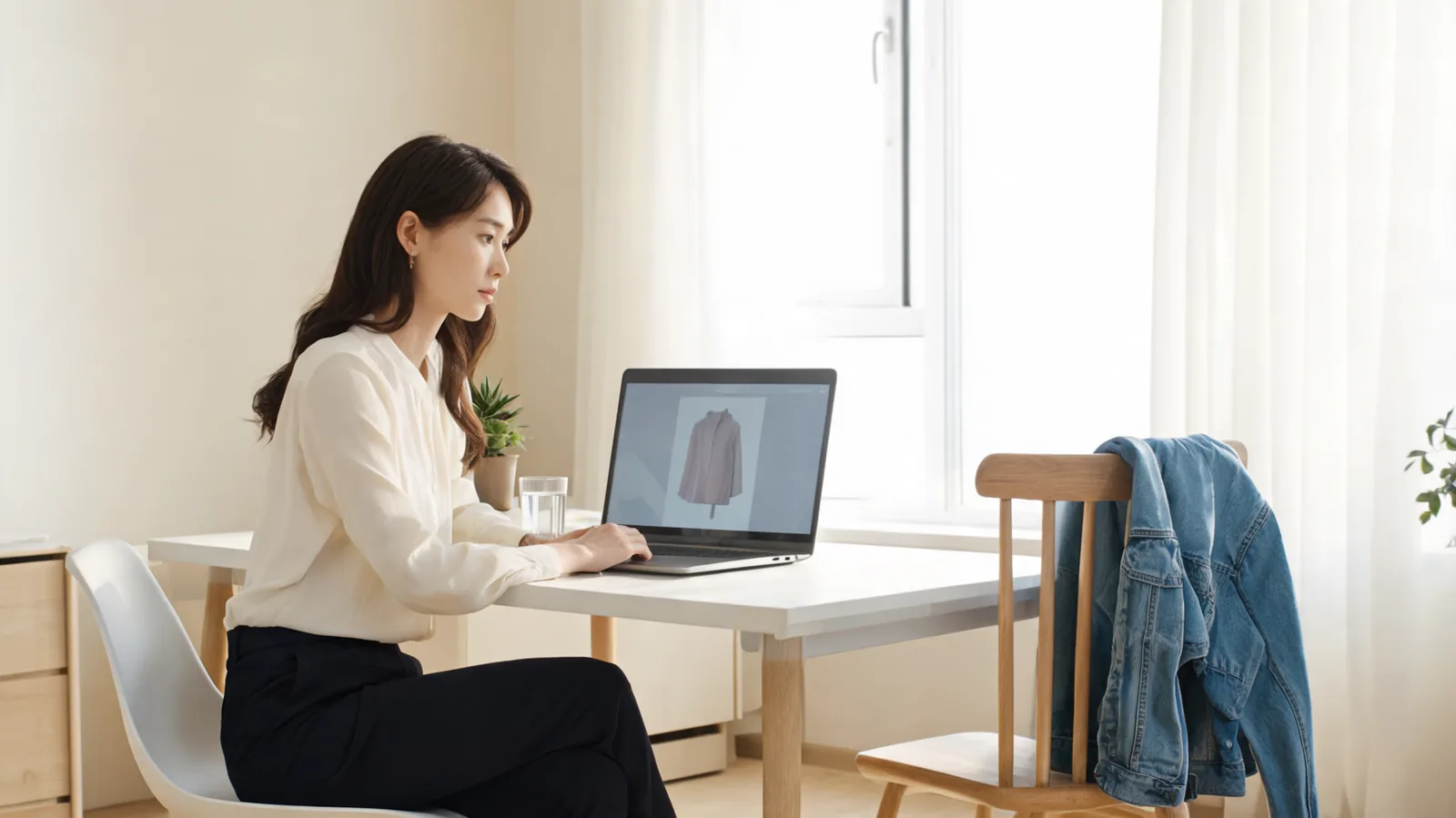
Canva virtual try-on clothes can be useful for making a visual outfit concept in a design, but it should not be treated as proof of size, fabric, fit, stock, or an exact product match. Canva’s Apps Marketplace includes third-party Try On apps; use one to compare a broad clothing direction, then use a virtual try-on when the clothing preview itself is the decision you need to inspect.
Last updated: October 2, 2026 · about 7 min read
The important distinction is simple: a design tool helps you make an asset, while a try-on workflow helps you evaluate a clothing change in an image. They can work together, but asking one result to answer both jobs creates unnecessary confusion.
What Canva virtual try-on can actually do
Canva’s Try On app listing describes a third-party app for virtually trying on outfits in a static pose or video. It also cautions that the result can alter colors, shapes, and fit, which is the right limitation to keep in mind.
For a concept image, the workflow can help you ask useful visual questions:
- Does a denim jacket or a tailored blazer better support this social-post idea?
- Does the garment direction work with the background, crop, and campaign palette?
- Is the silhouette broad enough to explore with real samples or a real fitting?
- Which of two outfit concepts belongs in the final Canva layout?
It cannot establish the factual details of a real product. Do not use a generated preview to claim that an item has a specific cut, color, size, fabric, logo, availability, or fit unless you have verified that detail independently.
| If your question is… | A Canva app preview can help | You still need to check |
|---|---|---|
| Which jacket color works with this campaign image? | Yes, as a visual direction | The actual garment color under intended lighting |
| Does a casual or tailored layer read better? | Yes, if the source stays fixed | Comfort, fit, and the event’s dress expectation |
| Will this exact item fit a customer? | No | Size chart, measurements, reviews, and return terms |
| Can I use this as an accurate store listing? | Not on its own | Product data, approved imagery, and channel requirements |
Treat the preview as a concept image. The real garment, its product page, and a real fitting remain the evidence for purchase or product claims.
Make a fair Canva outfit preview in three steps
The goal is not to produce twenty unrelated looks. It is to compare a small number of clothing directions while holding the rest of the image steady.
- Start with a suitable photo. Use a clear, authorized image of one adult person. The clothing area should be visible in even light, without crossed arms, a bag, heavy hair, or a crowded background hiding the outline.
- Change one clothing decision. Choose one jacket, dress direction, or degree of formality. Keep the person, pose, face, hair, lighting, crop, and background stable. If you are comparing two looks, start both from the same original photo.
- Review before you design. Inspect the neckline, shoulders, sleeves, hands, waist, hem, shadows, and background at full size. Only then bring the strongest concept into a Canva layout for text, crops, or presentation.
If your request makes the person look different, changes the setting, or adds details you did not ask for, it is not a clean comparison. Go back to the original and simplify the change. The same approach applies when you use an AI clothes changer: a controlled output is more informative than an eye-catching but unstable one.
Use Canva and virtual try-on for different jobs
The simplest combined workflow puts each tool where it is strongest.
| Stage | Best focus | What to preserve |
|---|---|---|
| Outfit decision | Garment reference and one controlled clothing change | Person, pose, light, crop, and background |
| Quality review | Collar, sleeves, hands, fabric edges, and shadows | The reason the comparison is fair |
| Design production | Layout, copy, brand elements, crop, and export | The approved preview as one design element |
For a garment-led question, start with a virtual try-on with a garment reference. For a color-only question, a clothes color changer keeps the original silhouette in place. After the image passes review, Canva is a natural place to make the social card, mood board, or presentation slide.
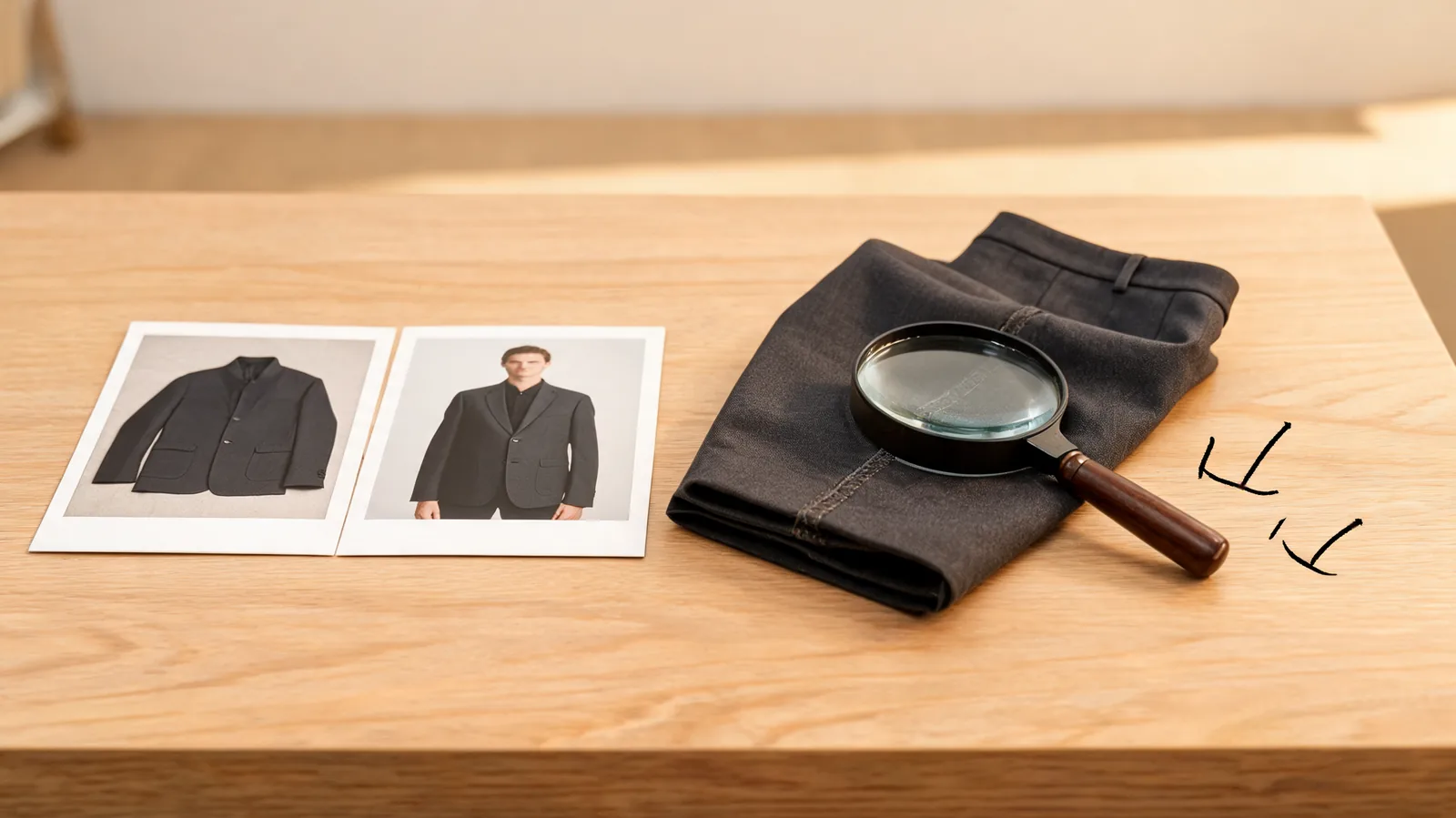
A careful review separates a useful clothing concept from an image that has changed too much to support the decision.
Check the result before you share it
Review the output at normal size, not only as a small thumbnail in a design. Use this short checklist.
- Identity: Is it still the same person, with the face, hair, and proportions kept stable?
- Garment boundary: Do neckline, shoulder, sleeve, waist, and hem edges stay separate from skin, hair, hands, and background?
- Light: Do folds and shadows belong to the original scene rather than a different one?
- Product honesty: Could someone mistake the concept for a verified product photograph? If so, do not make unsupported product claims.
- Permission: Do you have permission to edit the source photo and use the result for its intended purpose?
For a more detailed visual review, see how to tell when an AI clothes swap looks fake. For a shopping choice, keep the preview beside the retailer’s current listing and use the listing—not the generated image—for price, availability, materials, and sizing.
When a dedicated try-on is the better starting point
Choose a dedicated virtual try-on when you have a person photo and a specific garment reference, and you need to compare how that clothing direction sits in the image. The job is to preserve the person and scene while changing clothing as narrowly as possible.
Choose Canva first when your main job is a finished design: a thumbnail, campaign post, presentation, or before-and-after card. You can still add an outfit concept, but it is one visual component among layout and copy choices.
This difference matters most for ecommerce or client work. A polished image is not automatically a trustworthy product representation. Keep the original, the approved concept, and the factual product information separate so a teammate or customer can see what is being shown.
A short Canva try-on walkthrough
This walkthrough shows how a Canva outfit try-on can be used for a marketing or creative concept.
Frequently asked questions
Can Canva virtually try on clothes?
Canva’s Apps Marketplace includes third-party Try On apps that can create outfit concepts inside a Canva design. App availability, terms, and results can change, so review the specific app listing and its permissions before using it.
Can a Canva outfit preview tell me my size?
No. An image preview can suggest a color, silhouette, or styling direction, but it cannot measure your body, confirm garment construction, or predict the fit of a real item. Use the seller’s size chart, garment measurements, reviews, and return terms.
What photo works best for a virtual outfit preview?
Use a clear, well-lit photo of one adult subject with the torso and clothing edges visible. Avoid heavy filters, motion blur, crowded scenes, and hands, hair, or bags covering most of the garment area.
When should I use a dedicated virtual try-on instead of Canva?
Use a dedicated virtual try-on when the central task is comparing a garment reference on a person photo and reviewing preservation of identity, pose, clothing boundaries, and lighting. Use Canva after a clean preview when you need layout, copy, crops, or a finished design asset.
Related guides
- Try the free AI clothes changer →
- Use a virtual try-on with a garment reference
- Change clothes without changing the face
- Compare Canva and an AI clothes color changer
- Review an AI clothes changer result
Make the image support the decision
Use a clothing preview to narrow a visual direction, then let real garment information and a careful review carry the purchase or publication decision. Start a focused outfit comparison →.