Canva vs AI Clothes Color Changer: When to Use Each
Compare Canva and an AI clothes color changer for outfit recolors. Learn when design tools are enough and when AI garment-aware editing is safer.
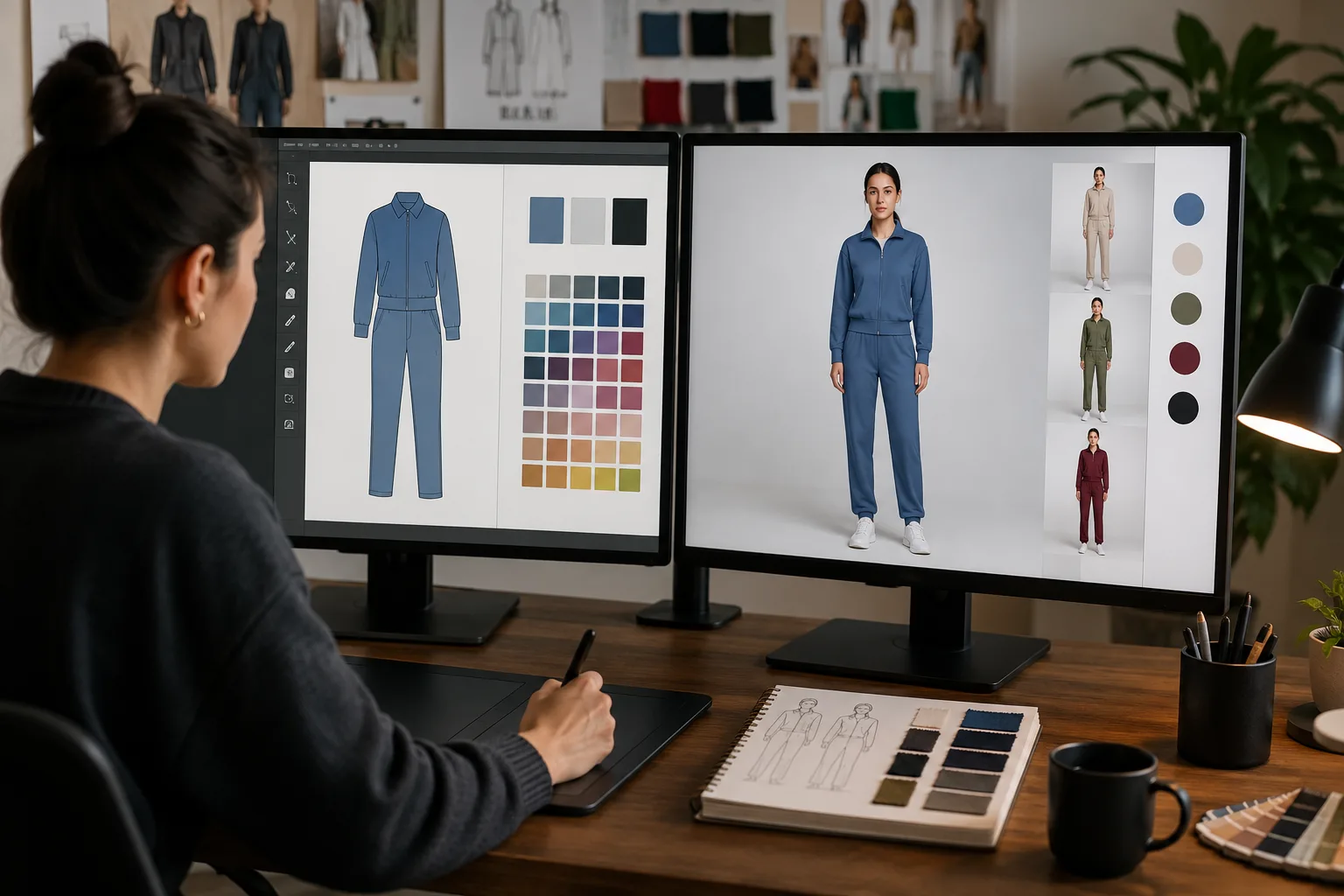
Canva is useful when you are designing a graphic, replacing a background, adding layout elements, or making quick social assets. An AI clothes color changer is the better starting point when the job is garment-specific: recolor a shirt, dress, jacket, or outfit while keeping the person, fabric shape, pose, lighting, and background natural.
Last updated: July 4, 2026 - about 7 min read
People search for a Canva clothes color changer because they want the simplest possible way to recolor clothing in a photo. That makes sense. Canva is familiar, browser-based, and strong for design work. But clothing recolor is not only a design problem. It is an image-editing problem with fabric texture, shadows, skin edges, hair, hands, and garment boundaries.
This comparison explains when Canva-style editing is enough, when an AI clothes color changer is safer, and how to combine both without wasting time.
Quick answer
Use Canva when you need:
- A social graphic, poster, thumbnail, or presentation.
- Background removal or layout edits.
- Text, shapes, frames, brand colors, and export formats.
- A quick mockup where exact garment realism is not critical.
Use an AI clothes color changer when you need:
- To change clothes color in a real photo.
- To keep the same person and pose.
- To preserve fabric texture, folds, shadows, and garment edges.
- To preview shirt, dress, jacket, hoodie, pants, or outfit colors.
- To test ecommerce or creator color options before manual review.
If the clothing edit needs to look like the photo was shot that way, start with AI. If the image is part of a designed layout, finish in Canva or another design tool after the clothing edit is clean.
The difference is garment awareness
A design editor treats the image as a design element. That is great when you are building a final asset. It is less ideal when the question is: "Can this tool understand where the shirt ends, where the skin begins, and how shadows should behave after the color changes?"
An AI clothes color changer tries to keep the garment structure intact. It can use the original shirt, dress, or jacket as the boundary and change the color while preserving folds, neckline, sleeves, and lighting. That does not mean every output is perfect. It means the workflow starts from the right assumption: change the clothing, not the whole design.
For a broader manual-vs-AI comparison, read AI clothes color changer vs Photoshop. Canva sits closer to the design side of that spectrum.
Side-by-side comparison
| Need | Canva-style design workflow | AI clothes color changer |
|---|---|---|
| Social layout | Strong | Useful only for the clothing edit |
| Shirt or dress recolor | Possible, but may need manual selection | Built for this job |
| Fabric texture | Depends on edit method | Usually better on simple fabrics |
| Exact brand color | Needs manual checking | Also needs manual checking |
| Beginner speed | Fast for layouts | Fast for garment previews |
| Edge cleanup | Manual | AI-assisted, still review |
| Ecommerce color testing | Good for final cards | Better for first clothing variants |
The important point: neither workflow removes the need to inspect the result. The difference is where you spend your effort.
When Canva is the right tool
Use Canva when the image is already edited and you need to package it. A creator might recolor a shirt first, then bring the image into a thumbnail layout. A store owner might generate a few color previews, then use Canva for a comparison graphic or size guide.
Canva is also useful when the clothing does not need to be photo-realistic. If you are making a mood board, color palette, announcement card, or concept slide, a rough recolor may be enough. The audience is reading the idea, not inspecting every fabric edge.
Canva is strongest for:
- Adding text overlays.
- Creating before-and-after cards.
- Exporting square, vertical, or landscape graphics.
- Building social posts around an edited photo.
- Keeping brand colors and templates organized.
When an AI clothes color changer is the right tool
Use AI when the clothing itself is the subject. That includes changing the color of clothes for a profile photo, testing a dress color, previewing a blazer for a headshot, or making early ecommerce variant images.
AI is especially helpful when you want to compare several color directions quickly. You can test navy, cream, black, red, and sage on the same source image, remove the weak options, then polish only the strongest result.
Start with the clothes color changer when the result needs:
- Stable person identity.
- Natural shirt, dress, or jacket edges.
- Preserved background and lighting.
- Similar fabric shape and fit.
- A clean first pass before manual QA.
If you are only changing a shirt, the workflow in how to change shirt color in a photo is the narrower version of this process.
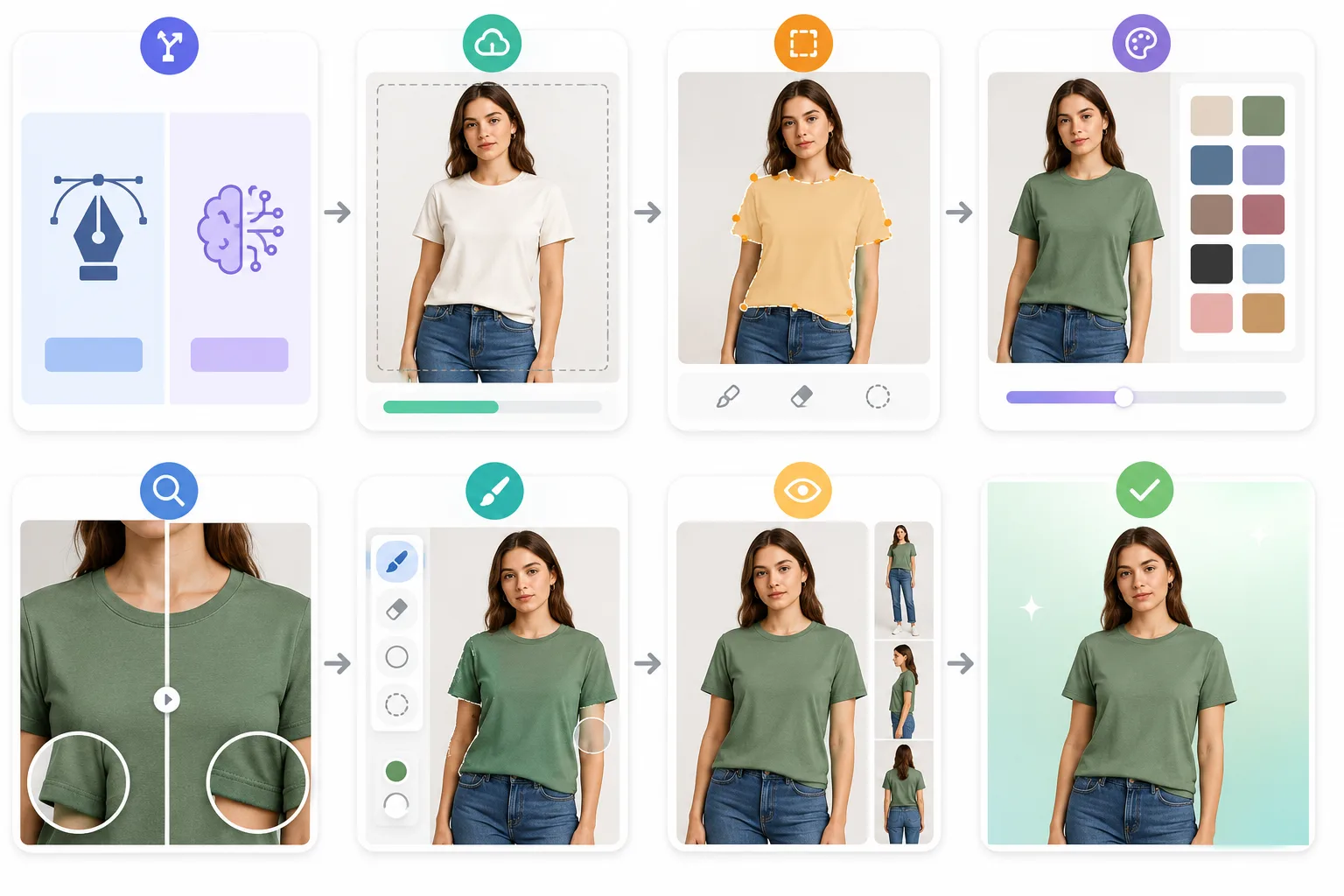
A practical workflow: generate the clothing edit first, inspect realism, then use a design tool for layout and export.
Best combined workflow
For most creators and small teams, the best answer is not Canva or AI. It is AI first, Canva second.
- Start with the original photo.
- Use an AI clothes color changer to create one clean garment recolor.
- Inspect fabric, edges, hands, hair, and shadows.
- Save the strongest version.
- Bring that edited image into Canva for layout, text, crop, and social export.
This keeps each tool in its lane. The AI handles the image-level clothing change. The design tool handles the final asset.
Quality checks for any workflow
Whether you use Canva, AI, Photoshop, or another editor, check the same areas before publishing:
- Does the new clothing color bleed onto skin or hair?
- Are shadows still believable?
- Did buttons, collars, zippers, seams, or logos change by accident?
- Does the background stay unchanged?
- Does the person still look like the same person?
- Does the fabric look flat or painted?
If the answer is no, the image is not ready. Try a cleaner source photo or a narrower prompt. The guide on why AI clothes swaps look fake has a useful diagnosis checklist.
Decision guide
| Scenario | Start here |
|---|---|
| "I want to test five shirt colors." | AI clothes color changer |
| "I need a thumbnail with text and arrows." | Canva after the edit |
| "I need exact catalog color." | AI draft plus manual review |
| "I want a color mood board." | Canva |
| "I need the dress to look naturally recolored." | AI clothes color changer |
| "I need a polished Instagram post." | AI for clothing, Canva for layout |
Frequently asked questions
Is Canva enough to change clothing color?
It can be enough for rough mockups, mood boards, or designed social graphics. If the clothing edit needs to look natural in a real photo, use a garment-aware AI clothes color changer and inspect the result.
What is better for changing dress or shirt color?
An AI clothes color changer is usually better for shirt, dress, jacket, and outfit recolors because it starts from the garment boundary. Canva is better for layout, text, and final graphic design.
Should I use Canva after AI?
Yes, that is often the best workflow. Use AI to change the clothing color, then use Canva to crop, add text, build comparison cards, or export platform-specific graphics.
Can AI match an exact brand color?
AI can preview a close direction, but exact brand color still needs checking. For ecommerce or paid ads, use AI as the first pass and keep a manual QA step.
Bottom line
Use Canva when you are making a designed asset. Use an AI clothes color changer when the clothing in the photo needs to change naturally. For most real workflows, generate the clean clothing edit first, then design around it.