
How to Change Shirt Color in a Photo Without Photoshop
Change shirt color in a photo without Photoshop by using an AI clothes color changer. Learn the safe workflow, prompt tips, and quality checks.
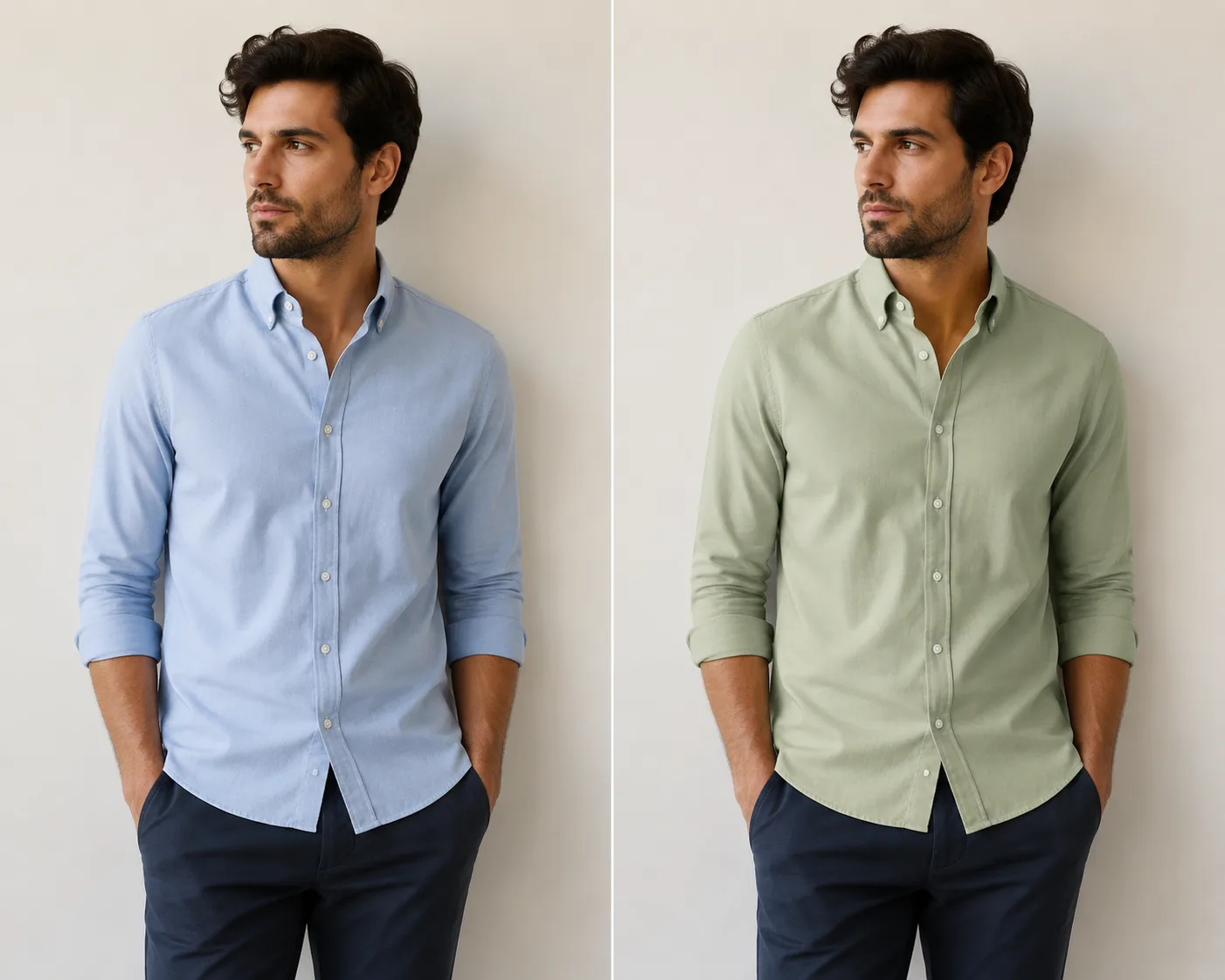
To change shirt color in a photo without Photoshop, use an AI clothes color changer, keep the original shirt shape, choose one target color, and inspect the neckline, sleeves, shadows, and skin edges before you save. The best results come from a clear photo where the shirt is fully visible.
Last updated: July 4, 2026 - about 7 min read
Changing a shirt color looks simple until the edit touches hair, hands, shadows, logos, or fabric texture. A basic color overlay can flatten the shirt. A sloppy mask can stain the neck or arms. Photoshop can solve those problems, but it is more work than most people need for a quick outfit preview. If your search is "change shirt color in photo," the safest answer is a narrow garment-only workflow.
An AI workflow is faster when your goal is to preview colors, plan a profile photo, test a creator thumbnail, or compare a few ecommerce color directions. This guide shows how to change shirt color in photo uploads safely, what prompts to use, and where to check the result before treating it as finished.
Change shirt color in photo: quick workflow
Use this workflow:
- Upload a clear photo where the shirt is visible.
- Select or describe only the shirt.
- Pick one color direction, such as navy, cream, black, red, or sage green.
- Add a preservation prompt: keep the same face, hair, pose, lighting, background, and shirt fit.
- Review edges and texture at full size.
- Regenerate only if the shirt shape, shadows, or skin edges changed.
If the shirt is partly hidden by crossed arms, a phone, hair, or a jacket, keep the edit simple. A shirt color change is easier than a full AI clothes changer outfit swap, but it still needs a clean clothing boundary. The goal is to change shirt color in photo results without changing the person.
Best photo for changing shirt color
The easiest photo has a plain shirt, open pose, soft light, and enough resolution to show fabric edges. The harder photo has busy patterns, heavy shadows, hair covering the neckline, or hands across the chest.
Use this source-photo checklist:
| Check | Good for shirt recolor | Risky for shirt recolor |
|---|---|---|
| Shirt visibility | Full chest, collar, sleeves visible | Cropped shirt or jacket covering it |
| Pose | Arms relaxed, torso readable | Crossed arms or phone in front |
| Fabric | Cotton, knit, denim, matte fabric | Lace, sequins, sheer fabric, glossy satin |
| Lighting | Soft, even light | Flash, harsh shadows, colored neon |
| Background | Simple and separate from shirt | Same color as shirt or very busy |
If you are not sure whether the upload is strong enough, read the best photo for an AI clothes changer checklist before editing. A better source photo is usually faster than five failed generations.
How to change shirt color in a photo
Start with a narrow instruction. Do not ask the model to change the shirt, improve the face, alter the background, and redesign the outfit at the same time. The smaller the job, the more stable the result. A clean "change shirt color in photo" prompt should tell the model exactly what changes and what stays fixed.
Use this prompt:
Keep the same person, face, hair, pose, shirt shape, lighting, and background. Change only the shirt color to [target color]. Preserve the fabric texture, neckline, sleeves, shadows, and skin edges. Do not change the body shape or add logos.
Examples:
| Goal | Prompt detail |
|---|---|
| Professional profile photo | "Change only the shirt to a clean navy blue. Keep the collar, fit, face, hair, and background unchanged." |
| Social thumbnail | "Change the shirt color to bright red, but keep the original shirt shape, sleeves, and lighting." |
| Product color preview | "Recolor the shirt to soft sage green. Preserve wrinkles, seams, and natural shadows." |
| Neutral wardrobe test | "Change only the t-shirt to warm cream. No logo, no pattern, same pose and background." |
For broader outfit changes, use the guide on how to change clothes in a photo with AI. For this article, keep the scope to shirt color only.
Color choices that usually work
Some colors are easier to preview than others. Darker colors often hide small fabric problems. Very bright colors can expose edge bleed. White and black need extra inspection because they can lose shadows.
| Target color | What to watch |
|---|---|
| Navy | Usually safe; check that shadows do not turn flat |
| Black | Check fabric folds so the shirt does not become a blank shape |
| White or cream | Watch for gray shadows and lost collar detail |
| Red | Check skin edges for color spill |
| Green | Works well on simple shirts; avoid background bleed |
| Yellow | Can look fake if lighting is already warm |
If you need exact catalog color, AI is a preview step, not the final color proof. For ecommerce or paid campaign images, compare the result with the original shirt and do a manual QA pass.
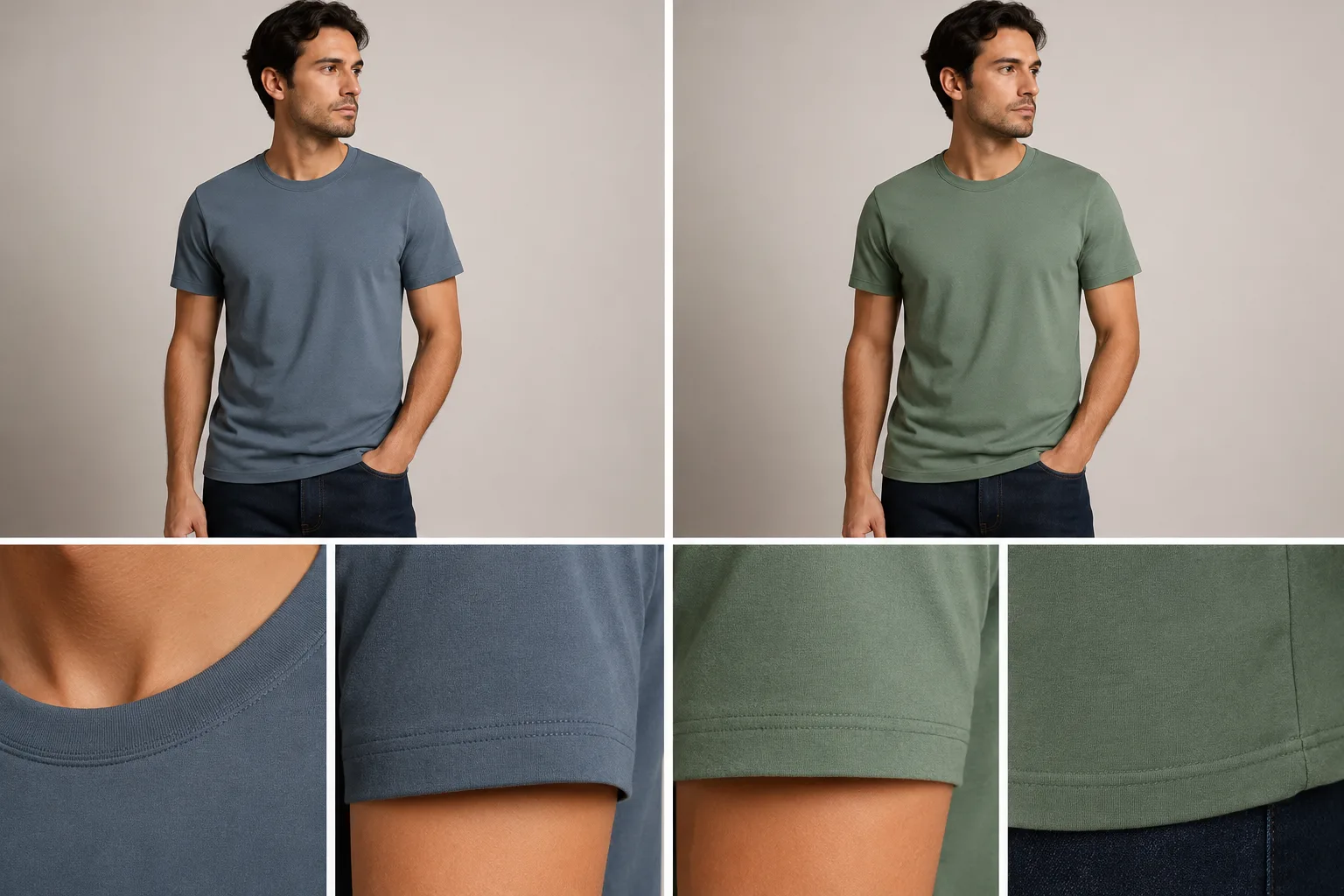
Review the result large enough to see neckline, sleeve edges, fabric texture, shadows, and skin boundaries.
Quality checks before you download
Open the edited image at a size where you can actually inspect it. A shirt color change can look fine in a thumbnail and fail at the collar.
Check these areas:
- Neckline: the new color should not bleed onto skin, hair, or jewelry.
- Sleeves: the edge should follow the original sleeve shape.
- Hands and arms: skin should keep its natural color.
- Shadows: darker or lighter colors should still have believable folds.
- Background: walls, chairs, and objects should not pick up shirt color.
- Logos or prints: remove them only if you asked for that.
- Body shape: the edit should not change shoulder width, waist, or posture.
If the color is good but one edge is bad, try a narrower prompt before changing the source photo:
Keep the shirt recolor, but clean the neckline and sleeve edges. Do not change face, hair, hands, body shape, or background.
If the whole shirt shape changed, go back to the original photo and prompt again with stronger preservation language.
When Photoshop is still better
AI is faster for previews. Photoshop is still better when the final image needs pixel-level control, exact color matching, or cleanup around difficult edges. If the shirt has lace, transparent fabric, reflective material, a complex logo, or a print that must stay unchanged, use AI for the first pass and manual editing for the final pass.
The full comparison in AI clothes color changer vs Photoshop explains where each workflow wins. For most personal previews, an AI shirt color edit is enough. For product detail pages, treat it as a draft until a human checks the final image.
Common mistakes
Asking for too much at once
"Make my outfit better and change the shirt to blue" gives the model too much freedom. Use "change only the shirt color to blue" instead.
Using a bad crop
If the shirt is cut off at the shoulders or waist, the AI may invent missing fabric. Crop after the edit, not before.
Ignoring lighting
A color that looks good in one lighting setup may look fake in another. If the photo has warm indoor light, ask for a natural version of the color rather than a flat swatch.
Treating every preview as publish-ready
The first result is a draft. Check it. If it passes edge, texture, and shadow review, then save it.
Frequently asked questions
Can I change shirt color in a photo without Photoshop?
Yes. Use an AI clothes color changer to change only the shirt color while preserving the face, pose, lighting, and background. Photoshop is still useful for exact final retouching.
What photo works best for shirt color changes?
A clear photo with the shirt fully visible works best. Use soft light, a simple background, and a pose where arms, hair, or accessories do not cover the shirt.
Can AI keep the fabric texture when changing shirt color?
It can on simple fabrics such as cotton, denim, or knitwear. Reflective, sheer, lace, or heavily patterned shirts need more review and may need manual cleanup.
Is a shirt color change the same as changing clothes?
No. Changing shirt color keeps the same garment shape and changes only the color. A full clothes change replaces the garment, which is harder and needs a cleaner source photo.
Try a simple shirt recolor
Start with one clean photo and one color. Upload it to the AI clothes color changer, change only the shirt, and inspect the result before you download.