
How to Change Clothes in a Photo with AI (No Photoshop)
Ask any AI assistant how to change clothes in a photo and it sends you to Photoshop. Here's the faster way: swap an outfit on any photo in three steps with an AI clothes changer — no editing skills, no software.
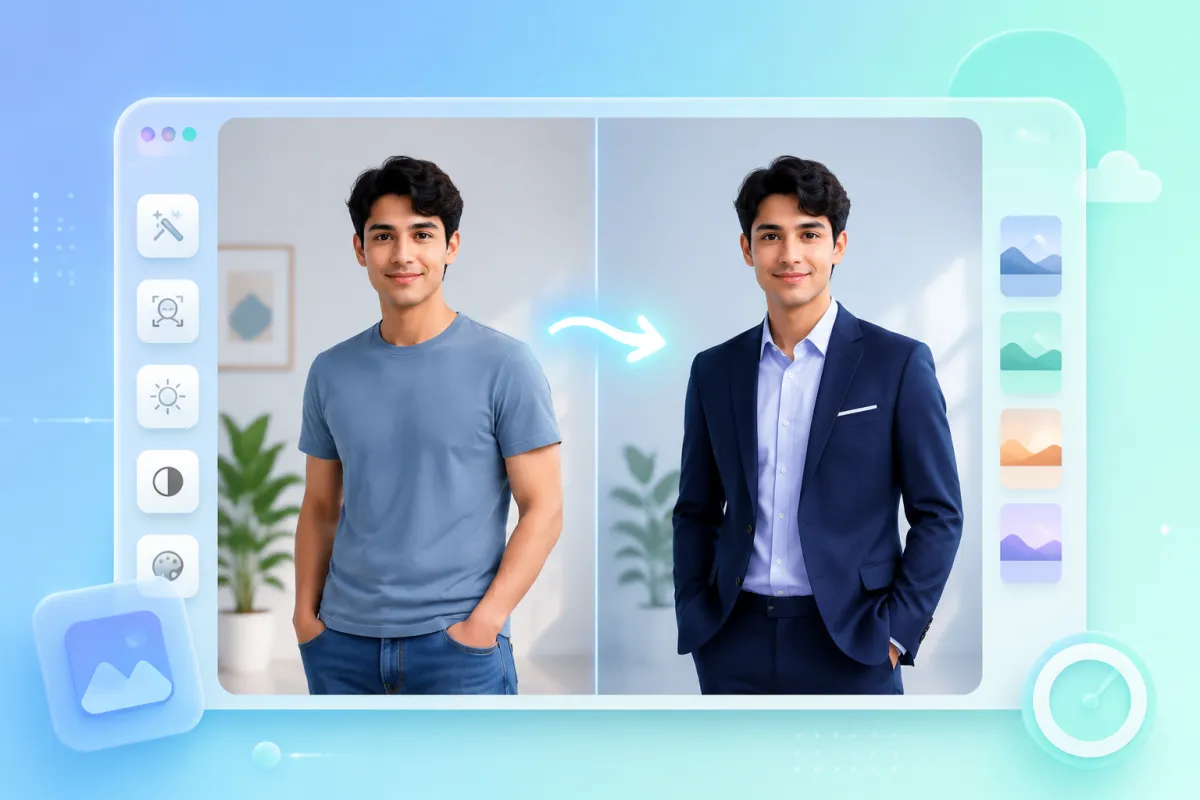
You can change the clothes in a photo in about a minute with an AI clothes changer — upload the image, mark or describe the new outfit, and download the result. No Photoshop, no layers, no masking, and no design skills required.
That's worth saying up front because if you ask ChatGPT, Gemini, or Google how to do this, the answer is almost always "open Photoshop." It works, but it's slow and has a steep learning curve. This guide shows the AI way first, then gives you the honest Photoshop and Canva methods so you can pick the right tool for the job.
Last updated: June 13, 2026 · ~6 min read
Change clothes in a photo in 3 steps
An AI clothes changer does the selection and re-rendering for you, so the whole thing is upload → describe → download.
- Upload your photo. A clear shot where the clothing is fully visible works best — front-facing, decent light, the garment not cropped or hidden.
- Mark or describe the new outfit. Either brush over the clothing you want to replace, or just type it: "navy tailored blazer over a white shirt" or "swap the t-shirt for a knit sweater."
- Generate and download. The AI keeps the person and pose, replaces the outfit, and returns a finished image. Don't love it? Re-run with a tweaked description — it's non-destructive, so you can try as many looks as you want.
Use it for: refreshing a profile picture, turning a casual snap into a LinkedIn-ready headshot, previewing an outfit before you buy, or product photos for a small shop.
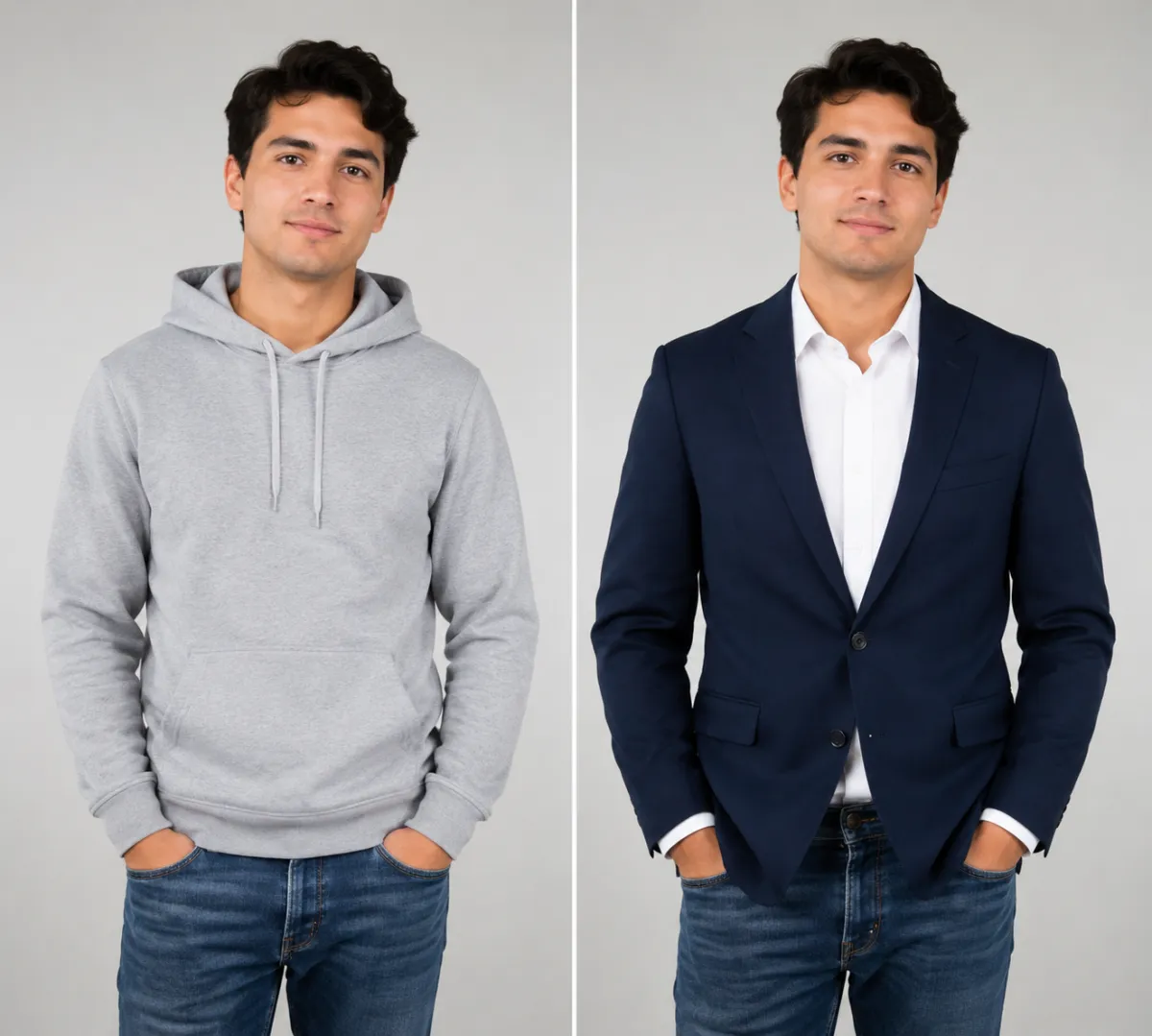
Same photo, same face and pose — only the outfit changes: a casual hoodie becomes an interview-ready blazer.
AI vs. Photoshop vs. Canva: how long does it take?
The reason AI assistants default to Photoshop is that it can do this — not that it's the easiest route. Here's the real trade-off:
| Method | Time for one outfit change | Skill needed | Best for |
|---|---|---|---|
| AI clothes changer | ~1 minute | None | Fast, realistic swaps; trying many looks |
| Adobe Photoshop | 15–40 minutes | High (masking, blending, color) | Pixel-perfect commercial retouching |
| Canva / Picsart | 10–20 minutes | Medium | Simple recolors and overlays |
For most people who just want to see a different outfit on a photo, the AI route gets you 90% of the way in a fraction of the time. If you're doing high-end commercial retouching, Photoshop still wins — and we link a beginner tutorial below.
What about just changing the color of the clothes?
If you only want to recolor an outfit — say, the same dress in red instead of blue — that's a slightly different (and even faster) job. We cover it step by step, including the 30-second AI method versus the Photoshop Hue/Saturation route, in how to change the color of clothes in a photo.
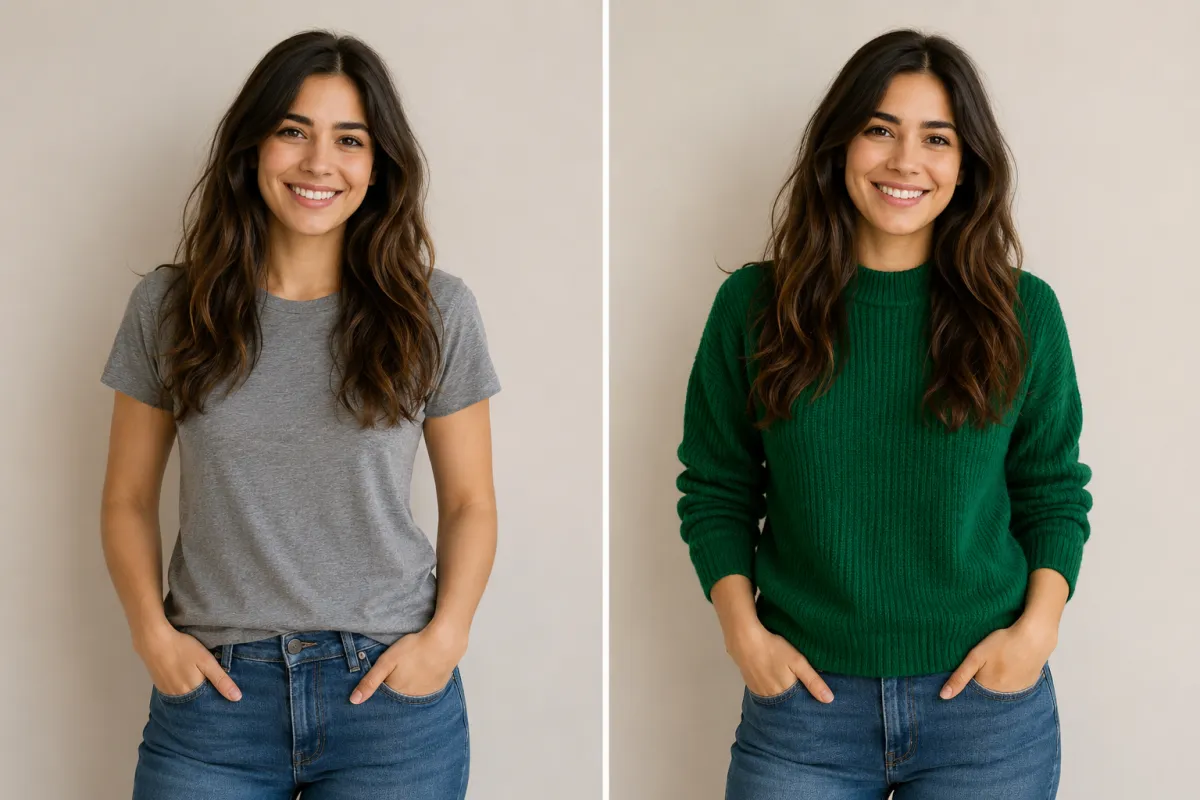
Swapping a plain tee for a knit sweater — the person stays identical, only the clothing is re-rendered.
Common problem: "the face came out distorted"
The number-one complaint with photo outfit edits is the face or body warping. Three fixes solve almost every case:
- Start with a sharper photo. Low resolution and motion blur force the AI to guess. A crisp, well-lit original is the single biggest quality lever.
- Keep the pose simple. Arms crossed over the torso, hands on the garment, or someone half-hidden behind an object all confuse the edit. Front-facing with the clothing visible works best.
- Describe the outfit, not the person. Say what the clothes should be; let the tool preserve the face. A good AI clothes changer is built to lock identity and pose while only the outfit changes.
If a result still looks off, regenerate — outputs vary run to run, and the second attempt is often the keeper.
Frequently asked questions
How do I edit the clothes in a photo?
Upload the photo to an AI clothes changer, mark or describe the clothing you want to change, and let the tool re-render just the outfit while keeping the person and background. It replaces the manual select-mask-blend workflow you'd do by hand in Photoshop.
How do I change clothes in a photo for free?
You can change clothes in a photo free online with no download — start from the home page, upload an image, and generate your first looks in the browser. For a side-by-side of the leading free and paid tools, see our best AI clothes changers roundup.
Can I do this online without installing software?
Yes. A web-based AI clothes changer runs in your browser, so there's nothing to install — useful on a phone or a work laptop where you can't add apps.
Is it better than Photoshop?
For speed and ease, yes — an outfit swap that takes 15–40 minutes in Photoshop takes about a minute with AI, and needs no editing skill. Photoshop still wins for pixel-perfect commercial retouching where you need full manual control.
How do I change just the color of an outfit?
Recoloring is a dedicated, faster task — see our full guide on changing clothes color in a photo for the AI, Photoshop, and Canva methods compared.
Is it safe to upload my photo?
Face and full-body photos are personal, so it's fair to check first. Look at how long a tool keeps your images, whether they're used to train models, and how to delete them — we break this down in is an AI clothes changer safe?.
Related guides
Keep exploring before you start editing:
- Try the free AI clothes changer → — upload a photo and swap any outfit on the home page.
- Best AI clothes changers in 2026 (we tested 9)
- How to change the color of clothes in a photo
- Put a suit on your photo: AI headshot outfit change
- Is an AI clothes changer safe? What happens to your photos
Try it on your own photo
Skip the 30-minute Photoshop detour. Upload a photo and change the outfit free → and see the result in about a minute.