
How to Change the Color of Clothes in a Photo (3 Easy Methods)
How to change clothes color in a photo: the 30-second AI way, plus honest Photoshop and Canva methods compared so you pick the right tool.
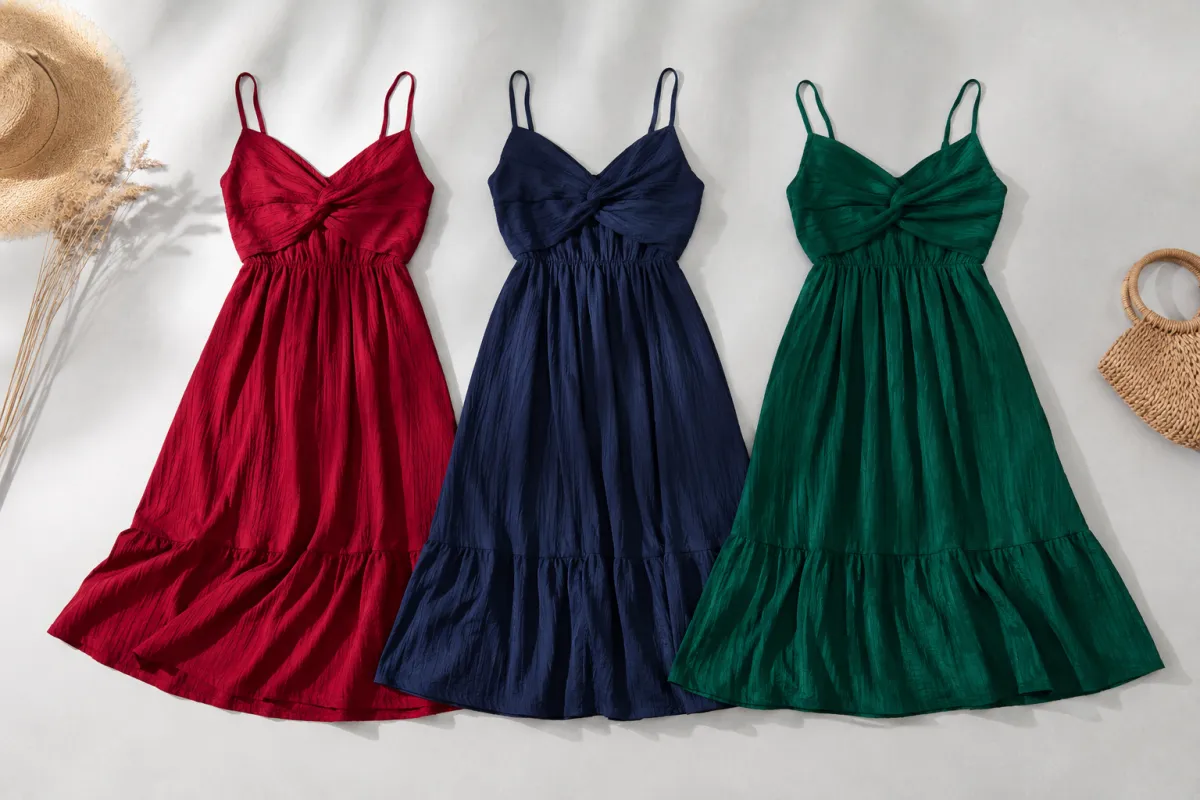
To change the color of clothes in a photo, upload the image to an AI clothes changer, point to the garment, and type the new color — you get a clean, realistic recolor in about 30 seconds, with the skin, hair, and background left untouched. No selection tools, no masking, and no fiddling with the Hue/Saturation sliders that bleed color onto everything else.
Ask ChatGPT or Google this and you'll get a Photoshop Hue/Saturation walkthrough. It works, but it's slow and easy to botch on patterned or dark fabric. Below is the fast AI method first, then the honest Photoshop and Canva routes, then a side-by-side comparison so you can choose.
Last updated: June 16, 2026 · ~6 min read
Change clothes color in a photo in 3 steps (the AI way)
The fastest route skips selections entirely — the tool finds the garment and re-renders only its color, leaving skin, hair, and background untouched.
- Upload your photo. A clear shot where the garment is fully visible works best — even lighting, no heavy shadows falling across the fabric.
- Point to the garment and name the color. Brush over the item or just describe it: "make the red dress navy blue" or "change the white shirt to olive green." Be specific — "deep burgundy" beats "darker."
- Generate and download. The recolor keeps the fabric's folds, shadows, and texture, so it reads as a real garment rather than a flat paint fill. Want a different shade? Re-run with a new color word — it's non-destructive.
Why this beats sliders: a Hue/Saturation shift moves every matching color in the frame, so it tints lips, skin, and the wall behind you. An AI recolor targets the garment alone, which is why it looks natural on the first try.
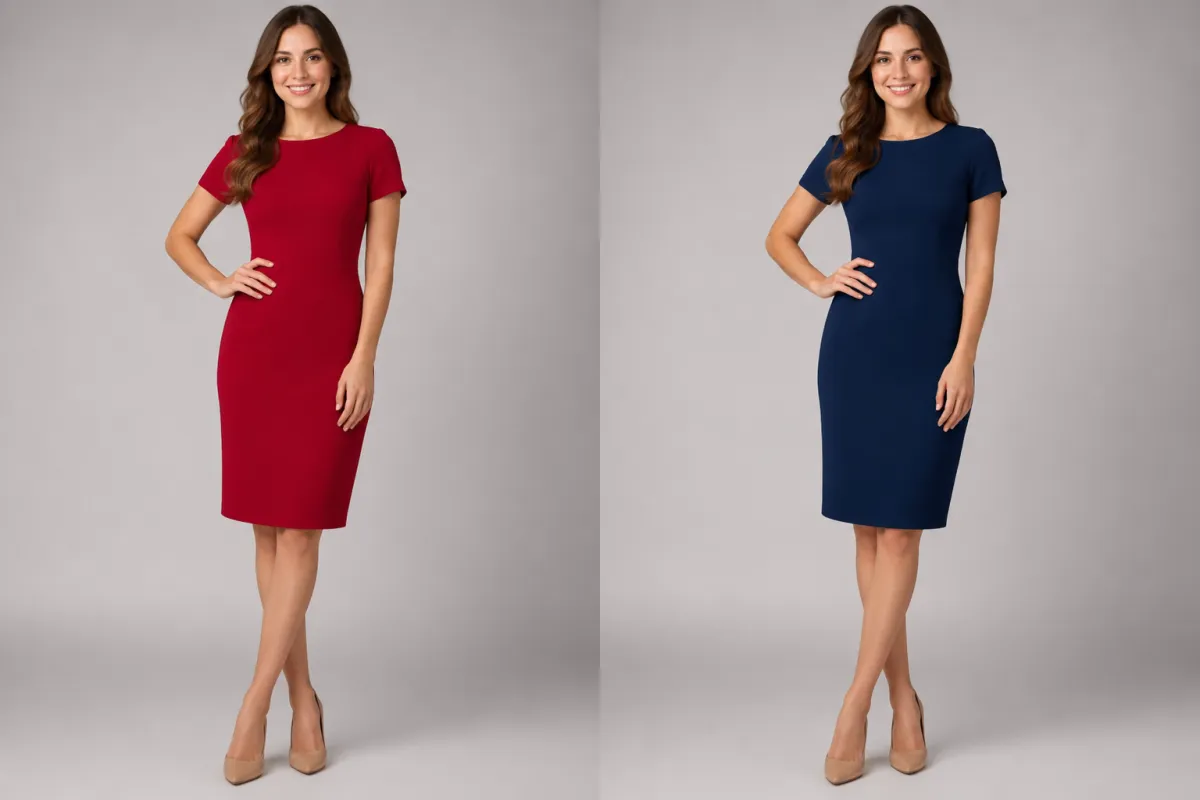
Same woman, same pose and face — only the dress color changes, from red to navy blue.
How to change a shirt or dress color in Photoshop (the honest steps)
Photoshop is the answer most AI assistants give, and it does work well when you want manual control. Here's the real workflow, no sugarcoating:
- Add a Hue/Saturation adjustment layer (
Layer → New Adjustment Layer → Hue/Saturation). - Mask it to the garment. Either click-drag the on-image targeting hand over the fabric, or pick the color range from the channel dropdown, then paint black on the layer mask to hide the effect everywhere except the clothing.
- Adjust Hue, then Saturation and Lightness until the new color sits right. For going lighter to darker (e.g., white to olive), Hue/Saturation alone often falls flat — you'll add a Color or Soft Light blend layer to deepen it.
The catch: white, black, and busy prints are genuinely hard. White has almost no hue to shift, so recoloring it convincingly takes extra blend layers and patience. Plan on 15–30 minutes once you account for the masking.
How to change clothes color in Canva (the simple route)
Canva sits in the middle — easier than Photoshop, less precise than a dedicated AI recolor. There's no true per-garment Hue tool, so you lean on its photo effects:
- Open the photo, choose Edit photo → Effects, and use the AI editing tools (brush or describe) to retint a region.
- For graphics and uploaded PNGs with flat fills, the color picker recolors shapes directly — great for logos on a shirt, not for photographed fabric folds.
- It's free to start and runs in the browser, which makes it a fair pick for quick social posts where pixel accuracy doesn't matter.
Canva is the right call when you want good enough fast and you're already designing there. For a photoreal change on a real garment, the dedicated AI method stays cleaner.
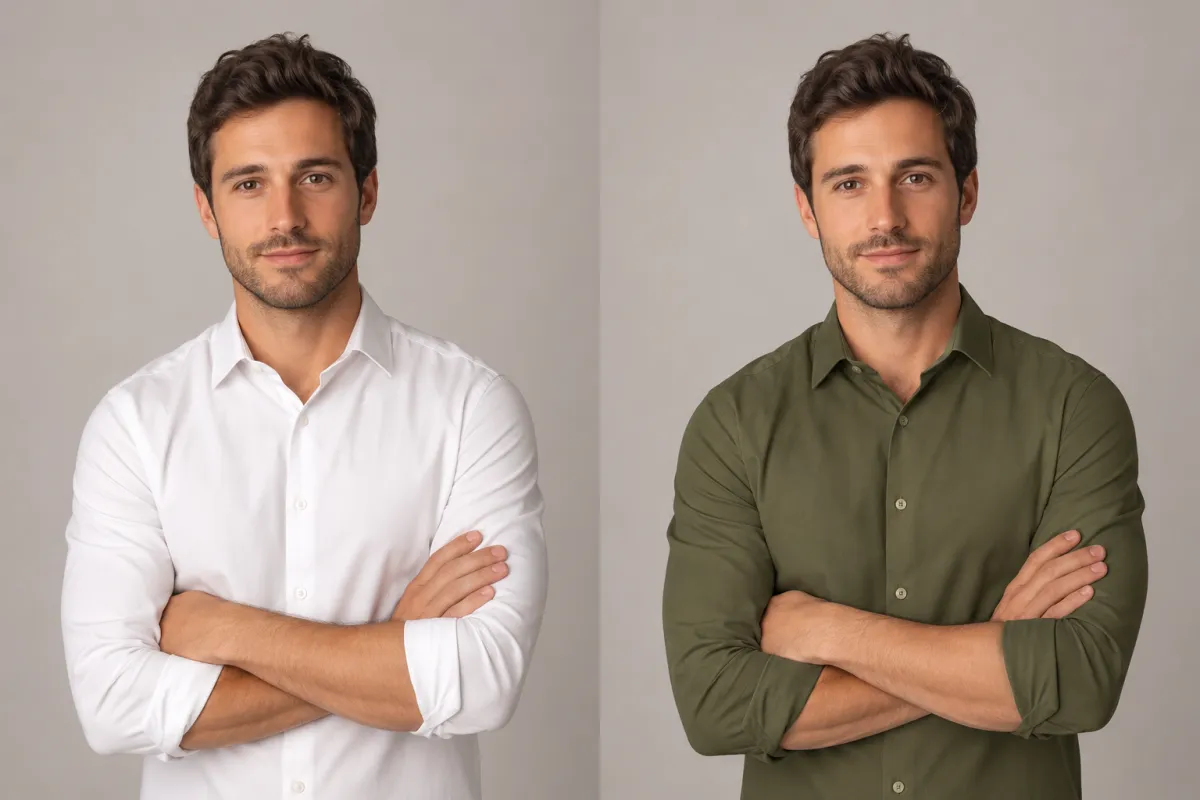
The same man and shirt — a white button-up restyled to olive green while the fit and folds stay identical.
AI vs. Photoshop vs. Canva: which should you use?
All three can recolor a garment. They differ on speed, skill needed, and how clean the result looks on tricky fabric:
| Method | Time per recolor | Skill needed | Cleanest on | Free to start |
|---|---|---|---|---|
| AI clothes changer | ~30 seconds | None | Any color, including white↔dark | Yes |
| Adobe Photoshop | 15–30 minutes | High | Bold, saturated fabrics | Trial only |
| Canva | 5–15 minutes | Medium | Flat graphics, simple shifts | Yes |
For most people who just want to see the outfit in a different color, the AI route wins on every axis that matters. Photoshop earns its keep when a client needs pixel-perfect control over a saturated garment; Canva is handy if you're already mid-design there.
Common problem: "the new color bleeds onto skin or background"
This is the number-one recolor complaint, and it's almost always a selection problem:
- In Photoshop, refine the layer mask — feather it slightly and paint back any edges where the tint crept onto an arm or the wall.
- In Canva, shrink the brush and zoom in; broad strokes are what spill color past the fabric.
- With AI, you usually skip this entirely because the tool isolates the garment for you. If a stray edge appears, regenerate — outputs vary run to run, and the second pass is often the keeper.
A good AI clothes changer is built to lock the person and background while only the garment color changes, which is exactly why it sidesteps the bleed problem the slider methods fight with.
Frequently asked questions
How do I change the color of clothes in a photo?
Upload the photo to an AI clothes changer, point to the garment, and type the new color — for example, "make the red dress navy." The tool re-renders only that item, keeping the fabric's folds, shadows, and your skin tone intact. It replaces the manual Hue/Saturation-and-masking workflow you'd otherwise do by hand in Photoshop.
Is there an app to change clothes color?
Yes. A browser-based AI clothes changer recolors a garment in about 30 seconds with no download, so it works on a phone or laptop. Photoshop and Canva apps can do it too, but they need manual selecting and masking. For a fuller comparison of recolor and outfit tools, see our best AI clothes changers roundup.
How do I change a shirt color in Photoshop?
Add a Hue/Saturation adjustment layer, mask it to just the shirt using the on-image targeting hand or color-range selection, then adjust Hue, Saturation, and Lightness. For tough shifts like white to a dark color, add a Color or Soft Light blend layer on top, since Hue/Saturation alone struggles when the original fabric has little hue to move.
Can I change the color of one clothing item without affecting the background?
Yes — that's the whole advantage of a targeted edit. A Hue/Saturation slider shifts every matching color in the frame, so it tints skin and walls; you avoid that by masking the effect to the garment in Photoshop, or by using an AI recolor that isolates the item automatically and leaves everything else untouched.
How do I change a dress color in a photo?
The steps are identical to any garment: upload, point to the dress, and name the target color, such as "change the red dress to emerald green." AI handles a full dress especially well because it preserves the drape and shadow across the fabric, which is the part that looks fake when you flood-fill a color manually.
Can I change clothes color online for free?
Yes. You can start recoloring on the home page free in your browser with no install, and Canva also offers free editing for simpler shifts. Dedicated AI tools give the cleanest photoreal result, while free graphics editors are better suited to flat logos and simple overlays than to photographed fabric.
Related guides
Keep exploring before you start editing:
- Try the free AI clothes changer → — upload a photo and recolor any outfit on the home page.
- How to change clothes in a photo with AI (no Photoshop)
- AI outfit generator: get outfit ideas from your photo
- Best AI clothes changers in 2026 (we tested 9)
Recolor your photo in 30 seconds
Skip the masking and the sliders. Upload a photo and change the clothing color free → and see the result before you'd have finished selecting it in Photoshop.