
How to Cancel an AI Clothes Changer Generation and Start Again
Cancel an active AI clothes changer generation, keep your uploads ready, and restart with a clearer outfit request using this practical workflow.

To cancel an AI clothes changer generation on AIClothSwap, select Stop generating while the request is active, then wait for the workspace to confirm that it has stopped. Your uploaded images remain ready to use after a confirmed cancellation, so you can adjust the outfit choice or prompt and start a new generation without rebuilding the whole setup.
Last updated: September 16, 2026 · about 7 min read
Stopping a request is most useful when you catch a bad input early: the wrong garment reference, an outfit direction that is too broad, or a photo that hides the shoulder and collar area you need to compare. It is not a quality shortcut. A cancelled job has no result to judge; the next request still needs a clear, permitted photo and one specific clothing decision.
When should you stop a generation?
Stop the active job when the next result is unlikely to answer the question you actually have. Common examples include:
- You selected the wrong person photo or garment reference.
- The clothing request changes several things at once, such as the outfit, pose, background, and lighting.
- You need to compare one formal shirt with one casual shirt, but the request asks for a whole new scene.
- You realize the photo is not yours to edit or you do not have permission to use it.
Do not stop a generation just because it is taking longer than you expected. An active request can still complete. Cancel when you have a concrete correction to make; otherwise, wait for the result and decide whether it gives you useful evidence.
| What you notice | Better next move | Why |
|---|---|---|
| Wrong upload or wrong outfit reference | Stop, confirm the reset, then select the right file | The replacement request starts from the intended inputs |
| Vague style request | Stop and rewrite it as one clothing change | You can tell whether the garment change worked |
| Result is already complete | Review it, then start a separate request if needed | A finished result is not an active job to cancel |
| You need to test a specific garment | Use a clear garment reference and inspect the next output | Details such as collar, cut, and fabric need a controlled comparison |
Use only photos and garment references you own or are authorized to edit. An outfit preview is a visual experiment, not permission to publish or represent another person.
How to cancel and start again
- Find the active generation workspace. During an active request, AIClothSwap shows a Stop generating control. It is available while there is a generation to stop; a completed output has a different next-step workflow.
- Select Stop generating once. The control changes to a stopping state while AIClothSwap sends the cancellation request. Do not repeatedly click it or refresh the page to force a reset.
- Wait for the confirmation, then make one correction. After the cancellation is confirmed, the workspace indicates that your uploads are ready to use again. Change the garment reference, photo, or clothing request that caused the problem, and create a new generation.
For a free preview that has begun work, the interface may show that it is stopping and reset only when the GPU confirms it is idle. That is a safety boundary, not a promise that an in-progress render will vanish immediately. Keep the page open until you see the confirmed state. If the generation finishes first, review the completed image instead of assuming it was cancelled.
Make the restart easier to evaluate
The best restart changes one variable. If you are deciding between two outfits for a professional portrait, keep the same authorized person photo, pose, and background. Change only the clothing direction.
For example, instead of asking for a new setting plus a new face angle plus a new wardrobe, use a request such as: “Replace the T-shirt with a navy button-down shirt. Keep the face, body shape, hands, lighting, and background unchanged.” This gives you a clear comparison point.
If color is the only decision, use the dedicated clothes color changer workflow rather than restarting a full outfit concept. If you are deciding how one known item might read in a photo, a virtual try-on or a controlled reference-led request is more useful than a broad style prompt. For a general list of possible projects, see these AI clothes changer use cases.
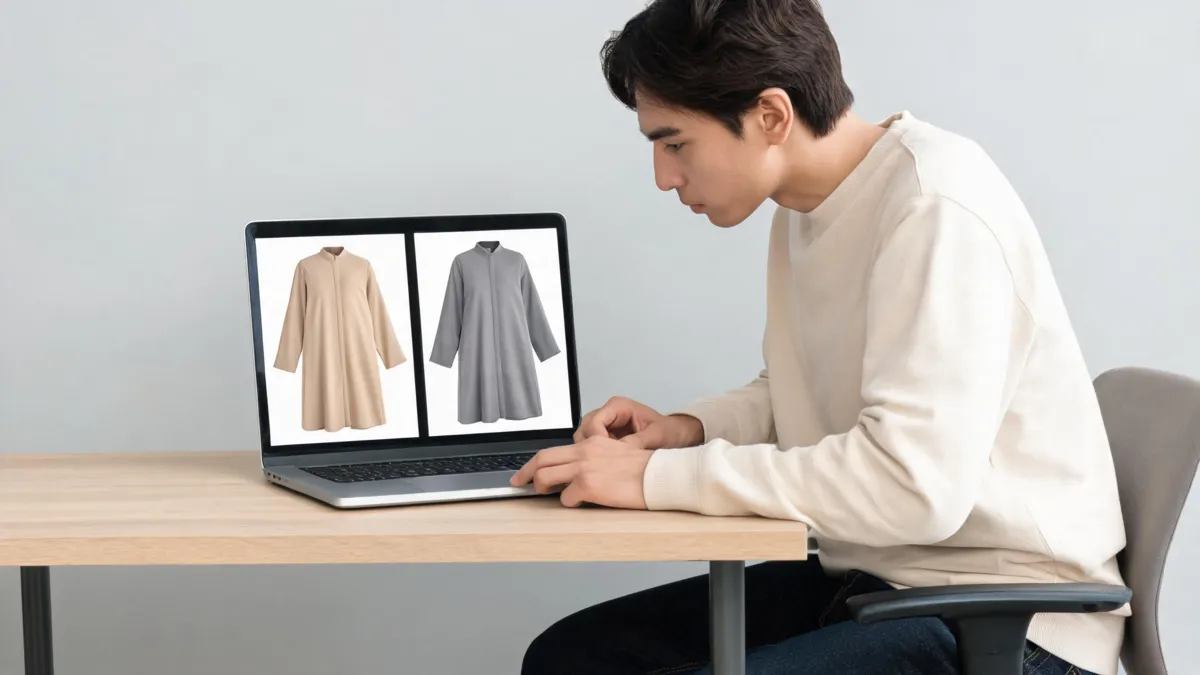
A restart is easier to judge when the source photo stays fixed and the clothing change is the only meaningful difference.
What to check before you generate again
Use this short checklist after a confirmed cancellation:
- Confirm that the person photo is clear, fully clothed, and authorized for editing.
- Use one garment reference that clearly shows the item you want to test, when the specific item matters.
- State what must stay unchanged: face, pose, body shape, hands, background, or lighting.
- Change one main clothing decision per output.
- Inspect the new result at normal size, especially the collar, shoulders, cuffs, hair overlap, fabric folds, and shadows.
An image that looks persuasive as a thumbnail can still fail at the edges. Reject a version if it changes the person’s identity, proportions, or the scene when your request was only about clothes. A preview can help you narrow a style or communicate an art direction; it cannot confirm real-world fit, comfort, stock, fabric weight, or commercial rights.
A note about active previews and finished outputs
AIClothSwap’s September 15, 2026 cancellation update added the active-generation control and cancellation handling for signed, anonymous, and preview requests. The interface preserves a cautious distinction for preview work: a job that is already using the GPU may need a confirmation before it resets. That is why the reliable signal is the workspace’s own confirmation, not the instant you click the button.
If the problem is the input rather than the active job, cancellation is a clean way to return to the upload-and-choice stage. If the problem is only a minor preference, let the current result finish, save nothing you do not want to keep, and use the review checklist for the next controlled test.
Frequently asked questions
Can I cancel an AI clothes changer generation after I start it?
On AIClothSwap, an active generation can show a Stop generating control. Select it and wait for the workspace to confirm the stop before beginning another request. A completed result is no longer an active generation to cancel.
Will cancelling erase the images I uploaded?
When AIClothSwap confirms a cancellation, the workspace says the uploaded images are ready to use again. Keep your own copy of important source files and wait for that confirmation before starting over.
Why is my preview still stopping after I select the control?
A preview that has already reached GPU work may need to reset only after the GPU confirms it is idle. Keep the page open until the workspace confirms the cancellation or shows the completed result.
Related guides
- Try the free AI clothes changer →
- How to change clothes in a photo with AI
- How accurate are AI clothes changers?
- Best photo for an AI clothes changer
Start the next request with a clearer test
When the active job no longer serves the decision, stop it, wait for confirmation, and restart with one well-defined clothing change. You can begin that controlled comparison in the AI clothes changer.