
YouCam AI Clothes Changer: What to Check Before You Upload
YouCam AI clothes changer supports a photo-and-style virtual try-on workflow; use this checklist to prepare the image and review the result.
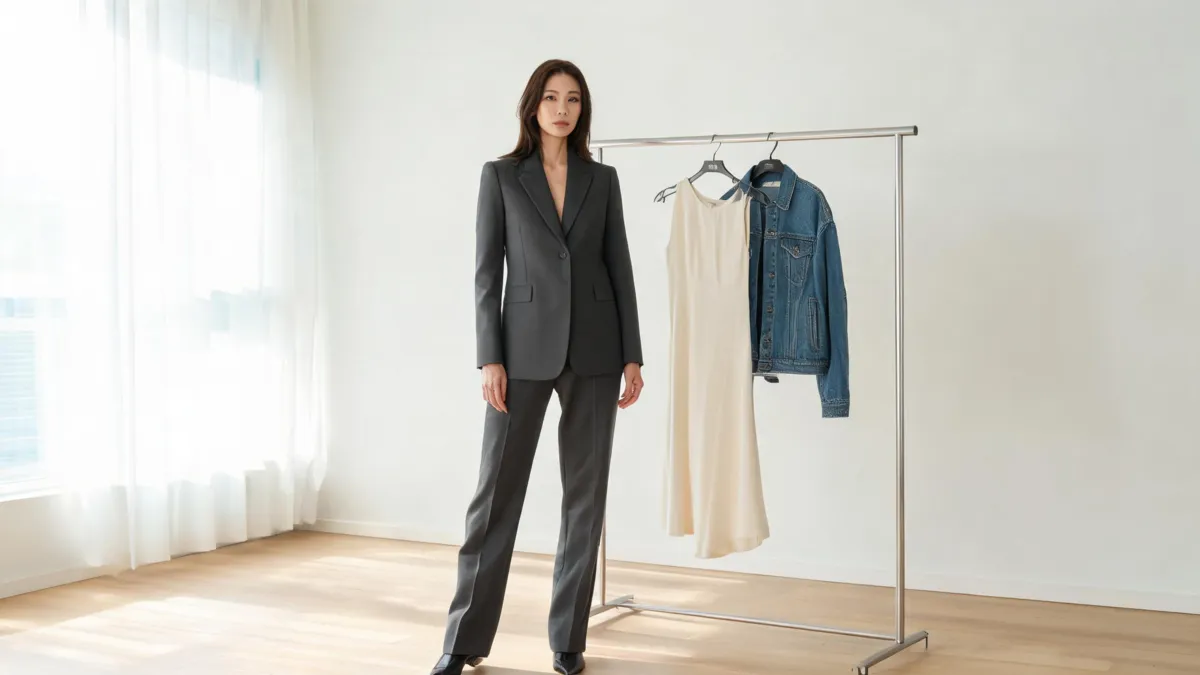
YouCam AI Clothes Changer currently offers a virtual outfit-try-on flow: upload a clear person photo, select a style or add a garment reference, generate, and review the result. Its own guidance calls for visible clothing and an unobstructed pose. Use it to compare a style direction on a photo, not to prove exact fit, fabric, or a retail product claim. A focused AI clothes changer gives you another controlled path to test the same authorized input.
Last updated: September 14, 2026 · about 7 min read
This is a distinct branded-workflow guide, not a rewrite of our AI outfit generator guide. That article starts with the broader question of generating complete outfit ideas. Here, the question is narrower: what does YouCam's current clothes-changing workflow ask for, how should you test it, and what should you reject before you upload or share a result?
We checked YouCam Online Editor's public AI Clothes page and its clothes-changer workflow guide on September 14, 2026. The pages describe a photo upload, preset-style or reference-image selection, generation, and saving. Interfaces, available styles, account rules, and commercial terms can change, so verify the live product before a consequential use.
What does YouCam's clothes-changing workflow offer?
YouCam frames the feature as a virtual try-on. Its current guidance says to upload a clear full- or half-body image, then choose from a fashion gallery or upload a reference image of a clothing item. The service generates a new look for you to preview and save.
The useful choice is not “which tool is best?” in the abstract. It is which input matches your decision:
| Your starting point | What to test in YouCam | What to keep separate |
|---|---|---|
| You have a specific garment image | Whether the reference's broad look reads plausibly on the person photo | Exact pattern, label, fit, and product availability |
| You are exploring a look | Whether a preset or style direction suits the scene | A final buying or sizing decision |
| You need a controlled comparison | Whether the clothing changes while face, pose, light, and background stay stable | Any result that rewrites the subject or scene |
YouCam's page points to clothing visibility, good lighting, and avoiding hands over the clothes. Those are sensible constraints because the model needs a readable silhouette. A generated preview is most useful when it answers one narrow question, such as whether a light dress or dark jacket changes the formality of this portrait.
A try-on image can be visually persuasive while still being unsuitable for a factual claim. Treat it as a direction to investigate, not evidence that the real garment will fit, drape, or be in stock.
Set up a fair YouCam test
Use the same authorized person photo and the same clothing reference or style brief whenever you compare results. If you swap the input photo, rewrite the prompt, and change the target garment at the same time, you cannot tell what helped.
- Choose one clean adult photo. Start with a full- or half-body image that has even light, a readable torso, and minimal overlap from hair, hands, bags, or furniture. Save an untouched copy.
- Choose one style source. Select one supplied style or upload one clear reference garment. For a reference, show the collar, sleeves, hem, closures, and main pattern rather than a tiny cropped storefront image.
- Generate a baseline before styling it further. Keep the first request literal. Do not combine an outfit change with a new pose, location, hairstyle, or dramatic lighting.
- Compare at full size. Put the original beside the output. Mark one specific failure before regenerating—identity drift, a broken cuff, lost texture, or background spill—so the next test changes one variable.
If you only need to compare a shade on the same garment, use a clothes color changer rather than a full virtual try-on. If you have no garment at all and want outfits for an occasion, start with the AI outfit generator, then bring a selected direction into a more controlled clothing test.
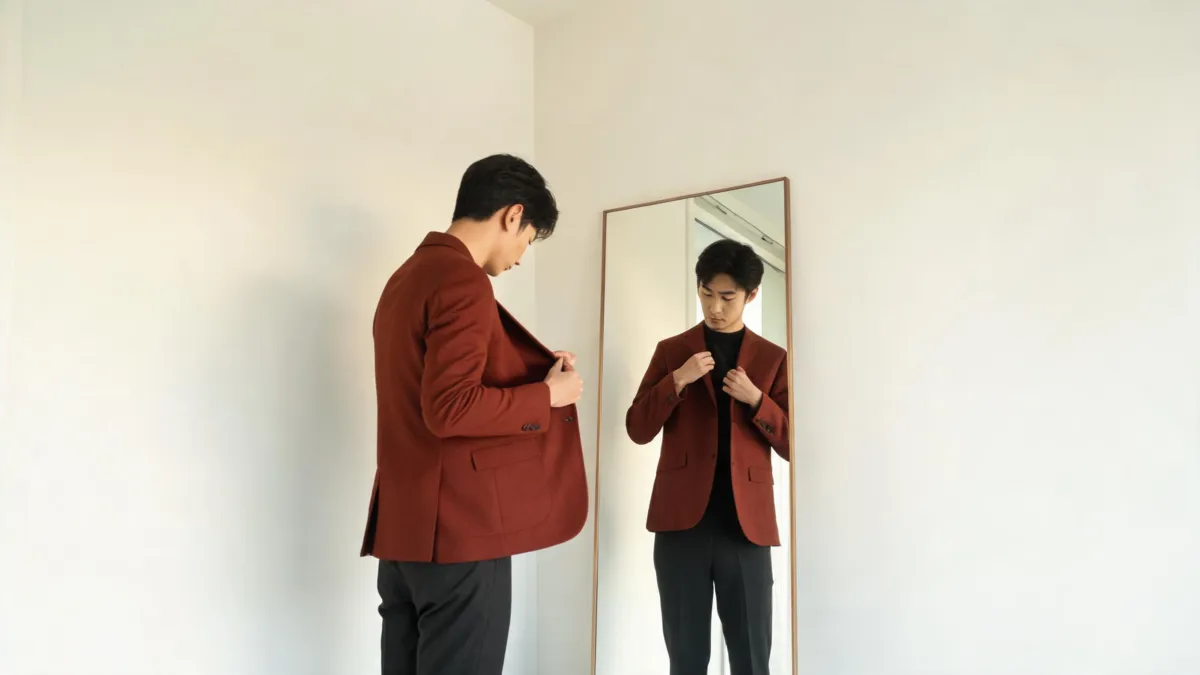
Editorial review visual: judge the lapel, cuff, hands, silhouette, and scene continuity separately; it is not a claimed YouCam output.
What to inspect after generation
Do not decide from the first full-screen preview. Zoom in and look at the boundaries that generators often have to infer.
Face, hair, and body continuity
The face, hairline, expression, and general body proportions should stay faithful to the source. A different-looking person is not a successful outfit preview, even if the outfit itself looks polished.
Garment construction
Inspect the neckline, shoulder seams, lapels, sleeve openings, waist, and hem. The garment should appear to sit on the person rather than float in front of them. If a reference has buttons, stripes, branding, or a repeated print, inspect them rather than assuming the small preview preserved them.
Hands, hair, and accessories
These are difficult intersections. Look for fingers merged into cuffs, jewelry rewritten as fabric, hair disappearing into a collar, or a bag changing with the clothes. If the output fails here, choose a less obstructed source image before you try a more elaborate request.
Light and scene stability
Folds and shadows should follow the original light direction. Check under the chin, beneath a collar, beside the arms, and around the hem. Also look past the garment: an unwanted change to skin tone, furniture, or background is part of the result, not a harmless detail.
For a reusable diagnostic sequence, see why AI clothes swaps look fake. It helps you name the fault instead of endlessly generating variations.
A YouCam API workflow video
This third-party video covers a workflow built with the YouCam API, which helps explain the product category but is not a substitute for checking the current consumer editor or its terms.
When a focused alternative makes more sense
YouCam can be a sensible choice when you want its supplied styles or prefer a broader photo-editing environment. A focused alternative can be easier when the brief is only one person, one garment direction, and one quality check. The goal is not to crown a universal winner; it is to limit the variables that can distort a comparison.
Use a dedicated virtual try-on workflow when you want to start from a person photo and garment reference without expanding into a larger creative task. Keep the input, reference, and review criteria steady. If one tool changes the face or fabric construction, that is useful evidence about that particular test—not a reason to make a sweeping quality claim.
Consent, privacy, and product-claim limits
Upload only images you have the right to edit and only create adult wardrobe previews with consent. Before commercial use, read the provider's current terms and privacy material for upload retention, deletion, output rights, and plan limits. Keep a person in the approval loop for any client, store, or advertising image.
Do not use a virtual try-on to claim an exact SKU, physical size, textile composition, color match, or inventory status. AIClothSwap's Content Policy applies the same rule: a preview can inform a choice, but it cannot replace a product sample, a size chart, or permission.
Frequently asked questions
How does YouCam AI Clothes Changer work?
YouCam's current AI Clothes page describes uploading a clear person photo, choosing a supplied style or uploading a clothing reference, generating the virtual try-on, and saving the result. Its public pages and plans can change, so confirm the live flow before relying on a particular feature or allowance.
Does YouCam AI clothes changer show real fit?
No. A virtual outfit image can help compare styling, silhouette, and broad color direction on a photo. It cannot measure your body, guarantee a size, confirm a retailer's material or color, or predict how the actual garment will fit or move.
What makes a good YouCam clothes-changer input photo?
Use an authorized adult photo with a clear, well-lit full- or half-body view, visible clothing boundaries, and no hands or objects covering the target area. Keep the original beside the generated version so you can inspect what changed.
Related guides
- Try the free AI clothes changer →
- Compare a garment with virtual try-on
- Generate outfit ideas from your photo
- How to change clothes in a photo with AI
- Best photo for an AI clothes changer
Make the decision, not a promise
Use a generated image to compare one style direction, then validate the real-world details elsewhere. Try the AI clothes changer with the same authorized source photo and retain only results that preserve the person and scene.