
Krea AI Clothes Changer: What Works and When to Try an Alternative
Learn how the Krea AI clothes changer fits into Krea's editor, how to test outfit edits, and when a dedicated AI clothes changer is simpler.
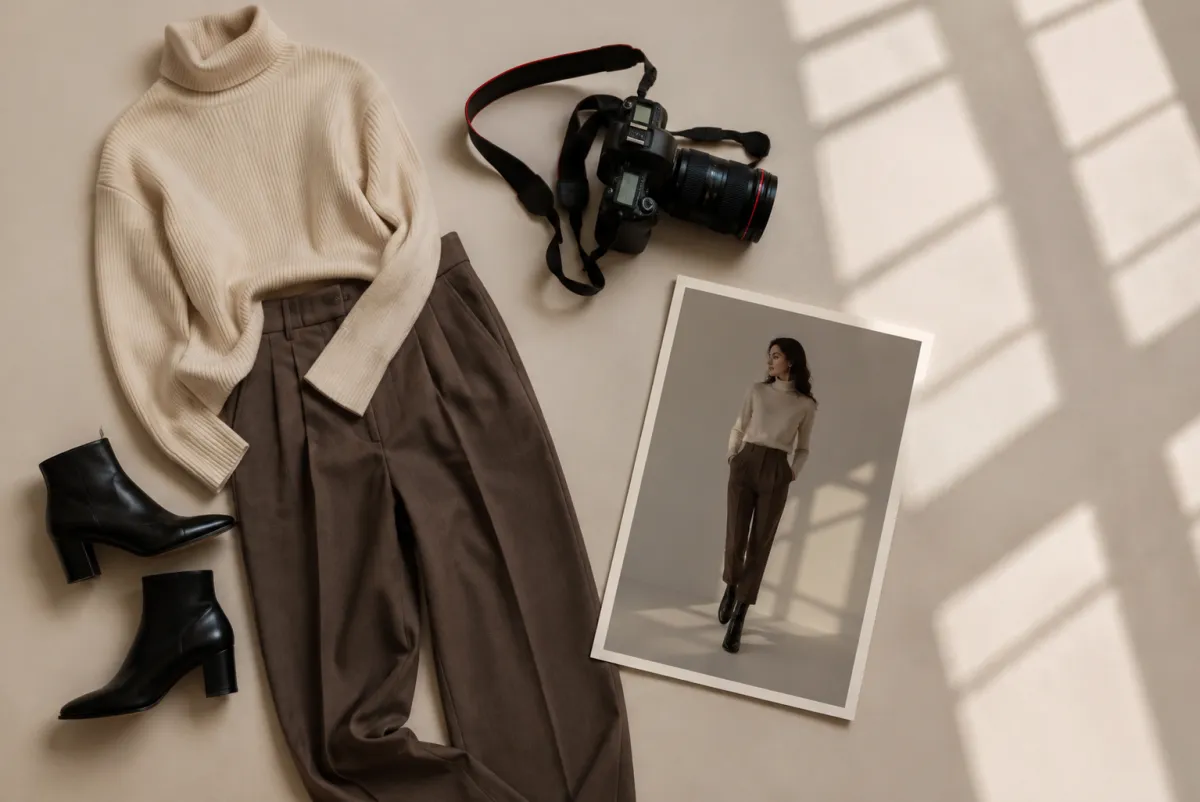
The Krea AI clothes changer is useful when an outfit edit belongs inside a wider creative workflow. Krea combines prompt editing, masks, references, model choices, enhancement, and other image tools in one workspace. If you only want to change clothes on one adult photo, a dedicated AI clothes changer removes several decisions and may be easier to evaluate.
Last updated: August 10, 2026 · ~8 min read
This is an unsponsored workflow comparison, not a claim that one tool always wins.
What is the Krea AI clothes changer?
Krea lists an AI Clothes Changer — Free Virtual Try On among the apps in its creative suite. The surrounding platform is broader than clothing: its current image editor supports text instructions, brushes, masks, reference images, object removal, background changes, expansion, enhancement, and model selection.
You can use a dedicated app, the general editor, or references and local selections. That flexibility helps in a wider campaign but can be overhead when the whole job is “put this jacket on this person.”
Krea's official AI image editor page currently says the editor runs in the browser and accepts prompt, brush, mask, and reference-based edits. Its apps directory separately lists the clothes changer. Check those live pages before publishing a client workflow, because available models, free allowances, and licensing terms can move.
What works well about the Krea approach?
Krea's strongest advantage is breadth. A clothes change can sit beside cleanup, reframing, background editing, references, and enhancement.
That can be useful when you need to:
- Replace an outfit, then revise the setting or crop.
- Mask a local region rather than regenerate the entire image.
- Compare different image-editing models in one workspace.
- Add a garment or product reference to guide the edit.
- Upscale or polish the selected result afterward.
The same breadth also changes how you judge the tool. A flexible editor rewards people who can diagnose which region, model, or reference needs work. A dedicated virtual try-on tool makes more choices for you, which is useful when you want a repeatable outfit preview rather than an open-ended canvas.
Krea AI clothes changer versus a dedicated tool
Use this comparison to decide which one to test first.
| Workflow question | Krea | Dedicated AI clothes changer |
|---|---|---|
| What is the workspace? | Broad creative suite and editor | Clothing-focused upload and generation flow |
| How do I control the edit? | App, prompt, brush, mask, references, model choice | Garment reference or outfit description with fewer controls |
| What happens after the swap? | Continue editing, reframing, enhancing, or composing | Inspect, regenerate if needed, then download |
| Who benefits most? | Creators already using Krea or handling multi-step edits | People comparing outfits or making focused clothing edits |
| Main learning curve | Choosing the right editing path and model | Preparing good source images and judging fidelity |
| Main risk | Changing too many variables to diagnose a failure | Expecting a one-click tool to preserve every tiny detail |
This is a workflow comparison, not a benchmark. Either tool may win on one garment and fail on another. Use a controlled test.
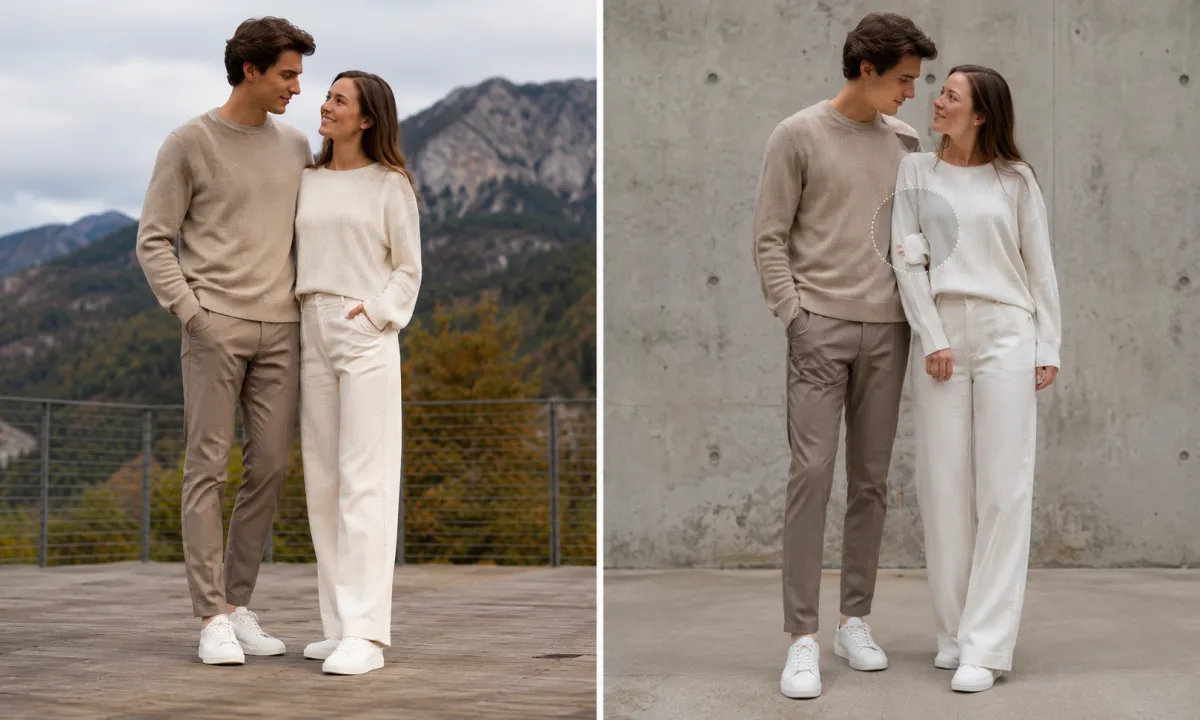
Conceptual failure-diagnosis visual, not a claimed Krea or AIClothSwap output: inspect one failure category at a time.
How to test Krea without changing five things at once
Open-ended editors make it easy to chase a result by changing the model, prompt, mask, crop, and reference together. That may produce a lucky image, but it teaches you nothing. Use a controlled sequence instead.
- Prepare one clean adult portrait. Use even lighting and a pose where the torso, sleeves, waist, and hands are visible.
- Prepare one garment reference. Choose a flat lay or clean product photo with the whole item visible. Avoid tiny ecommerce thumbnails.
- Write one literal instruction. For example: “Replace the current jacket with the reference jacket. Keep the person's face, hair, body, pose, hands, background, and lighting unchanged.”
- Run a baseline. Use one Krea editing path and record the model or app. Do not add style language yet.
- Inspect the failure. Decide whether the issue is identity, garment shape, pattern, edge blending, anatomy, or lighting.
- Change one variable. Improve the mask, source image, reference, or instruction—but only one.
If the second result improves, you have a repeatable direction; if it gets worse, revert the change. This loop is faster than stacking adjectives onto a prompt.
The best inputs for a Krea clothes edit
Krea's editor accepts several kinds of guidance, but every reference adds information the model must reconcile.
Start with a readable person photo
The face should be large enough to inspect and the clothing silhouette clear. A straight or slight three-quarter pose is easier than crossed arms or a bag covering the torso. Use an adult subject whose photo you have permission to edit.
Use a garment reference that shows construction
Show the neckline, sleeves, closures, hem, and material. If a jacket is folded closed, the model has to guess how it hangs open. If a pattern is cut off, it may invent the missing repeat.
Keep the first prompt practical
Describe the edit and protected elements. Do not mix the first clothes change with a new pose, lighting, lens, background, and editorial style. Add those after the garment transfer is stable.
If your goal is only a palette test, use the clothes color changer. If you have an occasion but no garment reference, an AI outfit generator is designed for that earlier ideation step.
How to judge whether the result is usable
Review the original and edited image side by side at 100% size.
Face and hair
The person's identity, expression, hairline, and facial proportions should remain stable. A beautiful outfit is not usable if the subject becomes a different person.
Hands and garment intersections
Look where fingers touch pockets, bags, cuffs, or lapels. These intersections expose errors that a small preview hides. Watch for extra fabric, missing fingers, and sleeves merging into skin.
Pattern, text, and closures
Check checks, stripes, logos, buttons, and zippers. Generative editors are not reliable typesetting systems. When exact branded text matters, verify it manually and plan a traditional retouch if needed.
Fabric behavior
The material should respond to gravity and pose. Heavy denim should not drape like silk; a fitted blazer should not inflate around the waist. The silhouette and folds should agree.
Scene continuity
Compare background objects, shadows, skin tone, and overall color. If the editor changed something outside the garment, decide whether it harms the purpose of the image. For a personal preview it may be harmless; for a catalog it can be disqualifying.
Our AI clothes swap realism checklist covers the same review in more detail.
When should you try an alternative to Krea?
Try a dedicated alternative when you want fewer choices, a shorter path, or an independent result from another editing model.
Common reasons include:
- You do not need Krea's wider canvas, model library, or enhancement tools.
- You want to upload a person and garment without drawing a mask.
- You need a simple before-and-after preview for a shopping decision.
- You want to compare whether another tool preserves the face or garment better.
- You need a repeatable process that a non-editor can follow.
Stay with Krea when the clothes change is one part of a larger build. A marketer swapping a jacket, extending the frame, and producing several ratios may save time in one suite. A shopper testing two coats probably benefits from a narrower tool.
Free use and commercial rights need separate checks
Krea currently advertises free daily usage for basic features, while its editor page says paid plans include commercial rights and free outputs are not licensed for commercial use. “Free to generate” is not the same as “licensed for an ad.” Verify the current terms before ecommerce, paid social, or client use.
Run the same checks for any alternative:
- Does the plan allow commercial use?
- Are free results watermarked?
- How are uploads retained or deleted?
- Can the provider use inputs or outputs for training?
- Do you own or license the source portrait and garment image?
AIClothSwap's rules are published in its Content Policy. Whatever tool you choose, the adult subject's consent and your rights to the source assets come first.
Frequently asked questions
Is the Krea AI clothes changer free?
Krea currently lists a free plan with daily compute units and includes the clothes changer in its apps directory. Free availability, model access, and output licensing can change, so check the current app and pricing pages before starting a batch.
Do I need to draw a mask in Krea?
Not for every workflow. Krea offers app-based, prompt, brush, mask, and reference-image editing paths. A mask is useful when the editor changes too much of the scene or when you need to confine the edit to a garment region.
Can I use a Krea clothes-changer result commercially?
Krea's current editor page says paid-plan users receive commercial rights, while free-user images are not licensed for commercial use. Read the current terms for the plan and model you use, and confirm you have rights to every source image.
What is the simplest Krea alternative for one outfit preview?
A dedicated AI clothes changer is simpler when you only need to upload an adult portrait, add a garment reference or describe an outfit, generate, and compare. Krea is stronger when the clothing edit must continue into masking, compositing, enhancement, or other creative work.
Related guides
- Try the focused AI clothes changer →
- Preview a garment with virtual try-on
- Generate outfit ideas from a description
- Change garment color while preserving the item
- Best photo for an AI clothes changer
- How to change an outfit without changing the face
Use the smallest workflow that solves the problem
Krea is compelling when you want one creative workspace for many image tasks. When the brief is only “change these clothes and keep the person,” try the dedicated AI clothes changer as a clean comparison. Hold the inputs constant, inspect the same details, and keep whichever workflow produces more usable results with less rework.