
Google Virtual Try-On Clothes: What Shoppers Should Know
Learn how Google virtual try-on clothes works, what to check before shopping, and why an AI preview cannot confirm fit, size, or stock.

Google virtual try-on clothes can show a supported item on a photo of you, helping you judge color, silhouette, and styling direction before you visit a retailer. It is useful for narrowing choices, not for confirming size, comfort, stock, or an exact real-world fit. If you want to compare an outfit idea you already have, an AI clothes changer gives you a separate photo-based preview workflow.
Last updated: September 2, 2026 · about 7 min read
Google's shopping experience and an independent outfit preview solve related but different problems. Google's feature is tied to eligible product results: you start with a real listing, then see a generated visual of that item on a chosen image. A general clothes changer starts with your own photo and a styling direction. Neither one is a fitting room.
What Google virtual try-on does
Google's current guidance describes a Try On option on eligible apparel results in Google Shopping, Search, and product results in Google Images. You sign in, choose a supported item, then supply a full-length photo or, in some U.S. flows, create a digital try-on image from a selfie. Google's official walkthrough is the source of truth because availability and eligible categories can change.
The useful question is not “does the image look flawless?” It is “does this particular color, proportion, or layer still look like me when the original photo stays fixed?” A generated preview can answer that quickly. It cannot see the garment in your hands, feel its stretch, or know whether a retailer's medium matches one you own.
| Shopping question | What a Google try-on can help you compare | What to verify elsewhere |
|---|---|---|
| Does this color work near my face? | Contrast, overall mood, and how the color sits against the photo | The retailer's real product photos and color description |
| Do I prefer this jacket or that sweater? | Broad silhouette and styling direction | Fabric weight, lining, warmth, and pockets |
| Is this a likely purchase? | Whether the idea is worth opening at the retailer | Size chart, garment measurements, reviews, price, and returns |
| Will this exact item fit? | Nothing reliable enough to replace a fit check | Your measurements and the retailer's fit guidance |
Treat the result as a comparison image, not proof. A polished render can still simplify a seam, sleeve, pattern, body proportion, or garment detail.
How to use it without overreading the result
- Start with an eligible product. Open the item and look for Try On. If the control is absent, that product, account, or region is not currently supported; do not assume the feature is broken.
- Use a clear photo you have permission to use. Google's help guidance recommends one person, good light, a clean background, a standing pose, visible hands, and fitted clothing. A loose coat, deep shadow, or another person gives any image system more to guess.
- Compare two or three close options. Keep the source image constant and change one decision: navy versus camel, cropped versus long, or one dress silhouette versus another. This tells you more than a gallery of unrelated looks.
- Leave the image and inspect the listing. Read the size chart, material composition, care instructions, reviews, delivery dates, and return terms before buying. The preview is the beginning of the decision, not the end.
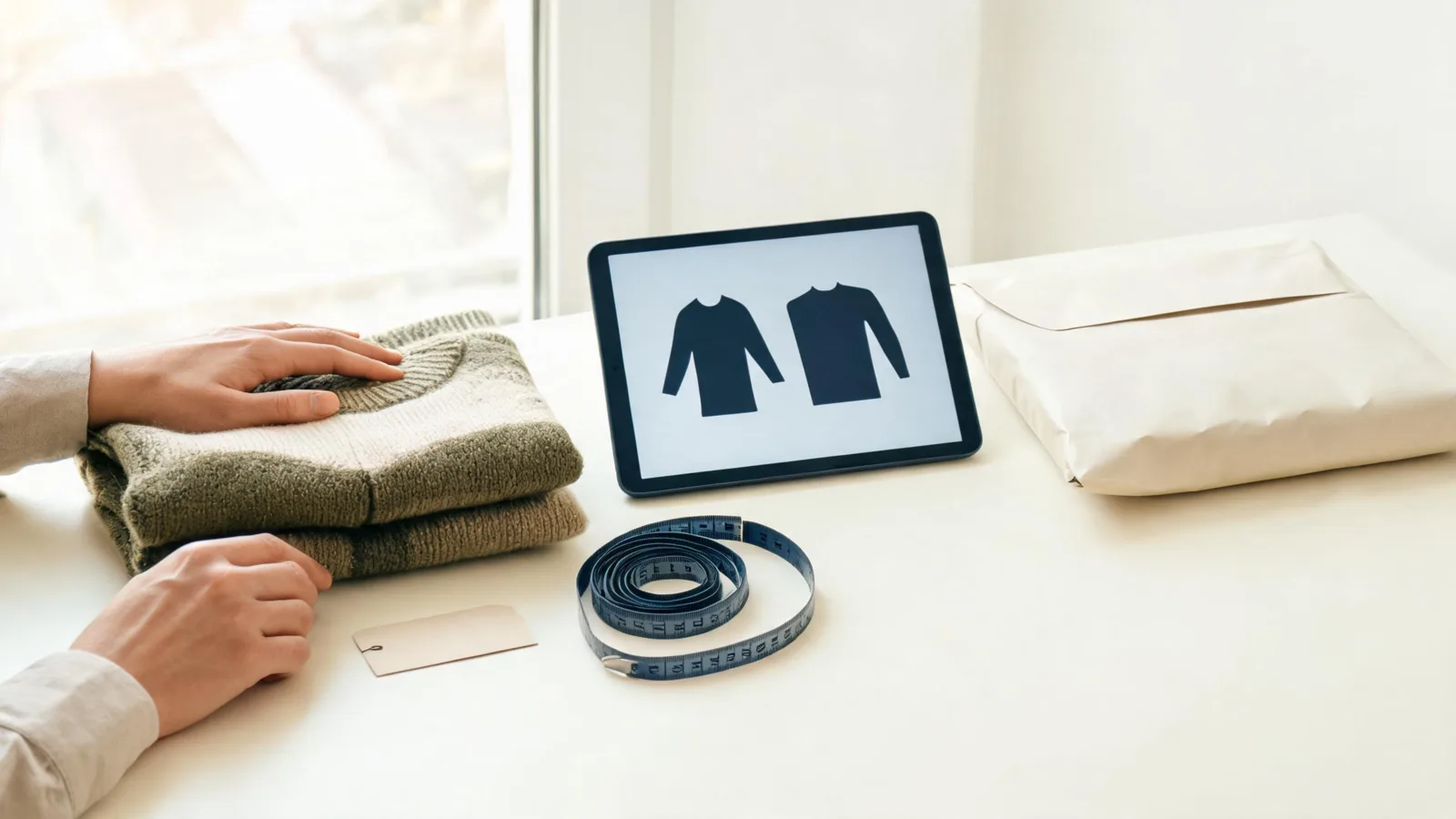
Use the preview to make a short list, then verify the real product details before checkout.
Where the feature is most useful
This is a strong tool when you have found a real item but cannot picture the proportion on yourself. It is especially good for making a first pass on outerwear, tops, trousers, dresses, and shoes where the product is eligible. It can also reduce the temptation to buy every color variation simply because the catalog model makes each one look equally good.
It is weaker when your decision turns on a physical detail: compression, bra support, a waist measurement, inseam, fabric opacity, shoe width, or warmth. Google's own help documentation says generated images can contain errors, including around body shape, personal features, and clothing details. The same page describes country, age, sign-in, and account-setting requirements, so your screen may not match a tutorial recorded elsewhere.
For a look that is not attached to one shopping listing—such as “Would a navy blazer improve this headshot?”—use a controlled virtual try-on or business-attire preview. For a color-only decision on an outfit you already own, the clothes color changer is more focused.
Make a better shopping decision after the preview
Use the generated image to choose the next action, not to make the purchase automatically. If the result makes you like the silhouette, open the retailer page and answer four concrete questions: Is the size chart based on body measurements or garment measurements? Does the product photography show the same color under more than one light? Does the description identify the fiber content and care needs? Are the return conditions workable if the fit is wrong?
This step matters because apparel names can hide meaningful differences. Two “navy wool-blend blazers” can have different shoulder construction, lining, closure, stretch, and length. A preview can tell you which direction to investigate. It cannot settle which of those two listings is the safer purchase. Save the preview next to the product URL, then compare the details before you move it to a cart.
If you are choosing between nearby sizes, do not use a generated image as a tie-breaker. Take the retailer's measurements, compare them with a garment you already wear comfortably, and use reviews only as context. When the information is incomplete, a flexible return policy is evidence worth more than a visually perfect render.
Privacy and sharing limits
Only upload your own photo or one you are allowed to use. Google's December 2025 product update describes the photo and selfie-based paths, but availability and account controls can change; check the current Google Shopping screen before uploading.
Do not post a generated preview as though it proves that a garment fits, is in stock, or has a feature shown in the image. That distinction matters most when you share an outfit recommendation, resell a garment, or use a preview in a commercial context. Save the source listing alongside the image so you can return to the facts.
FAQ
How do I use Google virtual try-on for clothes?
Sign in to an eligible Google experience, open a supported apparel result, choose Try On, and use a photo you have permission to use. The button does not appear on every product or in every region.
Does Google virtual try-on tell me what size to buy?
No. It can help you compare a visual direction, but it does not replace a retailer's size chart, garment measurements, fabric details, reviews, or return policy.
Why is the Try On button missing on a Google Shopping result?
Not every product, account, region, or apparel result is eligible. If the Try On button is missing, choose another item or check Google's current feature guidance before troubleshooting your photo.
Related guides
- Try the free AI clothes changer →
- AI virtual try-on: see clothes on you before you buy
- How to preview a jacket on your own photo
- How accurate are AI clothes changers?
Make the next decision more concrete
Use the preview to reject weak options and identify a likely favorite. Then let the real listing, your measurements, and the return policy decide whether to buy. For a controlled photo comparison outside a shopping result, try an AI clothes changer →.