
AI LinkedIn Photo: Check Before You Upload
Review an AI LinkedIn photo for likeness, crop, wardrobe artifacts, and misleading affiliations before deciding to upload it or keep the original.
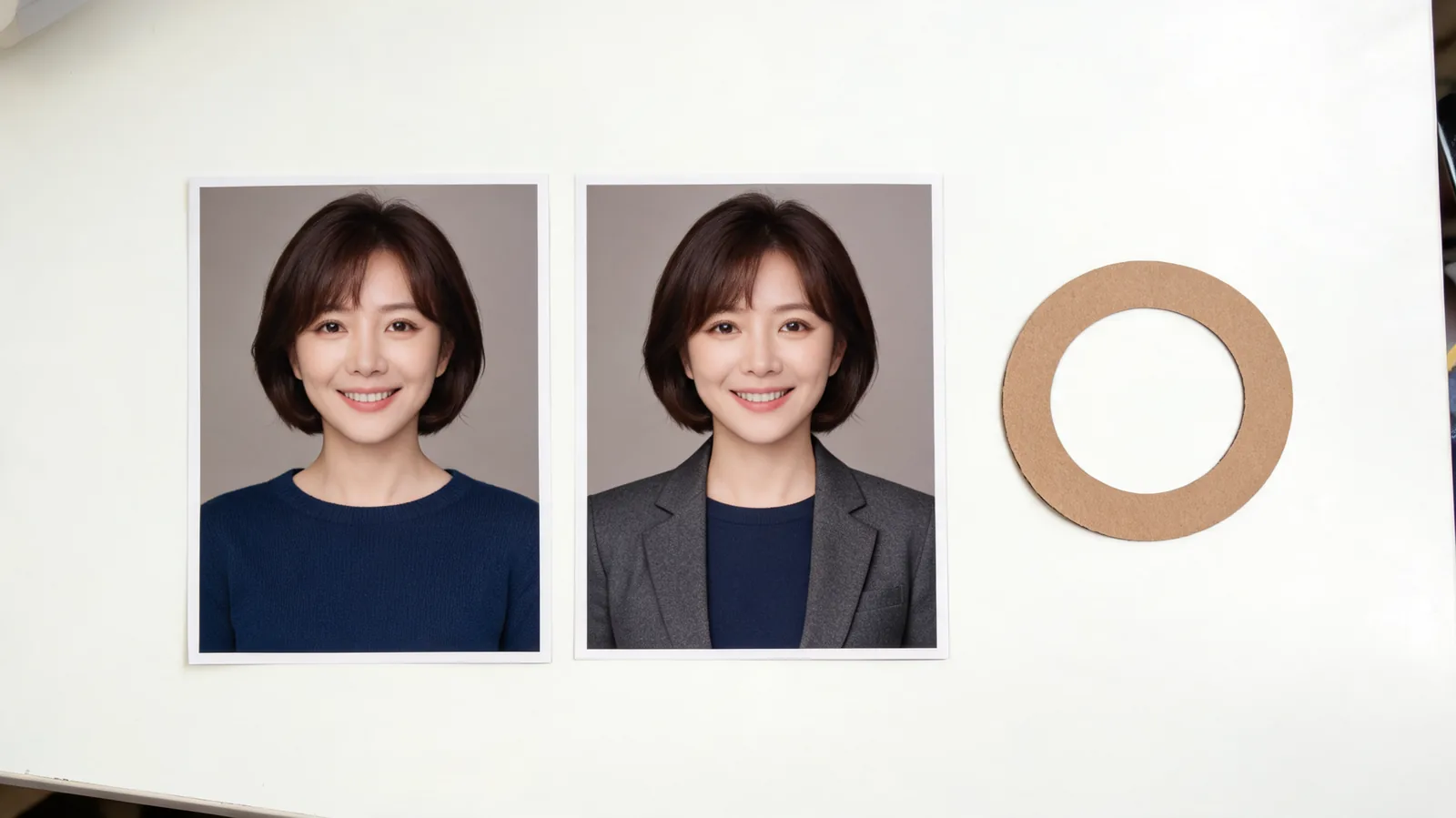
Before uploading an AI LinkedIn photo with an outfit edit, check that it still looks like you, survives the profile crop, and accurately represents your professional identity. Compare any AI clothes changer result with the original, and keep the original if the face or meaning of the picture has changed.
Last updated: October 9, 2026 · about 8 min read
What does LinkedIn say about profile photos?
LinkedIn's profile photo guidelines require the image to reflect your likeness, including when it is an artistic representation. Its Professional Community Policies also require true identity and accurate representation, and prohibit misleading professional affiliations. These pages were checked on October 9, 2026; consult them again if you are uncertain about a particular image.
Those requirements do not certify every AI portrait or guarantee that a clothing edit will be accepted. The practical question is whether this particular result represents you honestly. Our review below is an editorial checklist for that decision, not an approval from LinkedIn.
A clothing-only edit and a newly generated face need different scrutiny. Our face swap versus clothes changer guide explains the difference between the operations. Here, the task is narrower: you already have an edited portrait and need to decide whether to publish it as your profile image.
How do you compare the edited portrait with the original?
Open both files side by side at the same size. Do not compare an enlarged edit with a small original; different scaling can make facial details hard to judge. Keep an untouched copy of the original so you can return to it.
Look at the person before the outfit. Check the eyes, eyebrows, nose, mouth, jawline, ears, hairline, and expression. You are looking for unintended changes, not demanding that every pixel remain identical. A change in brightness is different from a rebuilt smile or a new jaw shape.
Use three passes:
- Check identity at a normal viewing size. Would someone who knows you recognize you without the name beside the image? Does the expression feel like the original rather than a different person?
- Inspect detail at full size. Compare glasses, hair edges, visible skin details, and the boundary between neck and collar. Look for smoothed or invented features that change your appearance.
- Ask for a second opinion if you hesitate. Show a trusted person the original and edit. Ask what changed, rather than asking which image is prettier.
If the face changed, set the result aside. Start from the original if you try again.
Review the person before the jacket. A convincing outfit does not fix a portrait that no longer represents you.
Which wardrobe details should make you reject the image?
Inspect the visible clothing at the size someone can open it, as well as the small avatar size. A profile crop might conceal part of the jacket, but it can also place an awkward collar directly under your face.
| What you see | Why it matters | Decision |
|---|---|---|
| Same recognizable face, plausible plain clothing | The edit may be limited to styling | Continue to crop and representation checks |
| Changed eyes, smile, jaw, or hairline | The person has shifted beyond the wardrobe request | Reject and return to the original |
| Collar merging into skin or hair | The clothing boundary is visibly broken | Reject or make a simpler edit from the original |
| Uneven lapels, floating tie, invented buttons | The outfit looks constructed rather than worn | Repair from the source or retain the original |
| An invented badge, uniform, or employer mark | It may imply an affiliation you do not hold | Reject the detail; do not rely on a small crop |
| Clear original with an ordinary knit or shirt | Styling may not need an edit at all | Keep it if it already serves the profile |
AIClothSwap's suit filter can explore a jacket or suit direction on an existing photo. Treat the result as something to inspect, rather than a finished credential. A plain garment request is easier to judge than a uniform with complex badges or text.
Check the shoulder line too. One shoulder that grows wider, hair that disappears beneath a lapel, or a neckline that changes the apparent neck shape can make the portrait feel wrong even when the face initially seems stable.
How do you check the LinkedIn crop?
Review the full image first. Then open the destination's photo editor and inspect the actual preview. LinkedIn's photo editing instructions describe crop, position, size, and visibility controls. Interfaces can differ by device, so use the preview available in your account.
Keep the face easy to recognize in the circular display. Avoid a crop that cuts into the chin, hair, or glasses merely to show more of the jacket. Reduce the preview to the small size where people will encounter it, then check whether the eyes and expression are still clear.
Do not judge the crop only against a blank desktop background. Inspect the saved profile on your phone as well. A pale shirt against a pale background may lose definition when small, while a dark collar can become an unexplained shape beneath the chin. The point is readable likeness, not squeezing the whole outfit into an avatar.
Before replacing the existing photo, save a local copy of it. LinkedIn's help page says it cannot restore the old image once you delete it or upload a replacement. Your own saved file makes it straightforward to return to the previous version if the new crop disappoints.
Does the outfit imply something untrue about your work?
Separate styling from professional claims. A plain blazer can suggest a clothing preference. A lab coat with an invented hospital badge, a military uniform, or an employer logo may suggest a role, qualification, or relationship. Ask what a reasonable viewer would infer from the visible details.
For example, imagine a consultant comparing a navy cardigan with a charcoal blazer. If the face stays recognizable and the blazer has no misleading mark, the main decision is style and image quality. If the output adds a conference lanyard or company badge, the decision changes: the photo now carries a claim beyond clothing. Remove the unsupported detail or use the original.
These are hypothetical examples, not product test results. They are useful because the question is about what the image communicates. The same check applies to a generated office backdrop, a stage, or a sign: do not let a portrait imply an event or affiliation that did not happen.
LinkedIn's policies also address disclosure of synthetic or manipulated media depicting things a person did not do. Do not assume a small wardrobe edit grants permission for a fabricated scene. If the image needs a complicated explanation to stop it misleading viewers, an ordinary portrait is often the clearer choice.
When should you keep the original instead?
Keep the original when it is clear and recognizable but the edit adds little beyond formality. A neat shirt or knit may fit your work better than a suit.
Also keep it when you cannot confidently separate the garment change from changes to the person. An attractive result can make you reluctant to notice the problems. Compare after a short break, without choosing the flattering version in advance.
Retake the photo if the source is blurred, the face is partly hidden, or the lighting makes review difficult. Put on clothes you are comfortable wearing, use a simple setting, and take a clear current portrait. A new real photo gives you a more reliable starting point than trying to repair several uncertainties through generation.
If you have already decided to test only a shade, the clothes color changer is a narrower option than rebuilding the entire outfit. It still needs the same identity and boundary checks. It still cannot promise unchanged facial details.
A final check before you save the photo
Before uploading, confirm that:
- You have the untouched original and the previous profile photo saved locally.
- The edited face, hair, and expression still represent you.
- The collar, shoulders, and visible garment details are plausible.
- No badge, uniform, logo, or setting creates an unsupported professional claim.
- The destination preview keeps your face clear at a small size.
- The image follows the current platform rules and any relevant workplace policy.
After saving, view your profile again and check the crop and visibility. If the image looks wrong, replace it with your saved original rather than leaving an uncertain portrait live while generating more versions.
The hero illustrates a wardrobe comparison using a fictional person; it is not an AIClothSwap customer result. Your acceptance decision should use your own source and final files.
Frequently asked questions
Can I use an AI photo on LinkedIn?
LinkedIn says a profile photo must reflect your likeness and requires accurate representation. That is not blanket approval for every AI image. Review the actual result against your original and current policies; keep the original if the edit changes who you appear to be or creates a misleading impression.
Is changing a shirt the same as changing my face?
No. A wardrobe edit changes clothing, while a face edit changes identity-related details. A clothing request can still accidentally alter your face, so compare the result with the original before using it as a profile photo.
Can I crop out a mistake in an AI headshot?
You can crop an irrelevant background edge if the remaining photo is accurate, but do not use a tight crop to conceal changed facial features or a misleading detail. Check the full image first, then the profile crop.
Does an AI blazer make a profile photo more professional?
A blazer may change the style, but it does not prove credibility or improve every portrait. Recognizable likeness, a clear crop, and truthful representation matter more. A clean original photo can be the better choice.
Related guides
- Try the AI clothes changer →
- Virtual try-on for clothing comparisons
- How to change an outfit without changing the face
- Business attire photo planning
Make the upload decision from the original
Compare likeness, clothing, crop, and meaning before saving an edit to your profile. If you want to explore one wardrobe change, try the AI clothes changer and keep the original beside the result throughout the review.