
How to Try On Couples Halloween Costumes With One Photo
Preview couples Halloween costumes on one photo of you both. Assign outfits with left and right, review the result, and check real garments before buying.
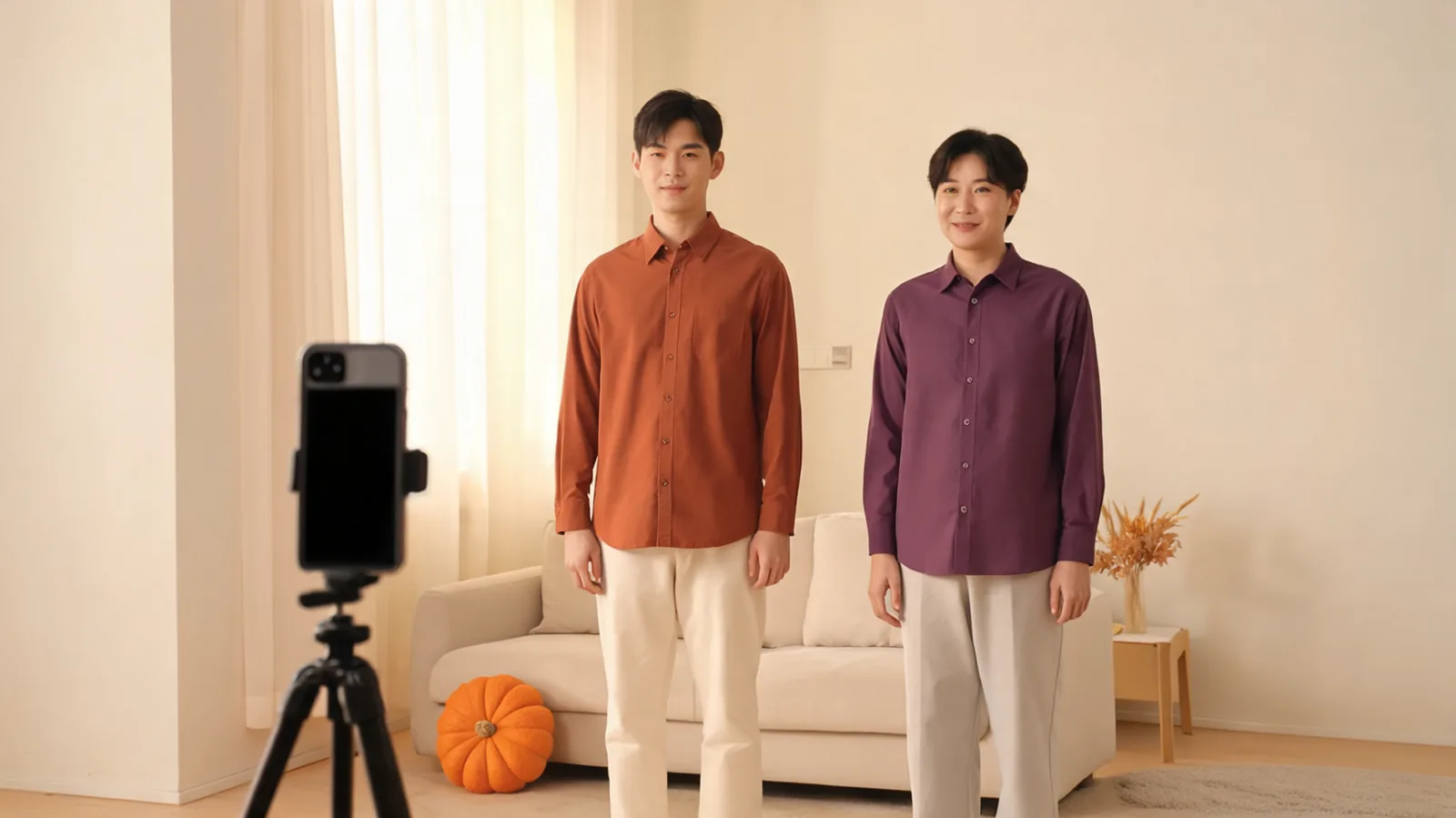
To preview couples Halloween costumes together, upload one clear photo of both adults to the Couples Halloween Costumes page, choose Studio Quality, and describe each outfit using left and right. Generate a still image, check both people, then compare the clothing with real garments before you buy.
Last updated: October 12, 2026 · about 8 min read
The hardest part is often deciding whether two individually appealing costumes actually work together. A cape may dominate the picture; two different reds may compete; a matching print may feel too repetitive. Using the same couple photo gives you a consistent starting point for those decisions.
This tutorial describes the page as of October 12, 2026. Its cover illustrates preparing a couple photo; it is not a screenshot or a demonstrated try-on result. The feature page has its own vampire, skeleton, and pirate demonstrations.
1. Choose one photo where both people are easy to see
Use a photo of two adults who have agreed to the upload and clothing edit. Both should be side by side, with clear faces and enough space to distinguish their arms and torsos. A straightforward standing pose is easier to assess than a close embrace with overlapping sleeves.
Choose waist-up framing when the decision concerns coats, necklines, or shawls. Choose a full-body photo when you need to compare trouser shapes, long dresses, and the overall balance of the pair. A cropped photograph cannot give you a useful check of shoes that are outside the frame.
Look for even light across both people. If one face is bright and the other is hidden in shadow, retake the picture near a window or in open shade. Avoid a heavily filtered selfie, a tiny screenshot, or a photograph with other party guests close behind you.
Before uploading, check:
- Both adults are in the same image and have agreed to use it.
- Both faces are visible without masks, hair, or hands covering them.
- The bodies remain distinguishable, including the shoulder and waist areas.
- The crop includes the parts of the costume you want to compare.
- The photo is sharp enough to inspect at a larger size.
A one-person photo dresses only that person. Do not upload a solo portrait expecting the tool to add your partner. Nor do you need to stitch together two portraits for this workflow: start with an actual photograph of both of you.
2. Choose Studio Quality for this description workflow
Open the couples page and upload your person photo. Select Studio Quality for the workflow in this guide. It follows written outfit descriptions and supports up to six garment reference images. Studio Quality becomes available after any membership or credit-pack purchase; sign in to the relevant account.
Studio is not the only option for a two-person description on this particular page. Essential Try-On also supports dressing both adults from the written description here. Essential accepts one outfit reference when you use a garment image. Keep that distinction in mind if you switch modes after preparing your description.
Free Preview is the separate one-person, one-outfit-photo option at no cost. It does not replace the two-person description workflow described below.
| What you want to compare | Input to prepare | Suitable option |
|---|---|---|
| Both adults in an original costume described in words | One couple photo and a left/right description | Studio Quality; Essential also supports descriptions on this page |
| One real outfit from a shop photograph | Person photo and one outfit reference | Essential Try-On accepts one reference |
| A look assembled from several garment references | Person photo and up to six references, with clear instructions | Studio Quality |
| A basic preview of one outfit on one person | One-person photo and one outfit photo | Free Preview |
3. Edit the vampire description using left and right
The description box already contains an original vampire couple costume. It assigns a velvet frock coat and crimson-lined cape to the person on the left, and a long black lace gown with a red velvet shawl to the person on the right. You can keep that starting point or replace it.
Use left and right as seen in the uploaded image, rather than each person's own left hand. If you are looking at the picture, the adult on its left is “the person on the left.” This avoids ambiguity when a selfie or camera preview has been mirrored.
Assign garments first. Then state the shared color or theme. Add only the details that would change your decision; a long list of scenery and decorative requests makes it harder to isolate a clothing problem.
For example, replace the text with:
Dress the two adults in matching original vampire costumes. The person on the left wears a black velvet frock coat, a short crimson-lined cape, and black trousers. The person on the right wears a high-neck black dress and burgundy velvet shawl. Keep both faces visible and recognizable, keep their existing pose, and leave the background unchanged. Use no face paint, blood, text, or logos.
That is an instruction example, not a claimed output. You can swap the two assignments or give both people trousers, dresses, or coats. Choose clothing each partner actually wants to wear rather than assuming a role from their appearance.
4. Generate, then inspect both people separately
Complete the page's sign-in and verification requirements, then generate the image. The result is a still photo, not a video. Wait for the result before changing the input or starting another version.
First compare each face with the original. The tool aims to keep people recognizable; it does not offer face swapping. Check eyes, mouth, hairline, and the boundary between a collar and the chin. If identity looks changed, reject that version rather than sharing it as a faithful picture.
Next inspect the clothing assignment. Does the left person have the coat you requested? Is the shawl on the right? Look at sleeves, cuffs, hands, fastenings, and where the two costumes meet. Overlapping fabric can obscure which arm belongs to which person.
A convincing costume preview is a visual planning aid. It cannot establish a garment's size, comfort, fabric quality, or physical fit.
5. Change one decision at a time
Once the assignments are correct, compare controlled variations. Keep the original photo and change one choice: cape length, shared accent color, dress versus trousers, or whether either person wants face paint. This makes it easier to explain why one version works better.
Compare both costumes together at normal viewing size, too. Do the colors coordinate, or does one outfit dominate? The AI Vampire page offers cape-and-velvet theme references.
For matching skeletons, a concise instruction could be:
Give both adults black long-sleeved tops and black trousers with the same simple white bone pattern. Keep both faces unpainted and recognizable. Preserve the pose and background, and do not add extra people or props.
The AI Skeleton page shows the bone-print theme if you need a visual starting point. For pirates, assign different garments but repeat an accent: a navy captain coat on the left and a cream shirt with a navy waistcoat on the right. Describe original clothing rather than a named film character.
If both people agree on a direction, save the useful version before moving on. If you have not chosen a theme yet, the couple costume ideas guide compares garment combinations and practical effort.
What should you change when the result looks wrong?
Start with the smallest correction that addresses the visible problem.
| Problem | First correction |
|---|---|
| Both people get the same outfit despite different requests | Write one complete sentence for the left person and one for the right |
| A sleeve or hand merges into the other partner | Use a photo with less overlap and fewer accessories |
| Face paint changes recognizable facial details | Remove makeup requests and ask for both faces to remain visible |
| Boots or a dress hem cannot be assessed | Use a full-body source photograph |
| Decorative scenery distracts from the outfits | Ask to keep the original background |
| One costume has too many small details | Simplify to its main garments and one shared accent |
What must you check before buying the costumes?
Turn the preferred picture into a garment list for each person. Then compare actual listings: measurements, fabric, included pieces, delivery timing, and return conditions. A generated cape clasp or lace pattern may not exist in the item you find online.
If you already have product photographs, use outfit references instead of asking the image to invent every garment. Studio supports up to six references; Essential accepts one. Explain which adult should wear the referenced outfit and check the result against the seller's photograph. Extra reference images do not guarantee exact reproduction.
Do a real movement check once the clothing arrives: sit, walk, lift your arms, and inspect hems and closures. Health Canada's costume safety guidance warns that long or loose costumes can cause trips and falls. A preview cannot assess that physical risk for you.
AIClothSwap publishes this guide and operates the linked tools. These steps explain a planning workflow, not a hands-on test of every costume combination or a guarantee that both identities will be preserved in every result.
Frequently asked questions
Do we upload one photo or two separate portraits?
Upload one photo containing both consenting adults. Clear side-by-side framing helps you assign clothing to each person. A solo portrait dresses only the person shown; it does not add a partner.
How do I stop the outfits getting assigned to the wrong partner?
Use left and right as seen in the uploaded picture. Give each person a separate sentence naming the garments and colors. Check the result against those assignments before comparing finer details.
Is Studio Quality required to dress two people?
No. As of October 12, 2026, Essential Try-On also supports two-person written descriptions on the Couples Halloween Costumes page. This tutorial uses Studio Quality, which supports descriptions and up to six garment references and opens after a membership or credit-pack purchase.
Can the preview tell us which sizes to order?
No. Use the result to compare the visual idea, then use each seller's size chart and actual garment measurements. Check fabric, included accessories, comfort, and return conditions separately.
Related guides
Have a photo you both agree to use? Open Couples Halloween Costumes, assign the two outfits clearly, and review both people before choosing what to buy.