
Pokecut AI Clothes Changer: What to Check Before You Upload
See Pokecut's current AI clothes changer workflow, what to check before uploading, and how to review a generated outfit preview responsibly.

Pokecut AI Clothes Changer currently lets you upload a photo, then explore its outfit-changing workflow in a browser. Its public tool page promotes templates and garment-reference-style changes. Before you upload, use only an authorized adult image, verify the live controls and policy, and treat every result as a styling preview—not proof of fit, fabric, or product availability. You can run the same careful comparison in an AI clothes changer.
Last updated: September 25, 2026 · about 8 min read
This is an independent workflow guide, not a sponsored ranking. We reviewed Pokecut's public AI Clothes Changer page, Privacy Policy, and Terms of Use on September 25, 2026. The interface, access rules, free allowance, and policies may change, so the live pages—not this article—are the source for a decision involving real work.
What does Pokecut AI Clothes Changer currently offer?
Pokecut's current page presents an upload-based clothes-changing tool. It lists JPEG, JPG, PNG, WebP, and BMP, and describes outfit templates, a separate virtual-try-on route, and a way to use a flat garment image as a reference. Those are useful starting directions; they are not a promise that a particular source photo, garment, or pose will render cleanly.
| Your question | A sensible first test | What the result can tell you | What it cannot establish |
|---|---|---|---|
| Would this style direction suit the photo? | Use one supplied outfit direction on a clear portrait | Whether the broad silhouette and color direction read well | Exact fit, comfort, or a real product's availability |
| Does this garment reference survive the pose? | Upload one permitted, simple garment image | Whether its major shape and color can be previewed | Exact seams, labels, print accuracy, or fabric behavior |
| Which workflow is more usable for my input? | Repeat one source and literal request in each tool | Which result meets your stated review criteria | A universal quality ranking from one render |
Marketing language about realism is a starting claim, not an acceptance test. Inspect the specific output you receive before relying on it.
For a particular item photographed on a model, start with a virtual try-on workflow. If the garment shape is already right and you only need another shade, a clothes color changer is the narrower task.
Set up one controlled upload
Make the first pass deliberately easy to assess. A dramatic request may look exciting, but it gives you little information when the face, hands, and clothes all change together.
- Choose a clear, authorized adult photo. Use an in-focus front or three-quarter image with the face, shoulders, torso, and current garment outline visible. Avoid obscuring hands, bags, hair, or furniture over the target area.
- Use one outfit direction. Pick one simple template or one garment reference. Keep the color, garment type, and pose challenge modest for the first test.
- Write down an acceptance rule before generating. For example: “The face, hair, hands, background, collar, and sleeve boundaries must remain recognizable.” View the output beside the source at full size before trying a second variation.
If the first result fails, name the failure instead of adding more adjectives. A changed jawline suggests a different next step than a warped cuff. Our best photo for an AI clothes changer explains why clear edges and lighting matter before the model begins.
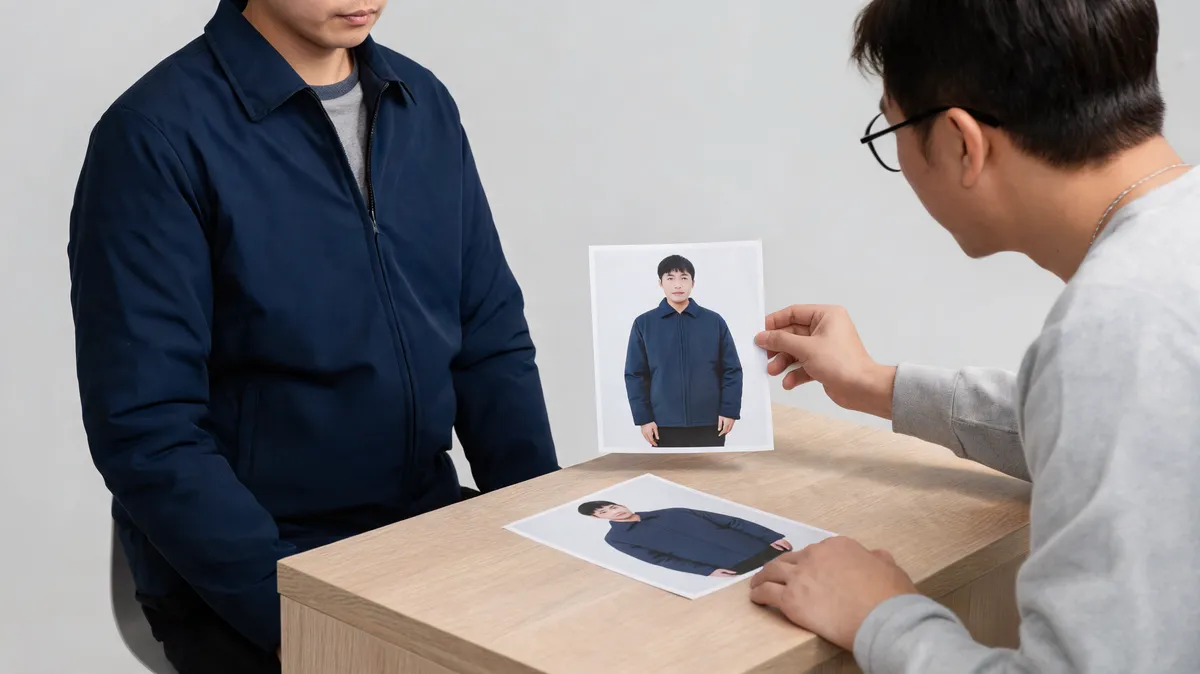
Conceptual editorial QA visual, not a Pokecut output. Review the source and output side by side before you keep an image.
Inspect a generated outfit preview in this order
1. Identity and pose
Start with the face, hairline, expression, and body outline. A clothes-change preview is no longer a clean clothing comparison if it changes the person or their pose. Try a simpler source image before adding a more detailed garment request.
2. Garment structure
Check the neckline, shoulder line, lapels, sleeve openings, waist, and hem. The garment should follow the existing body and lighting rather than float in front of it. Look closely at tiny print, repeated patterns, buttons, and logos: generative output is not reliable evidence of a product detail.
3. Intersections and light
Hands at cuffs, hair across a collar, straps over shoulders, and accessories at the neckline are frequent weak points. Then check shadows under the chin, arms, and hem, plus the background immediately around the silhouette. A strong center of frame does not cancel an altered hand or a broken edge.
For a repair-focused diagnostic, see why AI clothes swaps look fake. That older guide explains generic input and output failures; this page is the narrower Pokecut upload-and-review decision.
A short official Pokecut video to check separately
Pokecut's official channel has a 13-second video, “How to Add a Suit to a Photo Online Free with Pokecut.” The required DataForSEO video-info check confirmed it was embeddable and had 116 views when verified on September 25, 2026. It is linked rather than embedded because this article pipeline does not provide a non-JSX video component; adding an iframe to article content would violate the publication rule. It is a provider demonstration, not independent proof of quality or a substitute for the review checklist above.
Upload, privacy, and commercial-use checks
Upload only photos and garment references that you are allowed to use. Do not use intimate, deceptive, or private images, and do not present a generated preview as a factual product photograph, an identity claim, or a size guarantee.
Pokecut's privacy policy says that image processing requires server upload and describes retention periods that differ by upload and output type. Its terms say outputs may not be accurate, complete, or reliable and that users must judge and verify them. Before client, retail, or campaign work, read the live terms for the route and plan you will use. Confirm retention and deletion, training or sharing conditions, output rights, watermarks, paid limits, and any account requirement yourself.
AIClothSwap's Content Policy applies the same practical rule: use authorized material, preserve consent, and review generated images before they are shared.
Frequently asked questions
How does Pokecut AI Clothes Changer work?
Pokecut's current tool page asks you to upload a photo, then choose an available outfit option or use a garment reference. Its public page lists JPEG, JPG, PNG, WebP, and BMP as supported upload formats. Check the live controls because availability can change.
Does a Pokecut outfit preview prove how a real garment will fit?
No. An AI preview can help compare a styling direction, but it cannot measure a person or garment, verify size, prove fabric behavior, or confirm a retailer's stock or construction. Use the seller's product information and size chart for those decisions.
What should I inspect in a Pokecut clothes-change result?
Compare the result with the source at full size. Check identity, hairline, collar and shoulder shape, sleeve and hand intersections, garment edges, shadows, background continuity, and any small print or logo before saving or sharing it.
Related guides
- Try the free AI clothes changer →
- Use a virtual try-on workflow
- Change clothes color in a photo
- Choose a stronger source photo
- Diagnose fake-looking clothes swaps
Test one honest question at a time
Pokecut can be useful for a visual outfit direction. Keep the test small, compare it with the original at full size, and use a focused AI clothes swap tool only with images you are entitled to edit.