
FitRoom AI Clothes Changer: What to Check Before You Upload
Review FitRoom's current virtual try-on workflow, prepare an authorized upload, and inspect an AI outfit preview before you use it.
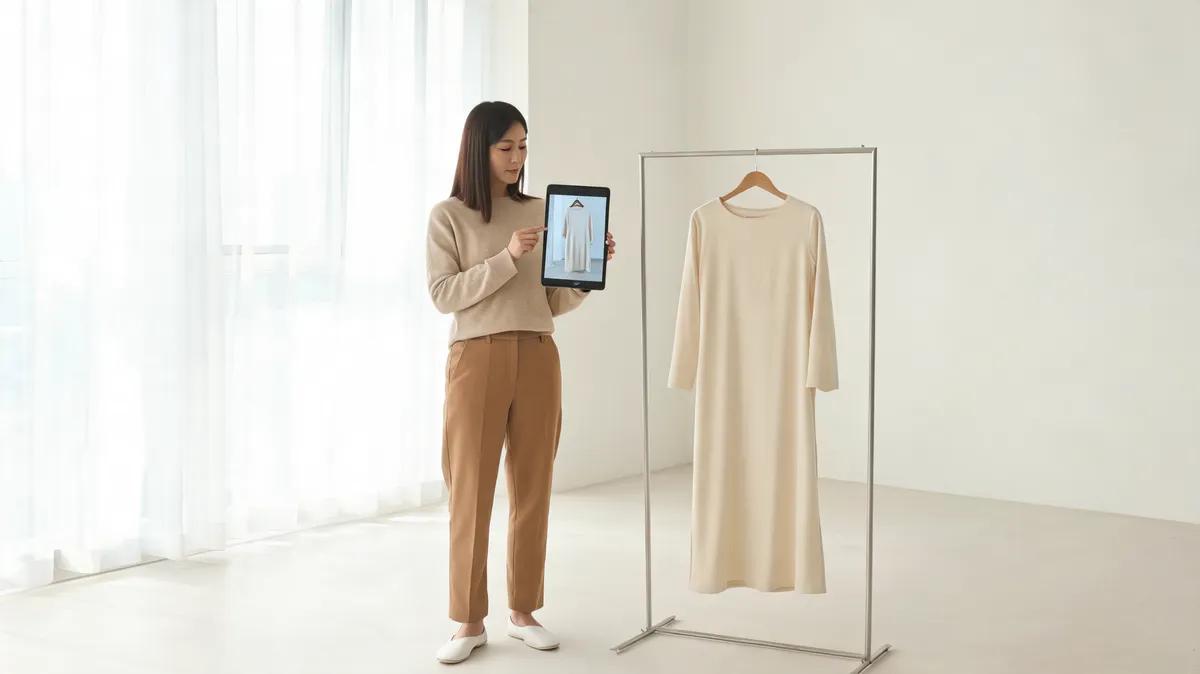
FitRoom AI Clothes Changer currently follows a two-input virtual-try-on path: upload a garment image, then select a supplied model or upload an authorized portrait. It can help you compare an outfit direction, but it cannot prove real-world fit, fabric behavior, or a retailer's product details. Start with clear adult images, inspect the output beside the source, and use an AI clothes changer only as another controlled preview.
Last updated: September 25, 2026 · about 8 min read
This is an independent evaluation guide, not a sponsored review. We reviewed FitRoom's public virtual try-on homepage on September 25, 2026. It describes an outfit upload, a model selection or portrait upload, pre-made clothing items, and generated results. Public pages and policies can move, so confirm current controls, sign-in rules, pricing, and data terms in the product before a consequential upload.
What does FitRoom currently ask you to provide?
FitRoom frames its workflow around two visual inputs: the clothing and the person who will appear in the preview. Its homepage recommends a high-resolution outfit image and a full-body, front-facing model photo with little background distraction. Those recommendations make sense because the system has more visible garment edges and body geometry to work with; they are not guarantees of a usable result.
| Input or choice | What FitRoom's public page describes | Why it matters in a test | Limit to keep in mind |
|---|---|---|---|
| Garment image | Upload a high-resolution outfit image or choose a pre-made item | Clear shape, sleeves, and color give the preview a better-defined target | It cannot certify exact construction, labels, fabric weight, or inventory |
| Model image | Choose a supplied portrait or upload your own | A clear, full-body, front-facing adult image makes boundaries easier to inspect | It cannot measure the person or prove real fit |
| Generated preview | AI applies the chosen garment to the portrait | It can help compare a styling direction on that image | It is not product photography or an approval for commercial claims |
Keep “looks plausible in this image” separate from “will fit, feel, or be available in real life.” They are different decisions.
If you have only an occasion and not a particular garment, begin with an AI outfit generator. If the garment's shape is already acceptable and you need only a color variation, a clothes color changer avoids asking a model to reconstruct the entire outfit.
Run a small, authorized FitRoom test
The first attempt should answer one narrow question: can this source photo and garment reference produce an output that keeps the person and scene recognizable? Do not start with an elaborate look, a crowded group picture, or a garment whose important detail is hidden.
- Prepare the garment image. Use an image you own or are authorized to use. Lay it flat or use a clear product image with the major edges, sleeves, neckline, and color visible. Avoid tiny logos, unreadable texture, and unnecessary collage elements.
- Prepare the portrait. Choose a clear adult subject standing alone with a visible face and full-body outline. Keep arms, hair, bags, and nearby objects from covering the clothing area where possible. FitRoom's own current guidance calls for a subject looking toward the camera with an uncluttered background.
- Set your review rule. Before generating, write down what must not change: the person's identity, pose, skin tone, garment boundary, and background. Compare the first result to both source images at full size, then change one variable only if you try again.
For a broader photo-selection checklist, see how to photograph clothes for AI outfit edits. The goal is not to force a perfect result; it is to know exactly what your next test needs to change.
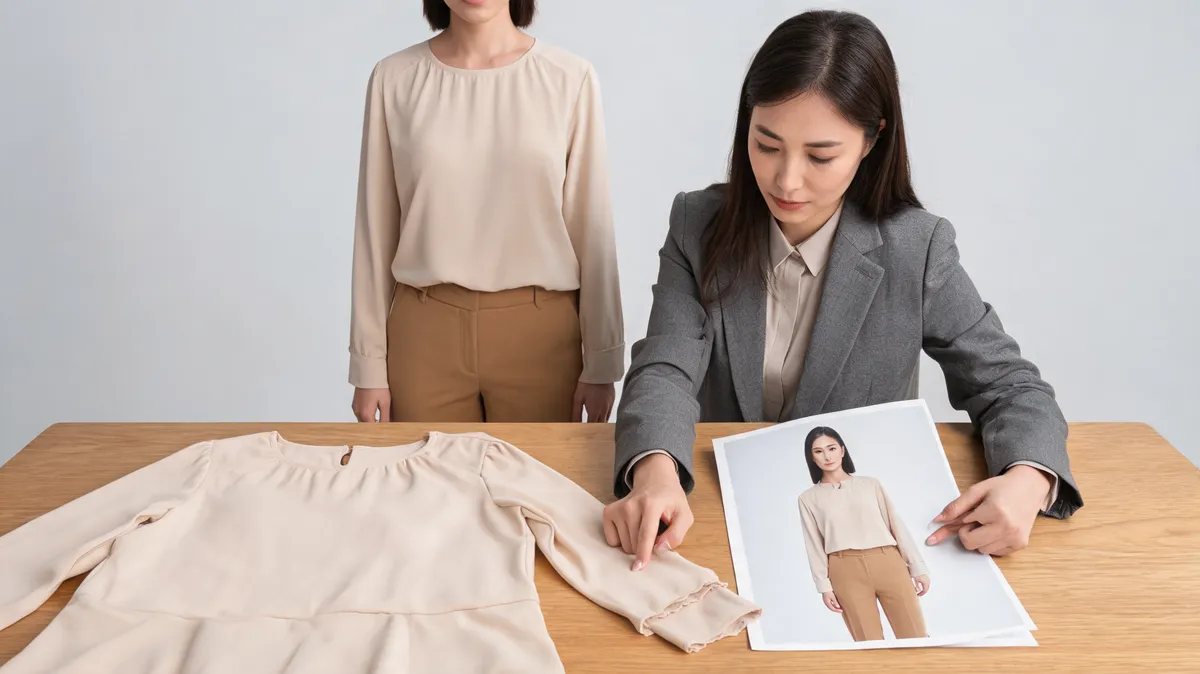
Conceptual editorial QA visual, not a FitRoom output. A generated outfit should be checked against both the portrait and garment source.
Review the result before you keep it
Identity and body outline
Look first at the face, hairline, expression, body proportions, and pose. If those change, the preview has stopped answering a specific garment-on-this-person question. Use a cleaner portrait or a simpler garment rather than repeatedly generating from a compromised source.
Garment-to-body alignment
Then review the collar, shoulder seams, sleeve openings, waist, hem, and any visible fastening. Does the garment wrap around the person consistently? Are repeated patterns or texture following folds? A plausible overall silhouette does not verify small product details, so treat button counts, print alignment, and branding as unverified.
Intersections, shadows, and background
Hands near the waist, hair over the shoulders, straps, jewelry, and bags give a try-on system difficult boundaries. Check them at full size. Then inspect the shadows under the collar, arms, and hem, and scan the background beside the body. Record a failure clearly instead of accepting it because the central outfit looks attractive.
The source article why AI clothes swaps look fake is a general repair guide for those failure types. This companion has a different purpose: assessing FitRoom's current branded upload workflow and deciding whether it is suitable for your particular authorized sources.
A verified FitRoom workflow video to check separately
The third-party tutorial “How to Use FitRoom to Change Clothes in Photos with AI in 2026” was confirmed by the required DataForSEO video-info check as embeddable, with 47 views when verified on September 25, 2026. It is linked rather than embedded because this article pipeline has no non-JSX video component; adding an iframe to article content would violate the publication rule. It is a walkthrough, not evidence that every account, plan, or input will behave the same way.
Privacy, consent, and commercial-use checks
Only upload adult portrait and garment images that you are allowed to use. Do not use someone else's private photo, make a deceptive retail claim from a synthetic preview, or treat an AI result as proof of a product's size, stock, or construction.
FitRoom's homepage says uploads are encrypted and automatically deleted after processing, but a homepage claim is not a complete policy review. We could not identify a dedicated privacy or terms page from the public navigation during this review. Before any client, shop, campaign, or other sensitive use, obtain and read the current policy applicable to your account. Confirm retention and deletion, training or sharing, output ownership, commercial rights, watermarks, pricing, and account deletion before uploading.
AIClothSwap's Content Policy is a useful baseline for any tool: use authorized material, keep consent clear, and review the complete output before publication.
Frequently asked questions
How does FitRoom AI Clothes Changer work?
FitRoom's current homepage describes uploading a high-resolution outfit image, then choosing a supplied model image or uploading a portrait. It also offers pre-made clothing items. Check the live interface for the current controls and account requirements.
Can FitRoom show whether a garment will fit in real life?
No. It can create a visual outfit preview, but it cannot measure either the person or garment, establish size, guarantee fabric movement, or replace a retailer's size chart and product information.
What makes a useful FitRoom test image?
Use authorized images: a sharp garment reference and a clear adult portrait where the person stands alone, faces the camera, and has a readable full-body outline. Keep the result beside the source to review identity, garment boundaries, hands, and lighting.
Related guides
- Try the free AI clothes changer →
- Try a virtual try-on workflow
- Generate outfit directions from an idea
- Photograph clothes for an AI outfit edit
- Diagnose fake-looking clothes swaps
Keep the decision grounded in the source images
FitRoom's workflow is worth testing when you have one permitted garment image and one clear adult portrait. Use the generated image as a visual direction, not a fit promise, then compare another AI clothes swap workflow with the same controlled sources if you need a second rendering path.