
AI Clothes Changer Free Preview Busy? Keep Your Photos
Is your AI clothes changer Free Preview busy? Keep your photos, inspect Essential Try-On, and check sign-in and credits before starting again.
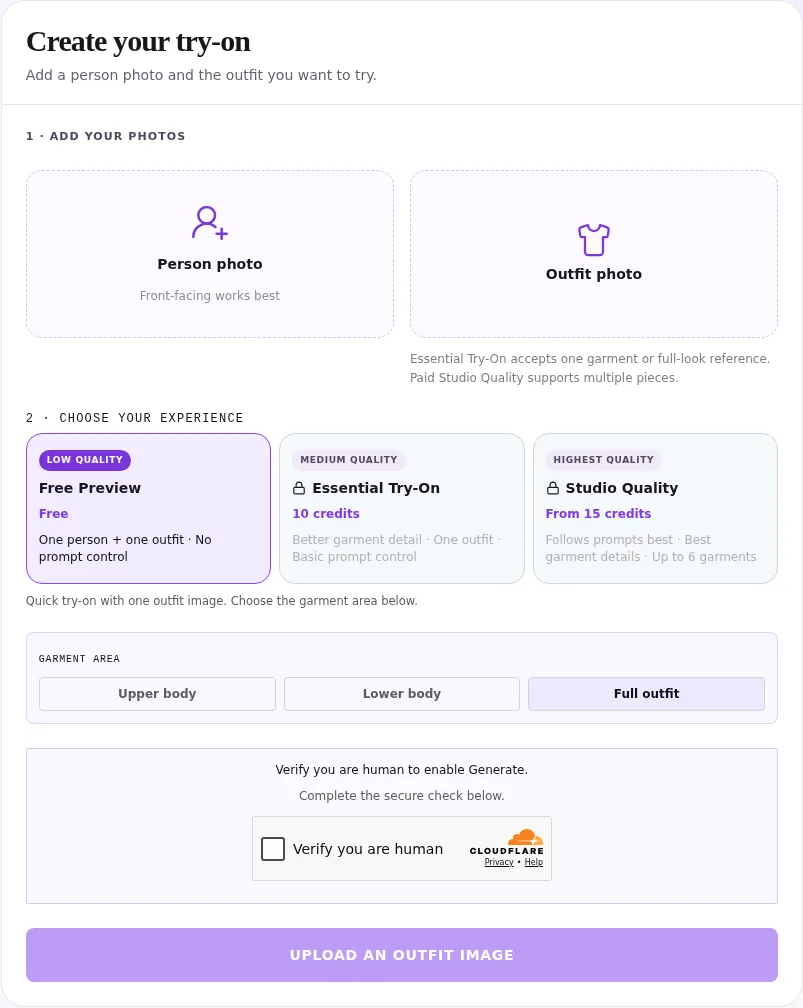
If your AI clothes changer Free Preview says it is busy and did not start, keep the page open and choose “Try Essential Try-On” to return to the workspace with your photos retained. The AI clothes changer then follows its sign-in and credit checks. Review the selected experience before pressing Generate.
Last updated: October 15, 2026 · ~6 min read
What does the busy Free Preview message mean?
The busy failure card says your request did not start. It also says that attempt did not count toward your Free Preview limit. That is different from a preview already processing, even if both situations leave you without a finished picture.
| What you see | What it means for this decision | Next step |
|---|---|---|
| Busy card saying the preview did not start | No preview is currently progressing from that rejected attempt | Keep the uploads and choose whether to retry later or inspect Essential |
| Waiting screen with an active preview | The existing request is processing | Follow the active request rather than starting another |
| Finished preview with an image | You already have a result to inspect | Decide whether a specific improvement deserves another attempt |
| Free Preview limit notice | The allowance is a separate constraint | Follow the options shown for your account |
| Human-verification or connection error | The request needs a different correction | Complete the check or restore the connection first |
For an active request, use the Free Preview waiting-screen guide.
How do you switch without uploading again?
- Leave the current page open and choose “Try Essential Try-On.” This action closes the busy card and brings back the workspace with the current uploads. It is an experience-selection action, not the Generate button.
- Complete sign-in if prompted, then inspect the form. Signed-out visitors see the existing Essential sign-in prompt. After returning, check which experience is selected and that the person and outfit thumbnails are still the ones you intended to use.
- Check credits, reference, and instructions before generating. Essential requires enough available credits. Confirm the displayed cost and selected experience, then press Generate only when you want that new attempt.
Do not close the tab to “restart” this transition. Keeping uploads here means keeping them through the busy-card action in your current workspace. It does not guarantee recovery after refreshing, clearing site data, or moving to another device. Keep the original person and garment files somewhere you can find them.
The busy-card button helps you reuse the current setup. It does not waive credit requirements or promise that the next generation will finish successfully.
What happens if you are signed out or short of credits?
When you are signed out, Essential is behind a sign-in prompt. Signing in identifies the account whose credit balance will be used; it does not itself pay for an attempt or remove a watermark. Once back in the workspace, read the selection and account notices rather than assuming the last click submitted anything.
For signed-in accounts, the switch follows Essential’s normal affordability checks. As of October 15, 2026, the homepage shows Essential at 10 credits per generation. If the balance is not ready or is insufficient, resolve the displayed account condition before proceeding. The selected tier and Generate controls are the final check.
Check any claim option shown to your account. If you consider buying credits, read the pricing and account conditions. Buying is a separate decision from retaining your photos.
Should you switch or try Free Preview again later?
Choose based on the question you want the picture to answer and whether you want to spend credits. A busy notice is not evidence that your photos are poor. Replacing a clear reference just because capacity is unavailable changes the setup without addressing the reason shown.
| Your situation | A practical choice | Check before acting |
|---|---|---|
| You only want a first visual look and prefer no credit spend | Return to Free Preview later | Its current availability and allowance |
| You want another attempt with the same one-outfit setup | Inspect Essential | Sign-in, balance, selected experience, and reference |
| You need a simple instruction, such as keeping existing trousers | Essential may suit the request | Keep the instruction narrow; detailed directions may be missed |
| You need multiple references or broader editing controls | Review Studio Quality separately | Paid access and the displayed cost |
| An existing preview is still processing | Continue with that request | Confirm it is an active waiting screen rather than a busy failure |
The card explains that Essential does not wait in the Free Preview line. That does not mean instant completion, a fixed deadline, or immunity from errors. Choose it for its separate workflow and basic prompt control, not a promised finishing time.
The virtual try-on workflow produces visual experiments, not clothing measurements. For a color-only edit, use the clothes color changer workflow separately.
What should stay the same for the next attempt?
Keep one clear person photo and one readable garment reference. For example, if you were previewing a navy jacket, retain those images and add only a focused instruction if needed: “Use the jacket in the reference; keep the existing trousers and background.” Treat that as a requested edit, not a guarantee of preservation.
AIClothSwap’s anonymous summary says 96% of generations change only one item of clothing, as of October 14, 2026. These numbers come from AIClothSwap's anonymous summary of 5,740 generations in the last 30 days and contain no personal data. The period is September 14–October 14, 2026. That describes how the tool is used; it does not establish recovery success or output fidelity.
What if the transition still seems stuck?
Avoid using repeated refreshes as a capacity fix. A browser reload reloads the current URL; it does not reserve a generation slot. If you have to reopen the page, be prepared to add your original files again. Contact support through the site if the same account or workspace error continues, and describe the message rather than sharing private photographs unnecessarily.
Frequently asked questions
Did the busy Free Preview use my free allowance?
The busy message says the request did not start and did not count toward your Free Preview limit. Read the message on your own card; a limit notice or an active preview is a different state.
Will Try Essential Try-On keep my uploaded photos?
The busy-card action keeps the current uploads when it returns you to the workspace. Keep your original files too: this is a transition within the current session, not a promise that uploads survive a refresh, cleared browser data, or a different device.
Does clicking Try Essential Try-On generate an image immediately?
No. The action returns you to the workspace and follows the sign-in and credit checks for Essential. Confirm the selected experience, uploads, and available credits before pressing Generate.
Is Essential Try-On free when Free Preview is busy?
Essential uses credits and requires sign-in. The busy message does not waive its cost. Check your account balance and any claim option shown; buying a plan is a separate decision.
Related guides
- Return to the AI clothes changer workspace →
- Free Preview versus Essential Try-On
- Essential Try-On versus Studio Quality
- How to photograph clothes for outfit edits
Keep your current photos, review the account and experience controls, and start another attempt only when the setup matches your decision.