
AI Clothes Changer App: Privacy Checks Before You Download
Before you download an AI clothes changer app, check photo permissions, app-store data disclosures, storage terms, deletion controls, and sharing limits.
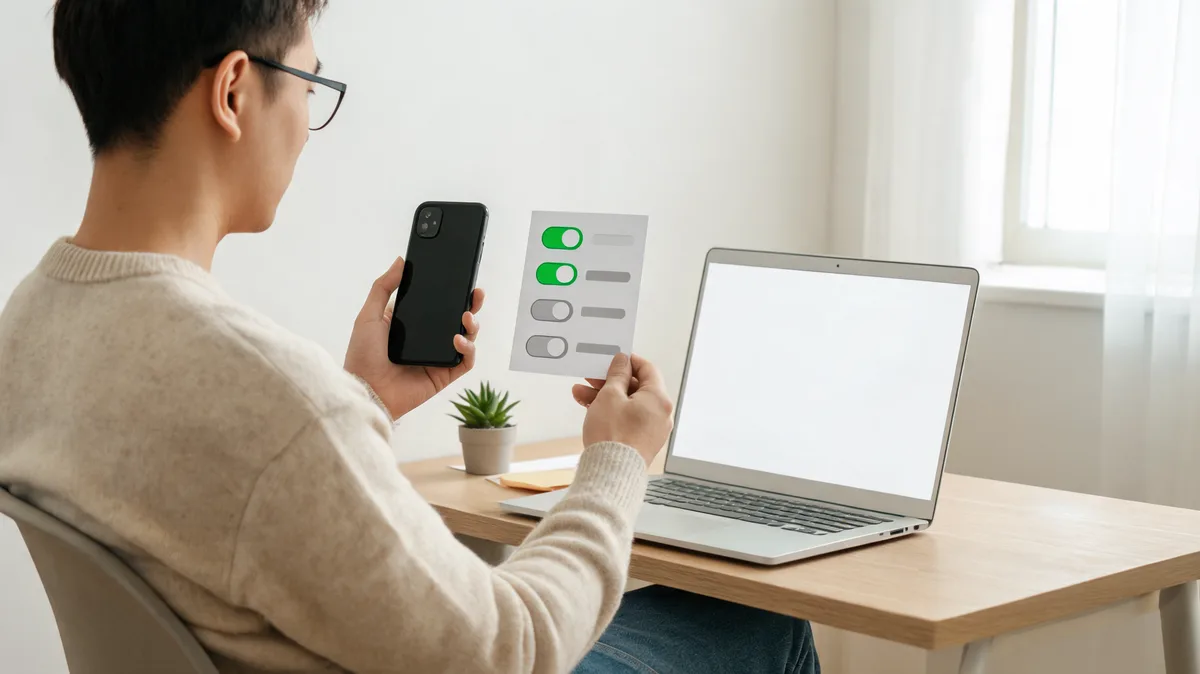
Before you download an AI clothes changer app, check what it requests from your phone, what the store says the developer collects, and what the live policy says happens to uploaded photos. For one outfit-preview test, a narrowly selected photo is usually easier to justify than broad library access; deny unrelated permissions, keep your original, and compare the result before sharing it. You can also make a controlled test in an AI clothes changer through a browser.
Last updated: September 26, 2026 · about 8 min read
This guide covers a pre-download decision, not how to operate one particular app. We reviewed Apple's current guidance on controlling app access to information, Google's Android permission controls, and Google Play's explanation of its Data safety section on September 26, 2026. Phone menus and store listings vary by version, region, and developer; check the live listing and your own device before deciding.
The short pre-download answer
An outfit-preview app may reasonably need a photo you choose and, if you want to take a new source image, camera access. That does not make every other request reasonable. Contacts, precise location, microphone, call logs, SMS, and broad background access do not follow automatically from “change clothes in a photo.” Ask what feature would fail without the permission, then decide whether that feature is worth granting.
| Check | What to look for | A practical response |
|---|---|---|
| Photo access | Can you select one image, or does the app ask for the whole library? | Prefer the narrowest option that lets you run the test |
| Camera | Is it requested only when you choose to take a new picture? | Allow only if you will use the in-app camera |
| Unrelated permissions | Contacts, microphone, location, phone, or SMS for an image edit | Deny unless the app clearly explains an optional feature you actually want |
| Store disclosure | Data safety or privacy label, developer identity, support link | Treat it as a starting point; compare it with the live policy |
| Deletion and account | A way to remove an upload, output, account, or subscription | Resolve this before you upload a personal image |
A permission request is a decision point, not a routine tap. If the explanation is missing or the request does not match your task, decline it and see whether the basic workflow still works.
Google notes that you can review and change individual app permissions in Android settings. Its guidance also describes options such as allowing access only while using an app, asking each time, or denying access where they are available. Apple similarly lets iPhone users control which apps access information. Those controls reduce device access; they do not, by themselves, explain what a service does after you upload a selected image.
Separate three things people often mix up
Permission screens, store disclosures, and a privacy policy answer different questions. You need all three for an honest decision.
- Permission: What can the installed app access on the phone? This is where you decide about photos, camera, or notifications.
- Store disclosure: What data practices does the developer report for this specific listing? Google Play says its Data safety information is developer-provided and applies to apps distributed through Google Play; it is not the same thing as the technical permissions list.
- Policy and terms: What does the operator say about uploaded photos, generated outputs, retention, sharing, accounts, training, content rules, ownership, and deletion? Read the version linked from the workflow you will use.
No single one is a full privacy verdict. A photo-only permission can still send a selected image to a remote service. A broad-looking store disclosure may cover optional analytics or accounts. The job is to understand the actual route you plan to use and decide whether its trade-off is acceptable.
For a more general upload checklist, read is an AI clothes changer safe?. That page evaluates photo handling at the tool level; this page focuses on the earlier phone-permission and app-install decision.
A conceptual editorial privacy check, not a screenshot of any app. Select only the image you intend to edit and keep the original outside the workflow.
Check the store listing before you install
Start at the official app-store listing rather than a sponsored download page. Confirm the developer name, support website, current version, and the store's data-practice summary. Then follow the policy link and look for direct answers to these questions:
- Is the photo processed on the device, uploaded to a server, or both?
- Does the policy state how long inputs and outputs are kept?
- Can you request deletion, and is a separate account deletion step required?
- Are images used to improve services or shared with providers? If the answer is conditional, what setting or plan changes it?
- What does the service say about commercial use, watermarks, exports, and ownership of generated outputs?
Do not invent a favorable answer when a policy is vague. A missing retention period or an unclear deletion process is a reason to pause, use a less personal test image, or choose a service that is clearer. If an app asks you to turn off a system warning or install from outside the store, stop and independently verify the publisher first.
Google Play also distinguishes between technical permissions and developer-reported Data safety disclosures. That is why a good review compares the “Permissions” and “Data safety” areas with the linked policy instead of treating any one panel as proof.
Use the least access that still does the job
For a single outfit-preview experiment, you usually need one input photo, not an always-on connection to every image you own. Google's policy guidance says selected-photo workflows can preserve privacy in appropriate limited-use cases. That is a useful user-side rule of thumb even though the app's legitimate technical needs vary.
Try this three-step workflow:
- Export or duplicate the one authorized adult photo you plan to use. Remove private metadata or background details if that matters for your situation.
- When prompted, select the narrowest photo option your phone offers. Grant camera access only if you want to capture a fresh image, and decline optional permissions that do not serve the edit.
- Generate one modest outfit change, inspect it at full size, download only if it passes your review, then revisit the app's permissions and account/deletion settings when you are done.
If the app cannot work without a permission you do not want to grant, that is useful information: do not force the choice. A browser-based virtual try-on may fit a one-off comparison better, although its website policy still deserves the same close reading.
Review the result and the download limits
Privacy is not the only pre-download issue. An app may limit watermark-free exports, save drafts to an account, or have separate terms for commercial use. Check those limits before you make the output part of a client, listing, or social post.
Then judge the image itself. Look for changed identity, distorted hands, detached collars, implausible sleeves, broken accessories, inconsistent light, and altered backgrounds. The rendered clothing is a styling hypothesis, not a measurement. It cannot prove that a real garment will fit, that a product is in stock, or that an exact fabric pattern is available.
For a focused quality pass, use the AI clothes changer review checklist. If you only need another color for an existing garment, a clothes color changer gives you a clearer and narrower job.
Browser versus installed app: choose by the real risk
An installed app is not automatically worse, and a website is not automatically private. Choose the route with the clearest operator, current policy, permission scope, and deletion path for the specific task.
An app can offer a convenient picker and offline editing features. A browser can avoid retaining an installed app and may make a one-time test simpler. In either case, upload only material you are entitled to edit, avoid private or deceptive images, and label an edited image honestly if context could make viewers mistake it for a real photograph.
Frequently asked questions
What permissions does an AI clothes changer app need?
A photo-editing app may need access to a photo you choose or to the camera if you take a new picture. It does not automatically need contacts, location, microphone, or broad library access for a single outfit-preview test. Check the request in context and deny permissions that do not match the task.
Are app-store privacy labels the same as app permissions?
No. Permissions control access to device features such as photos or camera. Store disclosures describe data practices reported by the developer. Review both, then read the live privacy policy for retention, sharing, deletion, accounts, and output rights.
Should I use an AI clothes changer app or a browser?
Use the route that gives you a clear provider identity, a readable current policy, the narrowest sensible access, and a simple way to remove the app or account when you are done. A browser can avoid an installed-app permission, but website uploads still require the same policy and sharing checks.
Related guides
- Try the free AI clothes changer →
- Use a virtual try-on workflow
- Change clothes color in a photo
- Review an AI clothes-changing result
- Learn how AI clothes changers handle safety
Protect the photo before the preview
Read the current listing and policy, choose the smallest access scope that works, and keep the original ready for comparison. When an app's rules are unclear, a controlled AI clothes changer test is only worth doing after the privacy questions have real answers.