
Jersey Color Changer: Test Team Colors on a Photo
Use a jersey color changer to compare team-color directions on one photo while keeping the person, fit, and fabric details easy to inspect.

A jersey color changer is most useful when you are comparing color directions on the same approved photo—not when you are trying to recreate an official kit. Start with a clear, fully clothed image, change one color family at a time, and use an AI clothes color changer to keep the person, pose, and visible fabric details stable enough to compare.
Last updated: July 30, 2026 · about 6 min read
What a jersey color preview can answer
A preview can help you decide whether a light, dark, or high-contrast color direction reads better in a photo. It cannot confirm a club's official shade, reproduce a protected crest, or prove how a physical fabric will look under stadium lighting. Keep those jobs separate.
| Good question for a preview | Check somewhere else |
|---|---|
| Does navy or white give the player more separation from the background? | Is this the official team color? |
| Does a lighter accent make a number area easier to see? | Is the logo, sponsor mark, or trim licensed and accurate? |
| Does one color obscure a fold or seam? | Does the real garment fit or perform the same way? |
That boundary is useful for school teams, fan concepts, social mockups, and any early-stage color discussion. If the design needs a specific badge or supplier-approved garment, work from the approved design file instead of asking an image model to guess it.
How to test a color direction in three controlled steps
- Choose a clean source. Use a single person, an unobstructed jersey, and even light. Crop out other players when possible so the result has one clear garment to edit.
- Change only the color family. Compare one light option and one dark option first. Keep the face, background, pose, number area, and fabric texture in the instruction as details to preserve.
- Review the full frame. Zoom out as well as in. A color may look good at chest level but disappear against the background, muddy the collar, or make a fold look like a different panel.
Treat every result as a color-planning mockup. Do not present it as an official uniform, a signed product photo, or proof that a real kit has been approved.
If you are deciding whether to place a person into a different jersey rather than recolor one, the jersey swap AI guide answers that separate task. It is better not to mix the two intents in one comparison.
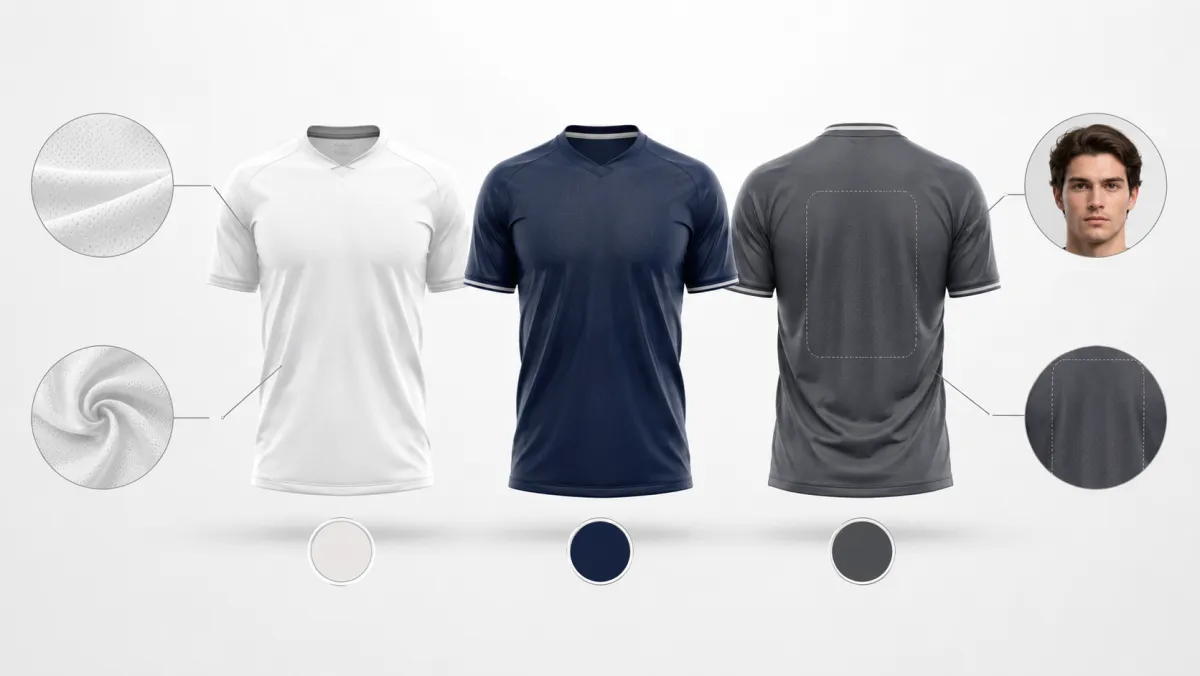
A useful comparison changes the color direction while leaving the rest of the photograph legible.
Keep the request narrow enough to inspect
The most common bad result comes from asking for too much at once: a new team, a new pose, a new number, a new logo, and a new color. That leaves no way to tell whether a strange seam came from the recolor or a wholesale redesign.
Use plain preservation language such as “keep the adult subject, pose, face, background, and jersey texture unchanged; test a deep blue color direction; no logos or readable text.” Then inspect the collar, sleeve edge, seams, and any printed number area. A change shirt color in a photo workflow is a helpful baseline when the garment is simpler than a jersey.
When not to rely on the result
Skip the preview for a rights-sensitive or fact-sensitive use: a licensed club announcement, product listing, sponsor deliverable, athlete identity claim, or a safety uniform. Use a real sample or the authorized artwork. AIClothSwap can make an early visual conversation faster; it does not replace ownership checks or final design approval.
Frequently asked questions
Can I use a jersey color changer to make an official team kit?
No. Use it to discuss a color direction, then obtain the official artwork and approvals from the rights holder or team. Do not add protected badges, sponsor marks, or claims of affiliation to a generated mockup.
How do I keep the face from changing while I test a jersey color?
Start with a clear single-person photo and specify that the face, pose, lighting, and background must remain unchanged. If those details move, discard the result rather than treating it as a reliable color comparison.
Related guides
Try the color comparison
Use one stable photo, test one color decision at a time, and bring the winning direction into the real design or shopping workflow with AIClothSwap.