
IMGKits AI Clothes Changer: Upload Checklist
Evaluate IMGKits AI Clothes Changer before uploading. Check its controls, export conditions, and photo privacy, then compare original and cropped inputs.
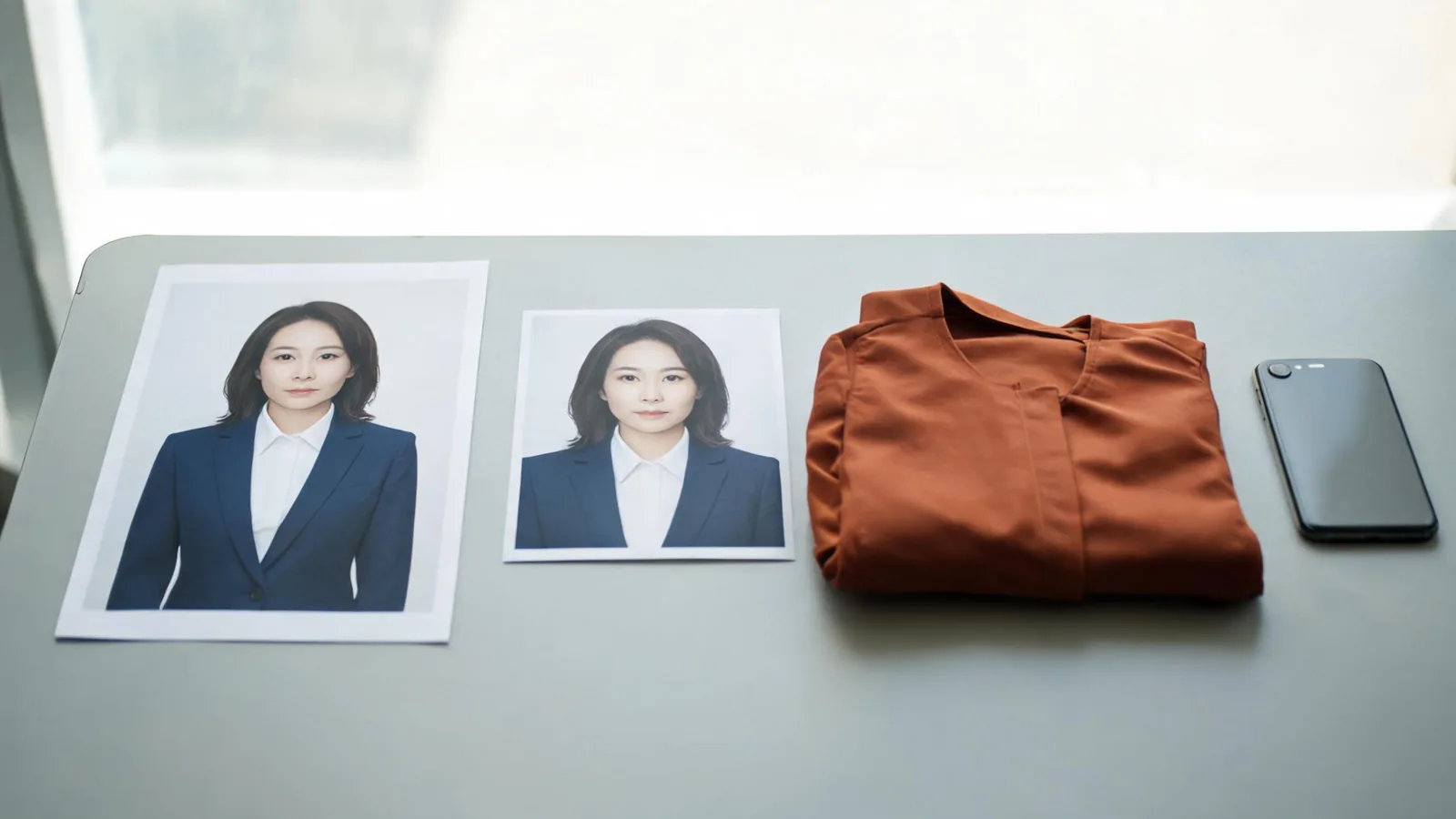
IMGKits AI Clothes Changer advertises portrait and clothing-image uploads for outfit replacement. Before uploading, check the controls, credit cost, download conditions, and privacy terms in the account you will use. Compare one original photo with a carefully cropped copy. An AI clothes changer result is a styling preview, not proof of fit or preserved identity.
Last updated: October 11, 2026 · About 8 min read
This is a buying and upload checklist, not a hands-on performance ranking. We publish AIClothSwap, an alternative outfit-preview tool. The IMGKits details below come from its public pages as of October 11, 2026; account controls and offers may change. We have not tested image quality for this guide.
What does IMGKits currently describe?
The official IMGKits AI Clothes Changer page describes uploading a portrait, adding a clothing image, and generating an outfit change. It also advertises brushing over a garment, a free trial, and support for JPEG, PNG, and GIF inputs. Its FAQ says commercial use requires a subscription.
Treat that as the maker's description, then check what is available in your signed-in workspace. A public landing page does not establish the exact controls, output dimensions, watermark rules, or export allowance for your account. Do not pay on the assumption that every advertised workflow is included in the plan you have selected.
Open the editor before preparing a batch. Identify the person-photo input, any garment-reference input, and any text or brush control actually offered. If a control is absent, adjust your test to the available workflow rather than searching for an interface shown in an unrelated tutorial.
First decide what a usable result needs to preserve. A flattering new jacket is not a successful edit if the face, hands, or garment details no longer match the source.
What should you check before uploading or paying?
Use this table to turn a product description into specific questions. The right-hand column gives you a next step if a condition is unclear; it does not claim that IMGKits has a particular restriction.
| Check | What to confirm in your account | If it is unclear |
|---|---|---|
| Input controls | Person image, garment reference, and any brush or prompt fields | Start with one simple outfit test |
| Trial allowance | Remaining credits and the cost of the chosen action | Read the confirmation before generating |
| Download | File type, dimensions, watermark, and whether export costs extra | Test one download before buying more |
| Renewal | One-time purchase or subscription and billing period | Read the checkout summary |
| Commercial use | Whether your plan permits your intended use | Ask support before client publication |
| Photo handling | Retention, deletion, and treatment of uploaded images | Use a non-sensitive permitted test photo |
The official IMGKits pricing page currently presents credit purchases and subscriptions. Review that page alongside the editor's generation cost. A page that uses the word “free” does not tell you how many attempts or full-size downloads you receive.
If you need a client-ready image, define its destination first. A small social preview and a printed catalog have different export needs. Compare the downloaded file with that requirement rather than judging a thumbnail alone.
How should you handle privacy questions?
Read the IMGKits privacy policy before using an identifiable photo. Its public notice covers several services and includes language about Google add-on data. That context is a reason to ask which retention and deletion terms apply to the specific clothing editor you are using.
Do not infer a precise deletion deadline from a short reassurance on a landing page. If that deadline matters for your work, ask support for the relevant policy or choose a different source photo. Avoid uploading confidential client images while the answer is unresolved.
Use a photo you own or have permission to edit. Remove unrelated people by choosing another photo when possible, and avoid documents, badges, addresses, or private screens in the background. Cropping the picture does not remove the need for permission to use someone's likeness.
Keep the original locally. Do not rely on an editing service to serve as your archive, and do not upload a whole folder to evaluate one clothing change. A small test gives you a useful decision without exposing unnecessary images.
How do you run a fair original-versus-crop test?
Choose one clear photo and one modest garment idea. Keep lighting, clothing instructions, and output settings as consistent as the tool allows. The purpose is to see whether framing helps your particular task, not to manufacture a universal winner.
- Save the original and make one cropped copy. Use a photo editor you already have. Retain the complete head, both shoulders, and the area where the replacement garment must be judged. Do not enlarge a tiny crop and call it a higher-resolution source.
- Use the same clothing request for both inputs. Add the same garment reference or description where supported. If you brush a region, cover the corresponding clothing area without sweeping over the face or background.
- Download and compare both results. Inspect them at a similar visible size, then examine details. Note which result preserves the face, clothing edges, and enough of the outfit to answer your question.
A blazer test needs collar and shoulder space. A dress test needs its hem and surrounding body context. Cropping a full-length image to the chest may make the upper portion look cleaner while making the dress impossible to assess.
This test does not assume IMGKits offers a built-in crop dialog. Make the copy outside the tool unless its editor explicitly provides the control you need. AIClothSwap's optional High Quality crop control belongs to its own workflow and should not be attributed to IMGKits.
What should you inspect in the downloaded result?
Face and body continuity
Compare eyes, mouth, ears, hairline, and neck against the original. Check whether the head still sits naturally on the shoulders. A change in jaw shape or expression is not automatically acceptable because the clothing looks appealing.
Inspect hands and arms where they cross the outfit. Look for fused fingers, missing straps, smeared sleeves, or a cuff that ends in the wrong place. A closer crop can hide these defects, so judge only what it actually shows.
Garment coverage and details
Check the parts that motivated the edit. For a jacket, inspect lapels, shoulder seams, buttons, and the opening over the shirt. For a full outfit, keep the waist, trouser line, or hem visible. Confirm that the tool has not silently changed the garment category.
If you supplied a reference, compare color, pattern, pockets, and closures. A plausible coat is still the wrong result if the reference had a distinctive feature that disappeared. Avoid using that image to represent a real item for sale without confirming accuracy.
Light, background, and export quality
Look at shadows around the neck and under sleeves. The garment should make sense in the source lighting. Inspect the background around the shoulders for patches or bent lines that suggest an unintended edit.
Open the exported file, not just the editor preview. Check its dimensions and examine edges at normal viewing size. Do not assume an attractive small preview will remain sharp enough for the intended destination.
When is cropping helpful, and when should you keep the original?
A crop can be useful when a person occupies a small part of a large frame and the task concerns an upper-body garment. It can be unhelpful when it removes a hem, hand, accessory, or background detail you need to compare.
Keep the original for a complete outfit assessment. Use the crop for a narrow question only if it still contains the needed context. If both results fail, choose a better source photo before spending more attempts on slight framing changes.
Do not judge a tool from one unusually flattering output. AI edits can vary even when settings are similar, and one original-versus-crop pair does not isolate every cause of a difference. It is a practical acceptance check for your image, not a controlled benchmark.
The hero is an illustration of two photo framings. It is not an IMGKits screenshot or a generated result from either editor.
How can you compare AIClothSwap without changing the test?
Use the same permitted source photo and the same acceptance criteria. AIClothSwap's virtual try-on offers an outfit-visualization workflow. For a separate color-only question, use the clothes color changer rather than treating a recolor as evidence of full garment replacement.
If you are preparing a reference image, the AI dress-up tool provides another relevant starting point. Check the live workspace's tier, inputs, and credit display before generating. Different tools may support different input combinations, so compare only a task both can actually perform.
Choose based on the usable downloaded result, account conditions, and the workflow you need. A tool that suits a personal styling preview may not suit accurate ecommerce imagery. Keep the original photo and label a generated outfit visualization where that distinction matters to viewers.
A short introduction to the clothing workflow
This video introduces IMGKits' clothing-preview workflow.
Frequently asked questions
Is IMGKits AI Clothes Changer free?
Its public clothing page advertises a free trial. Check the allowance, credit cost, and download conditions shown in your account before generating; a trial does not establish unlimited free exports.
Does IMGKits have the same crop tool as AIClothSwap?
Do not assume that it does. For a framing test, make a cropped copy with a photo editor you already use. AIClothSwap offers its own optional crop control in the High Quality workflow, which is a separate product feature.
Will a cropped input keep my face unchanged?
No crop guarantees face preservation. Keep the complete head and shoulders in frame, then compare facial features, neck edges, and hair against the original photo after generation. Reject an output that changes identity.
Can an AI clothes changer show whether clothes will fit?
It can provide a styling visualization, but it does not measure physical fit or prove fabric behavior. Check real garment measurements and try the clothes on when possible.
Related guides
For framing controls, read the optional crop tutorial. For output inspection, use the AI clothes changer review checklist and the guide to why AI clothes swaps look fake.
Make one small test before committing
Decide what a usable export must preserve before you upload. If you want another outfit-preview workflow, try the AI clothes changer with the same permitted source photo and the same review checklist.