
AI Clothes Changer Results: Reopen Your Saved Outfit
Reopen your AI clothes changer results after a reload, find saved outfits in My History, and download the versions you want to keep.
To reopen your AI clothes changer results, return to the same page in the same browser and sign in to the account that made the outfit. The AI clothes changer can restore its latest completed signed-in swap within a six-hour window. If it does not appear, check My History before creating another version.
Last updated: October 12, 2026 · about 8 min read
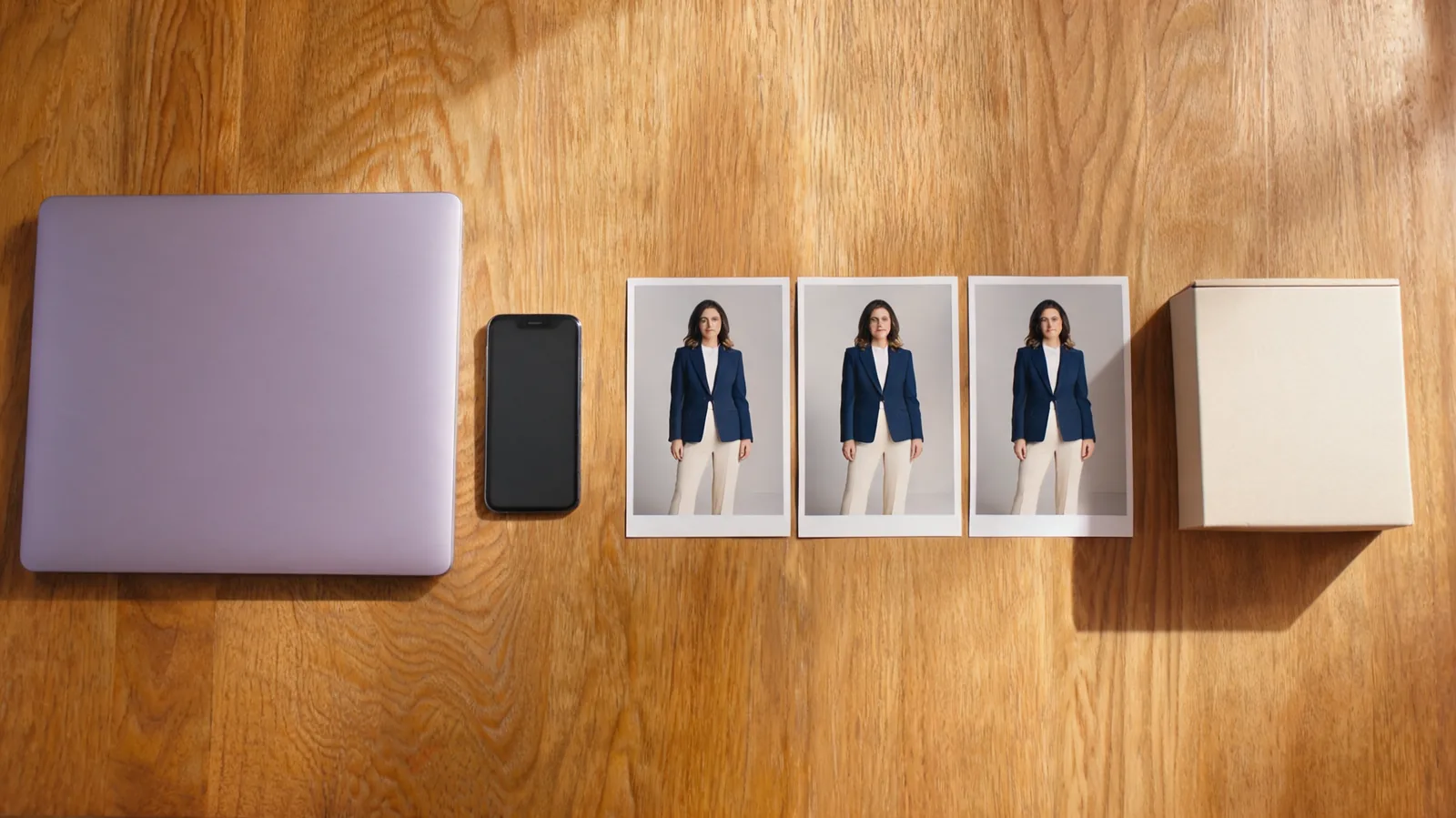
The cover is a conceptual illustration of organizing outfit previews, rather than a screenshot or a demonstrated product result. This guide describes the completed signed-in result workflow available as of October 12, 2026.
How do you reopen a completed outfit in three steps?
Start with the account and page you used for the original outfit. A blank upload form after a reload does not, by itself, prove that the generated image has been lost.
- Return to the original tool page. Use the same browser on the same device if possible. If you created the swap on the homepage, reopen the homepage rather than a different clothing tool. Wait for the page and your sign-in state to load.
- Check the result card. When the remembered completed swap is still available, the page can retrieve it and show it again. Confirm that the clothing and person match the attempt you wanted. The shortcut remembers the latest swap for that page, rather than every outfit you have made.
- Open My History if needed, then save your choice. A completed signed-in result offers a “Saved in My History” link. You can also visit your account's My History gallery. Find the relevant result and use the download options available for it.
Avoid pressing Generate immediately because you cannot see the previous image. That starts a different task and makes it harder to distinguish retrieval from creating another variation. First establish whether the old attempt is present in your account.
What does the six-hour recovery window actually cover?
The six-hour window is a browser shortcut for the latest signed-in swap on a particular page. It is not a promise that the page will always show your favorite outfit, and it is not a published account-storage deadline.
Treat the window as a convenience for returning soon, rather than a deadline for saving your file. If an attempt took time to finish, do not delay downloading a useful result just because you expect the page to remember it.
For example, suppose you start a swap on the homepage, look at the completed outfit, and then use another app. Returning shortly afterward in the same browser gives the page a chance to reopen that attempt. Returning the next day is a different situation: use My History instead of expecting the browser shortcut to remain active.
The browser also needs its site data. Clearing that data, using another browser profile, or switching to a device without the original browser record can remove the shortcut. Private browsing or storage restrictions can prevent remembering an attempt. These conditions do not establish whether a result is still available in account history.
Six hours describes page recovery. Downloading gives you a file of your chosen result; My History gives you an account route to available attempts. Treat these as separate conveniences.
Should you use the page, My History, or a download?
Choose based on what you are trying to do now. A result card is convenient when you are still working on one outfit. History is useful when you want to locate an earlier attempt. A download is useful when you have made your choice and need your own copy.
| What you need | Start here | Limitation to remember |
|---|---|---|
| Continue looking at the latest outfit after a reload | The original page in the same browser | The remembered attempt has a six-hour window |
| Locate an earlier signed-in outfit | My History in the original account | The latest-result shortcut is not an archive |
| Keep a chosen version for later comparison | Download the available result | Confirm which version and download option you saved |
| Find an outfit from another device | Sign in and check My History | The original browser shortcut does not travel with you |
| Recover a pending anonymous preview | Follow the preview's return workflow | Completed signed-in history instructions do not describe anonymous access |
An outfit preview can help you compare a look; it does not prove a garment's size, actual fit, or material. If you are returning to a virtual try-on to make a purchase decision, compare the saved image with the retailer's garment details and sizing information too.
What if your phone discarded the tab?
Phones may reload a page when you return to it after using other apps. The important distinction is whether you are reopening the original page or starting a new attempt.
Return to the same tool, let the connection settle, and confirm that you are signed in. If the latest completed attempt is remembered and available, the page can show that result after reloading. You do not need to recreate the outfit just because the original tab contents disappeared.
If you actually closed the tab, your browser may help you reopen it. Mozilla's Firefox session-restoration guide explains how Firefox restores earlier tabs and windows. Restoring a tab gets you back to a page; it does not itself guarantee that a website can retrieve a generated image.
Do not spend the whole recovery window repeatedly closing and reopening the browser. Once you have returned to the page and checked your account, use My History if the result is absent. If you already downloaded it, look in your device's Downloads folder or the location you selected when saving.
Why might the wrong outfit appear, or no outfit appear?
The homepage shortcut recalls its latest remembered attempt. If you created a navy blazer outfit and later created a green cardigan on that page, the shortcut is not designed to pick the blazer because you liked it more. Look for the earlier result in history.
Opening a different tool page can also give you a different result context. An image made with the clothes color changer belongs to a recoloring workflow. Returning to the homepage does not mean its latest-result shortcut will select that recolor. Keep the original page in mind when using browser recovery.
If the card is empty, check these conditions in order:
- Account: are you signed in to the account that created the outfit, rather than another email or browser profile?
- Page: are you on the tool page where you made it?
- Time: is the remembered attempt still within the six-hour window measured from its start?
- Browser data: have you cleared site data, changed browsers, or used private browsing?
- Availability: can you find the result in My History, and does it open there?
An expired session or unavailable result can prevent retrieval. Signing in again may resolve the account issue; it cannot restore an image that is no longer available. If you deliberately deleted a result or account data, do not treat the page shortcut as a backup.
Does this also recover an anonymous Free Preview?
This article's completed-result steps describe signed-in swaps. Anonymous Free Preview has a separate waiting and return flow. Do not assume an anonymous attempt creates account history or that opening any account will reveal it.
If your preview is still processing, read the Free Preview wait-time guide. A pending preview, a completed signed-in image, and a failed attempt need different next steps. Retrieving a result also does not change which download options your account can access.
Likewise, cancellation is a separate decision. If you no longer want a running attempt, use the instructions in how to cancel an AI clothes changer generation. Reloading a tab should not be used as a substitute for deliberately stopping a request.
How should you save a useful result before moving on?
First inspect the image at a useful size. Check the face, hands, garment edges, accessories, and background. An outfit can look convincing in a small card while showing changed details when enlarged. Save the version you actually want to use rather than the first thumbnail that appears.
Next, use the result's available download control and open the saved file once. Confirm that it is the intended outfit. For your own organization, a name such as “navy-blazer-choice” is more useful than several files that all look alike. Keep the original photo separately so you can compare what changed.
If you are preparing several ideas with the AI outfit generator, save each useful version before starting the next. A small folder of selected looks is easier to review than relying on the page's latest outfit. Keep a short note about the occasion or clothing idea if that helps you decide later.
Finally, remember that a saved preview is an edited image, not evidence that a physical garment will fit the same way. Use it for visual comparison, then check the real item's measurements, material, and return conditions before buying.
Frequently asked questions
How do I find my AI clothes changer results again?
For a completed signed-in swap, return to the same AIClothSwap page in the same browser within the six-hour recovery window. If the result does not reopen, sign in to the account that created it and check My History. Download useful results rather than relying on the page to keep them available indefinitely.
Does the six-hour window mean my saved outfit is deleted after six hours?
No. The six-hour window describes the page remembering its latest signed-in swap, not a published retention period for your account history. Check My History separately. Neither the page shortcut nor history should be treated as a guarantee of permanent storage.
Can I recover a result on a different phone or browser?
The same-page shortcut depends on the original browser's site data. On another phone or browser, sign in to the account that created the result and check My History instead. A saved file that you already downloaded is another way to access your chosen version.
Will reopening a result create another outfit?
Reopening an available completed result retrieves the existing attempt. Starting a New Swap is a separate action. Check the result card and My History before generating again just because the page looks empty.
Related guides
- Open the AI clothes changer →
- Change clothes in a photo with AI
- Choose between Essential try-on and Studio quality
Ready to continue your outfit decision? Return to AIClothSwap, retrieve the available result, and save the version you want to keep.