
How to Change Saree Color from Purple to Blue Digitally
Change a purple saree to blue digitally while preserving borders, motifs, folds, and pallu. Use an AI or Photoshop workflow, then inspect the result.
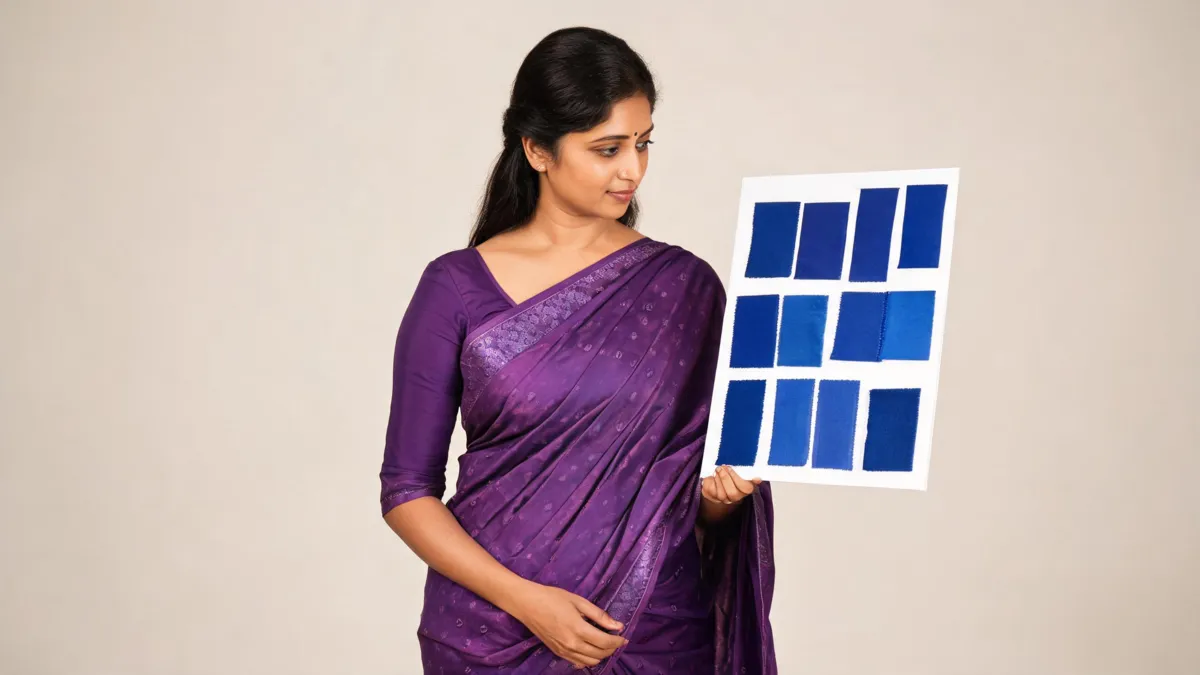
To change a purple saree to blue digitally, keep the edit limited to the saree and then inspect the border, blouse, pallu, pleats, motifs, translucent areas, and shadows before you keep the result. A controlled clothes color changer can help you compare the direction quickly; Photoshop gives more manual control when you need to refine a selection. Neither method can prove the exact color or drape of a real saree.
Last updated: September 12, 2026 · about 8 min read
This is a saree-specific companion to our broader clothes-color guide, not a replacement for it. The broad guide compares general recoloring methods. Here, the task is narrower: change purple to blue while preserving the structure that makes a saree read as a saree rather than as a flat blue shape.
Choose the blue before you begin
“Blue” can mean navy, royal blue, cobalt, indigo, or a muted slate. Pick one direction before you edit, then decide which existing details should retain contrast. A pale silver border may need to stay separate from the blue body; a purple blouse may need to remain purple if the goal is only to recolor the saree.
Use a clear photo you own or have permission to edit. The full pallu does not have to be visible, but the areas you care about should be. A crop that hides most of the pleats or cuts through the border makes it impossible to tell whether the color shift held together.
| Editing route | Best when | Main risk to check |
|---|---|---|
| AI color workflow | You want a fast, controlled visual comparison | The model may reinterpret motifs, border edges, or folds |
| Photoshop Hue/Saturation with a mask | You need to control exactly where the change lands | A rough mask can tint skin, jewelry, blouse, or background |
| Global color adjustment | The saree is isolated against a simple background | Matching purple elsewhere in the image may shift too |
Do not assess the edit only at phone size. Saree borders and repeating motifs can look acceptable in a thumbnail while revealing breaks, mismatched repeats, or painted-looking folds when you zoom in.
The AI workflow: change one garment, not the whole image
Use a narrowly described request: “Change only the purple saree body to royal blue. Preserve the face, pose, blouse, border, jewelry, background, folds, pleats, pallu, and fabric texture.” If you want the border recolored too, say so explicitly and name the target contrast.
Then make a second version only if you are comparing a different blue. Do not combine the recolor with a new blouse, a changed pose, a new room, or a different hairstyle. Those changes make it hard to know whether you like the color or merely the new image.
The AI Saree Generator is useful for a broader saree-style concept; this article's color-only workflow is different. Use it as visual exploration, not a claim about a particular textile, regional tradition, or retail garment.
- Prepare the original photo. Use even light, a visible saree area, and a frame without heavy obstruction from hands, hair, or a bag.
- Name the exact scope. Specify “purple saree to royal blue” and list what must remain unchanged. If the blouse is not part of the request, say so.
- Compare and inspect. Look at the full drape, then zoom into the border, pleats, pallu, motifs, and places where the saree meets skin or background.

A saree recolor is credible only when the border, pallu, folds, and small motifs remain coherent at close view.
The Photoshop route: select first, recolor second
For a manual method, make a selection that includes the intended saree fabric and excludes skin, jewelry, background, and any blouse you want to keep. Adobe's current guidance for replacing object colors with Hue/Saturation uses a selection to create a mask on an adjustment layer. This keeps the change non-destructive, so you can refine it instead of repainting the original.
Move Hue and Saturation gradually, then use Lightness carefully enough to retain the weave's highlights and shadows. Adobe also notes that painting black or white on the adjustment-layer mask refines the affected area. That matters at the pallu edge and along a border, where a broad selection can quickly contaminate the background or an arm.
For a purple-to-blue change, the target is not a single flat RGB fill. Retain darker folds, brighter highlights, and the separate color logic of a contrast border. If blue makes the fabric look like plastic, undo the last adjustment and reduce the strength before trying a different hue.
Five places a saree recolor can fail
1. The border changes thickness or loses continuity
Follow the border from shoulder to lower drape. A clean color shift should not turn a narrow border into a thick stripe, erase it around a fold, or attach it to the background.
2. Motifs become new symbols or repeat oddly
Small woven details can be reinterpreted by an AI edit or blurred by a mask. If a motif matters to the photo, compare it against the original rather than assuming it survived.
3. Pleats lose their depth
Color sits differently in a trough than on a highlight. If every pleat becomes the same bright blue, the edit has removed the lighting information that gives the drape volume.
4. Translucent or sheer areas become opaque paint
Where the fabric is lighter or partly translucent, make sure the original light relationship still reads naturally. A recolor should not unexpectedly darken skin, jewelry, or background seen through the fabric.
5. The blouse and saree no longer belong together
You may want a deliberate contrast, but it should look intentional. Compare neckline, sleeve edge, and the border-to-blouse transition before you share the image.
A video for the Photoshop method
The short creator tutorial “Easy Saree Color Change Tutorial” below shows how to change a saree's color in Photoshop; use the inspection checklist above to judge your own result.
Keep the conclusion honest
A digital recolor can help you decide that royal blue feels more suitable than purple in a particular photo. It cannot tell you how a real blue saree will look in daylight, whether a fabric is silk or synthetic, how it will drape in motion, or whether a seller's product matches the image. Confirm real-world color with current product photos, fabric information, and—when the purchase matters—a swatch or return policy.
Frequently asked questions
How can I change a purple saree to blue in a photo?
Start with a clear permitted photo, select or describe only the saree, choose a specific blue, and preserve the person, blouse, background, border, pleats, and pallu. Review the full drape afterward because a color change can break small motifs or edge continuity.
Will changing a saree color digitally preserve the border and motifs?
Not automatically. Fine borders, woven motifs, translucent areas, pleats, and folds are the places most likely to show an editing error. Treat the first result as a draft and inspect those details at full size before sharing it.
Can a digital saree color change show the exact color of a real saree?
No. Screen color, lighting, camera processing, and fabric sheen all affect appearance. A digital edit can help compare a color direction, but it cannot replace viewing or ordering a real fabric swatch.
Related guides
- Try the free AI clothes changer →
- Clothes color changer
- AI Saree Generator
- How to change clothes color in a photo
Compare the color direction, then verify the fabric
Use a precise blue, keep the scope narrow, and inspect every part of the drape. When you are ready to test a controlled color direction on a permitted image, start with the AI clothes changer.